

Writing the document is often easier than getting the right people to review, edit, and approve the same version. The best document collaboration software makes it clear who needs to act next and which version is ready to use.
Best Document Collaboration Software: Key Findings
- Match the tool to the task: Dropbox supports client file exchanges, Zoho Writer handles approvals, and Document360 helps maintain customer guidance.
- Self-hosted editors give you more control over document processing, but your team or hosting partner must handle maintenance.
- Compare the full cost of seats and add-ons, then test client access, review, approval, and export with a real document.
Comparing Document Collaboration Tools in 2026: What Fits Your Team?
Your next document platform will probably join a crowded software budget. In 2025, Okta's report found that organizations in its customer dataset used an average of 101 applications. That covers business software broadly, but it gives you a reason to check for overlapping features before you add yet another subscription.
When your team outgrows a shared folder, you need more control over what happens to each document. Where is the work getting stuck? Whether it's client sign-off or keeping internal guidance current, use that problem to narrow your shortlist.
Deployment, Data Storage, and Embedding Compared
Compare your options, checking where your documents will live and whether your team can edit them inside the software you already use.
| Tool | Deployment options | Where document data is stored | Embeds into third-party platforms |
| ONLYOFFICE Docs | Self-hosted or cloud-hosted | Connected storage; document copies processed on the editing server | Full collaborative editing through connectors or custom integration |
| Collabora Online | Self-hosted or partner-hosted | Connected storage; documents processed on the editing server | Full editing within connected platforms, including Nextcloud |
| Google Docs | Cloud-hosted | Google Drive | View-only embeds of published documents |
| Microsoft 365 | Cloud-hosted, with desktop apps | OneDrive or SharePoint Online for cloud collaboration | Full editing through approved partner integrations |
| Notion | Cloud-hosted | Notion-managed cloud storage | Published page embeds |
| Confluence Cloud | Cloud-hosted | Atlassian-managed cloud storage | External display through third-party apps; native sharing includes public links |
| Dropbox | Cloud-hosted | Dropbox cloud storage, with optional local synced copies | File and folder previews |
| ClickUp Docs | Cloud-hosted | ClickUp-managed cloud storage | Public sharing available |
| Document360 | Cloud-hosted | Vendor-managed cloud storage | Help-content widget for websites and apps |
| Zoho Writer | Cloud-hosted | Zoho cloud storage; Office Integrator can save to your storage | Full editing through the separate Office Integrator service |
Note: Your documents may be stored and processed in different locations.
How We Chose These Tools
We chose these tools to cover different collaboration needs and deployment options, comparing editing features, data storage, integrations, and pricing using official documentation and user reviews.
Prices reflect annual billing where applicable, but monthly rates may differ.


2 Self-Hosted Document Collaboration Tools for Greater Data Control
Self-hosted tools let you edit documents within an existing platform using infrastructure you control. You'll also take responsibility for maintenance and backups.
1. ONLYOFFICE Docs: Best for Editing Documents Inside Your Existing Platform
Consider ONLYOFFICE Docs if your team already has a place to manage files but keeps downloading them to make changes.
Uploading revised copies after every edit leaves your team checking which file is current. ONLYOFFICE Docs brings collaborative editing into the platform where you already manage those files.
It offers 50+ integrations and 60+ plugins. Through supported connectors, you can edit documents inside platforms like Odoo, Jira, or Confluence and save changes back to the connected storage. Colleagues can work on the same file, leave comments, and suggest revisions for others to accept or reject. The suite also handles spreadsheets, presentations, and PDFs.
For self-hosted deployments, you choose where the editing server runs. Your connected platform supplies document storage, while the editor processes copies and returns saved changes. Check the connector for your exact platform edition: available integrations and their capabilities differ.
Pros:
- Adds collaborative editing to an existing document workflow
- Supports common Microsoft Office formats
- Self-hosting gives you control over the editing infrastructure
- Ready-made connectors reduce custom development for supported platforms
- Free Community edition
Cons:
- Community licensing includes attribution and modified-version labeling requirements; separate rules govern trademark use
- Self-hosting adds maintenance and support responsibilities
- Connector capabilities vary by platform and edition
- Commercial licensing and infrastructure costs need to be assessed together
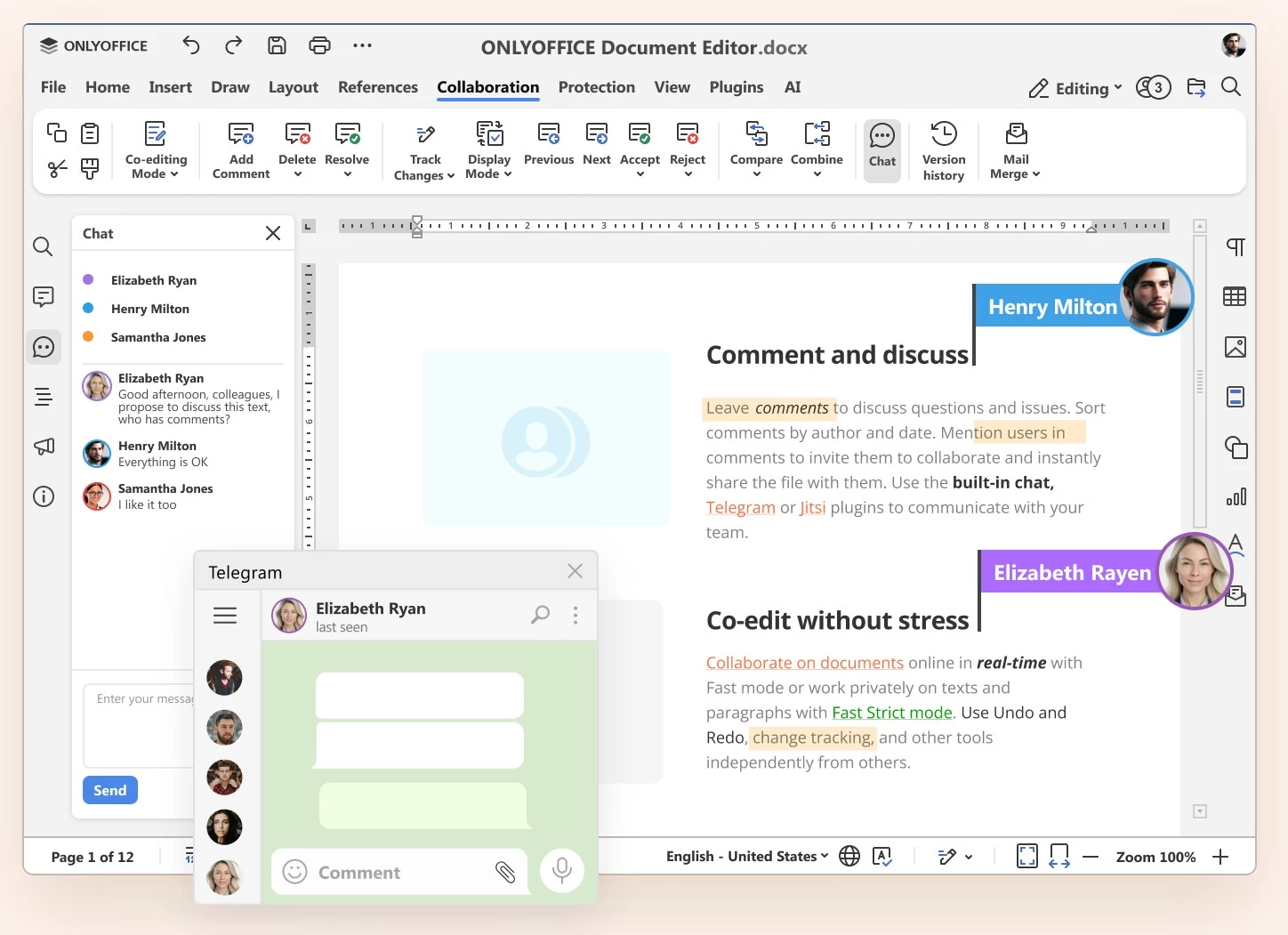
Compatibility deserves a practical test. ONLYOFFICE explains that it built its editors around the Office Open XML formats used by Word, Excel, and PowerPoint. That makes it relevant when clients expect editable Office files, although it doesn't guarantee every complex document will look or behave identically across applications.
ONLYOFFICE Docs lets you add editing without moving everyone to another workspace. Self-hosting requires ongoing maintenance, but Galina Goduhina, ONLYOFFICE Commercial Director, explains the payoff:
“...the self-hosted deployment lets you fully control your data, which is crucial in some industries.”
You’ll need your team or a hosting partner to manage that infrastructure.
Pricing
- Community: Free self-hosted edition
- Enterprise: From $1,500 (pricing depends on connection capacity, license duration, and support; hosting costs are extra)
- Developer: Separate commercial licensing for embedding in your own product
Case Study: NetExplorer Connects Co-Editing With File Storage
In a 2020 case study published by ONLYOFFICE, French file-sharing provider NetExplorer connected Docs Developer Edition through APIs and hosted it on its own servers. Customers could co-edit in their browser, with changes saved back to NetExplorer for version tracking.
The deployment was used to support sensitive healthcare documents, including medical reports and examination results. ONLYOFFICE reported that Docs was certified as part of NetExplorer’s HDS-certified solution at the time.
Other Notable Features
- Document comparison and merging
- Fillable PDF forms
- Plugins for extending the editor
- Configurable AI connections, including support for local models
2. Collabora Online: Best for Teams Working With OpenDocument Formats
Consider Collabora if you manage files in Nextcloud and regularly work with OpenDocument formats.
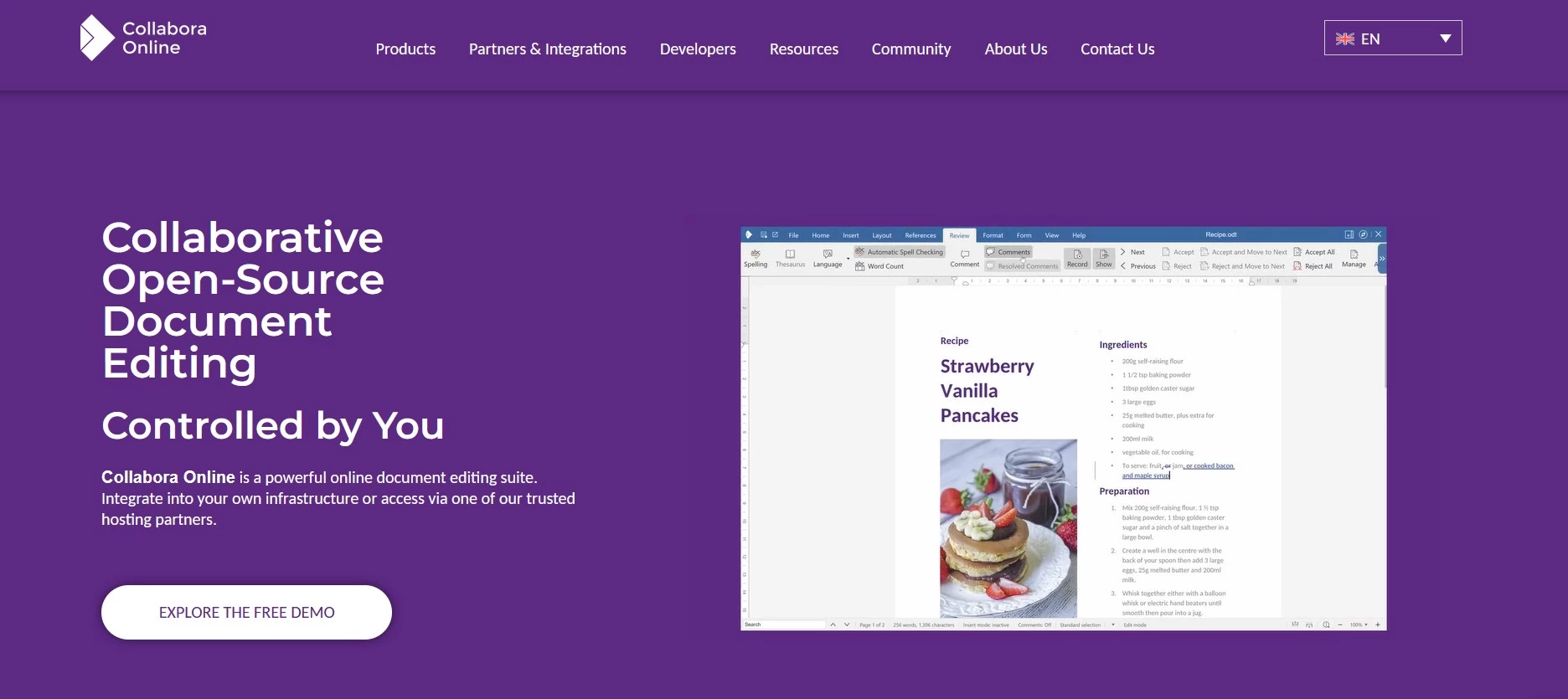
Collabora Online brings LibreOffice-based editing into Nextcloud, so your team can work on documents where you already organize and share them. It supports Microsoft Office files alongside OpenDocument formats such as ODT and ODS.
Let’s say you’re reviewing a proposal with someone who doesn’t use your internal workspace. Clients can contribute through public links without a Nextcloud account (when your sharing settings allow it).
Collabora remains available in Nextcloud, although Nextcloud’s main Office offering now uses Euro-Office, so confirm which editor your setup includes.
Nextcloud’s built-in Collabora Online Development Edition (CODE) server makes setup easier, but Nextcloud recommends a dedicated installation for better performance as your team’s editing needs grow.
Pros:
- Editing and client collaboration within Nextcloud
- Strong fit for OpenDocument workflows
- Control over where you host the editing service
- Paid subscriptions include long-term support and security updates
Cons:
- Microsoft Office files can show formatting differences
- Self-hosting requires ongoing technical maintenance
- The built-in CODE server has performance and scalability limitations
- Hosting costs sit alongside the software subscription
Nextcloud acknowledges possible formatting differences with Microsoft formats, so if clients expect Word files, test their templates before deciding.
Also test with several colleagues editing at once. A successful solo trial won’t show whether your chosen server can handle a busy review session. Ask whoever manages the deployment to include expected concurrent use in their capacity planning.
Pricing
- CODE: Free development edition for testing and home use
- Business: $3.40/user/month, for up to 99 users
- Enterprise: Custom pricing for 100+ users
Case Study: SIB Brings Shared Editing to French Schools
SIB, a French public digital services provider, needed to make files accessible from home and across devices for middle schools in Ille-et-Vilaine, Brittany, according to Nextcloud's 2021 case study. Its deployment of Nextcloud with Collabora let students work in shared folders, which helped teachers avoid difficulties opening assignments created in different Microsoft Office versions.
Teachers and school leaders also used Collabora for administrative work, while users unfamiliar with online document services received personal coaching during the migration. If you’re planning a similar move, include onboarding alongside the technical setup.
Other Notable Features
- Document comparison with changes you can accept or reject
- Individual spreadsheet views for filtering without disrupting colleagues
- Synchronized online presentations
- Navigation sidebar for long documents
8 Cloud-Hosted Document Collaboration Tools for Team and Client Work
With cloud-hosted tools, the vendor takes care of hosting and software updates. Your main decision is how much of the document workflow you want the platform to handle.
The eight options below cover shared editing, client feedback, and structured publishing, so start with the ones that address where your current process is coming up short.
1. Google Docs: Best for Everyday Co-Editing
Choose Google Docs if you need colleagues and clients to review shared drafts with minimal setup.
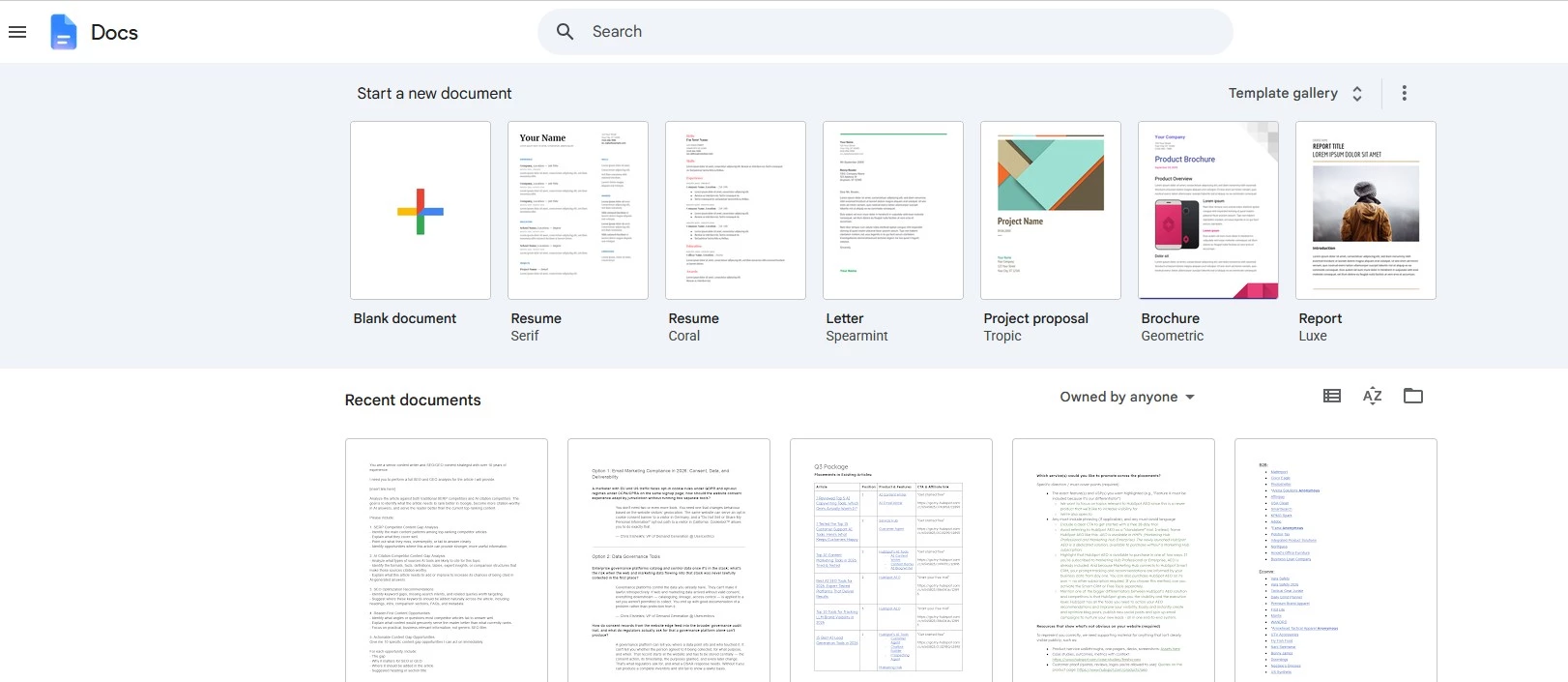
Google Docs is an online document editor that lets you draft and revise content with other people in the same file. It suits teams producing proposals, marketing copy, and other documents that need regular feedback.
Reviewers can suggest edits without replacing the original wording, while comments keep discussions attached to the relevant passage. You can accept or reject changes individually and restore earlier work through version history.
Client access with visitor sharing enabled lets eligible Workspace organizations invite people without Google accounts to view, comment, or edit after verifying their email address. Visitors must reverify after seven days if they need continued access.
Google Docs works best when the document itself is the focus of collaboration. If your problem involves maintaining guidance across hundreds of files, you'll also need clear ownership and a consistent way to organize them.
Pros:
- Free personal accounts support everyday document collaboration
- Suggestions and inline comments make editorial feedback easy to follow
- Version history lets you recover earlier drafts
- Works alongside Google Drive and Gmail
- Visitor sharing can accommodate clients without Google accounts
Cons:
- External collaboration depends on your organization's sharing settings
- Keeping a large document collection current requires ongoing organization
- Formal approvals require an eligible Workspace account
Google Docs is worth keeping on your shortlist if you're already paying for Workspace. Before switching, check whether its review features fix the problem you're trying to solve.
For example, Google Drive approvals can request sign-off and lock documents during review on eligible accounts, which helps when a resolved comment doesn't provide enough certainty that someone has approved the work.
Docs is a practical starting point for client drafts with straightforward review requirements. Teams that need documentation linked closely to project tasks or a structured publishing process should look at more specialized options.
Pricing
- Free: Available for personal use
- Business Starter: $7/user/month
- Business Standard: $14/user/month
- Business Plus: $22/user/month
What Users Say
Capterra reviewers praise automatic saving and the convenience of working across devices, but some do point out limitations.
Swarnika A, a research scholar, said: "...it lacks advanced tools for precise layout management, complex indexing, or sophisticated bibliography styling, which are often required for high-level research publications."
Other Notable Features
- Offline editing after setup
- Document tabs for organizing sections within a file
- Smart chips that reference people and files
- Microsoft Word file editing and PDF export
2. Microsoft 365: Best for Teams Working in Word
If your team exchanges Word files with clients and needs shared editing alongside detailed formatting controls, consider Microsoft 365.
If documents need to survive several rounds of editing without losing their formatting, Microsoft Word might do the job. It combines familiar review tools with shared editing through OneDrive or SharePoint.
Track Changes lets reviewers propose revisions you can accept or reject individually, while comments keep feedback beside the relevant text, and Word's formatting controls suit longer reports with tables of contents, citations, and defined styles.
If your reviews involve comparing two client drafts or combining changes from several reviewers, check for desktop Word access. Those tools really help when feedback arrives in separate files and you need to reconcile it before updating the shared version.
To keep everyone's edits in one version, share a link to the Word file in OneDrive or SharePoint. Emailing downloaded copies creates separate drafts that you'll need to merge later.
Pros:
- Familiar review tools for teams and clients working in Word
- Detailed formatting controls for long or structured documents
- Shared editing through OneDrive and SharePoint
- Fits organizations already using Microsoft 365
Cons:
- Browser and desktop capabilities differ
- Desktop apps aren't included in every business plan
- Sharing permissions can require administrator involvement
- Separate downloaded copies can fragment the review process
Word is great when the final deliverable needs to remain an editable DOCX file. You can keep drafting and review in the format your client expects, so less moving between editors.
Pricing
- Business Basic: $7/user/month, with web and mobile Word
- Business Standard: $14/user/month, adding desktop Word
- Business Premium: $22/user/month, adding advanced security and device management
All three include OneDrive and SharePoint, with 1 TB of cloud storage per user.
What Users Say
Reviewers value Word’s formatting options, Track Changes, and version history for managing detailed documents and feedback. Although some do find live collaboration less convenient than Google Docs or report slowdowns when tracking edits.
Other Notable Features
- Styles and automatic tables of contents
- Citation and bibliography tools
- Document comparison
- Desktop editing for offline work
3. Notion: Best for Combining Documents and Team Wikis
Consider Notion if your team needs to keep working documents connected to the guidance and project information behind them.
As document management and collaboration software, Notion connects editable pages with team wikis and databases, keeping project briefs alongside supporting research and task status. That structure is ideal for when people repeatedly ask where to find an answer. A team handbook can link to detailed procedures, while page owners take responsibility for keeping those instructions current.
Notion's wiki features support ownership and verification that helps readers identify information that someone has checked.
For client work, you can invite guests to specific pages without making them paid workspace members. Guests need a Notion account, and take note that access can extend to subpages, so first check what sits beneath a page before sharing it.
The setup takes a bit of thought since someone needs to decide how pages connect and which templates the team should use. Without that upkeep, documents can become hard to find.
Pros:
- Connects documentation with project information and databases
- Wiki ownership helps assign responsibility for keeping guidance current
- Page-level guest access supports client collaboration
- Reusable templates help teams follow a consistent document structure
Cons:
- Building a useful workspace takes time and ongoing maintenance
- The Free plan limits collaborative content for workspaces with multiple members
- Exported content won't recreate the workspace exactly in another tool
- Guests need an account to collaborate privately
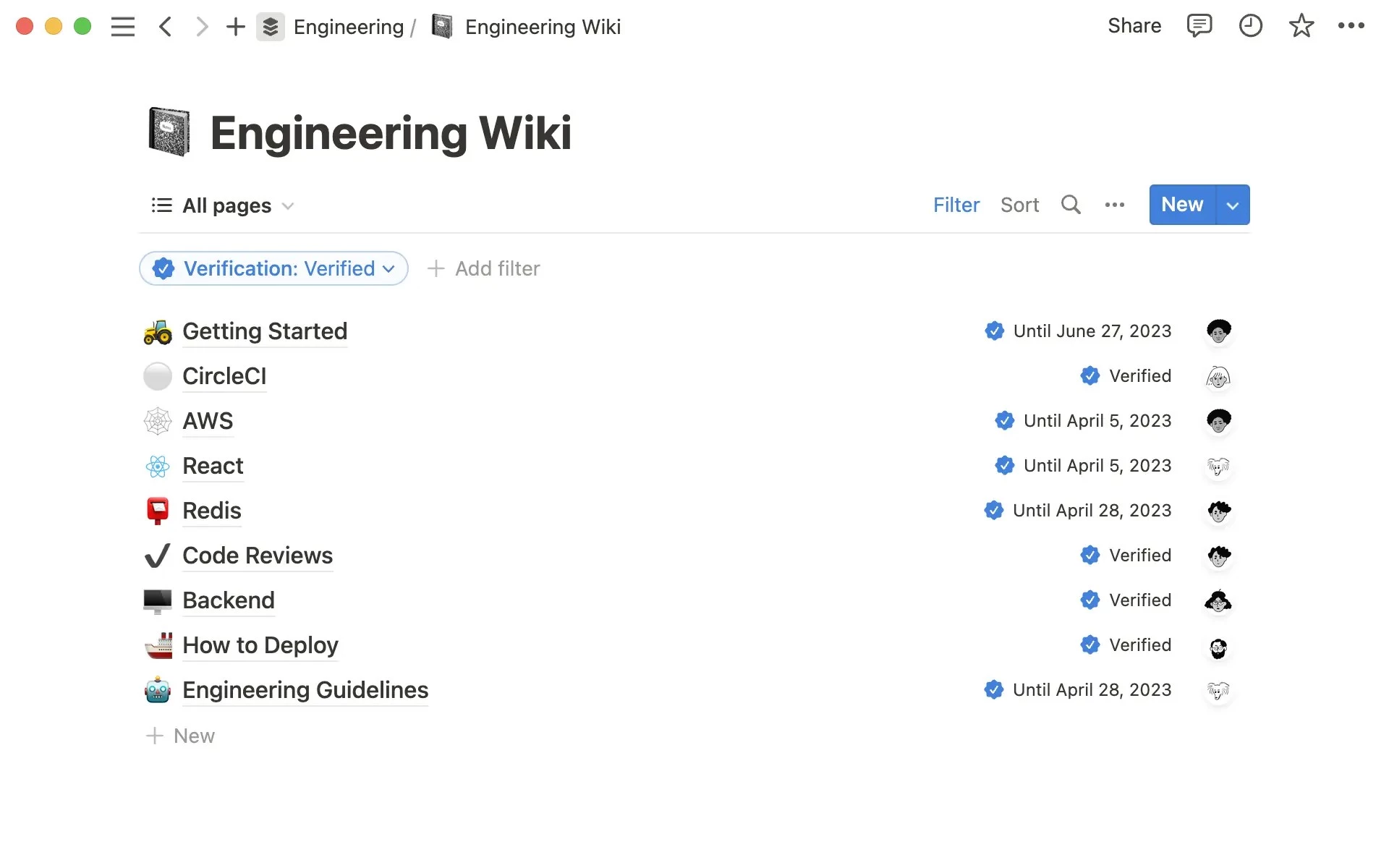
Notion is a strong fit for onboarding guides and procedures that employees refer to throughout their work. You can give each topic a dedicated page and link related information instead of maintaining several overlapping documents.
If clients expect editable Word files, Notion’s export options may complicate the handoff: it supports PDF, HTML, and Markdown/CSV, but no native DOCX export. It’s better suited to content your team will keep using inside Notion.
Pricing
- Free: $0, with limits on team collaboration
- Plus: $10/member/month
- Business: $20/member/month
- Enterprise: Custom pricing
What Users Say
User feedback often highlights flexible organization, alongside the learning curve involved in configuring a workspace.
One agency owner on Reddit, HunterReynoldsFilm, described the difficulty after spending more than 20 hours researching and experimenting, saying: "...it's the actual backend creation and frontend implementation that's tripping me up."
That account concerns a complex setup connecting clients, projects, and tasks. It's a useful reason to start with one working process before building your entire operation in Notion.
Other Notable Features
- Page history: seven days on Free, 30 on Plus, and 90 on Business
- Forms that collect responses directly into databases
- Private teamspaces and granular database permissions on Business
- Published pages that can embed in external websites
4. Confluence Cloud: Best for Documentation Connected to Jira
Consider Confluence if your team tracks work in Jira and needs the requirements and decisions behind it close at hand.
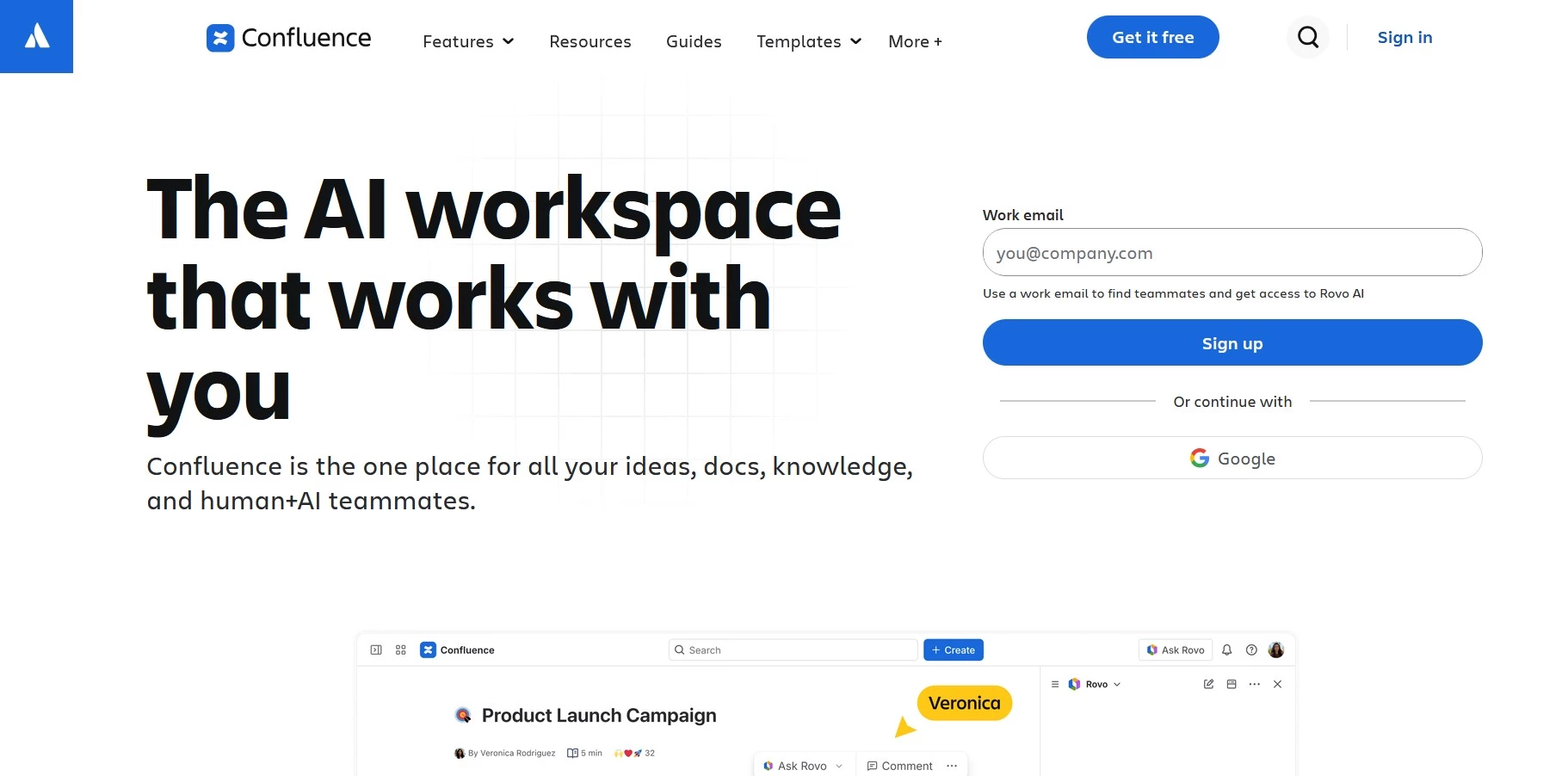
Confluence Cloud gives Jira-based teams a place to explain the work they're tracking. You can document requirements, record project decisions, and connect those pages to the relevant Jira work items to help your team follow specification changes during delivery.
You can show Jira tasks and their current status directly on a Confluence page, so readers can check progress alongside the requirements.
Spaces and nested pages help you organize documentation by team or project, while collaborative editing and inline comments let contributors discuss details where they appear.
External collaboration needs some planning since paid plans allow up to five free guests per paid user, but each guest is restricted to one space. That can suit a dedicated client project space but it's less convenient when a contractor needs documentation across several teams.
Pros:
- Connects project documentation directly to Jira work items
- Organizes related pages into team and project spaces
- Templates help standardize recurring documentation
- Paid plans include free guest access within defined limits
Cons:
- Each guest can access only one space
- Growing page collections need clear naming and regular upkeep
- Teams unfamiliar with Atlassian may need onboarding
- Additional Marketplace apps can increase the subscription cost
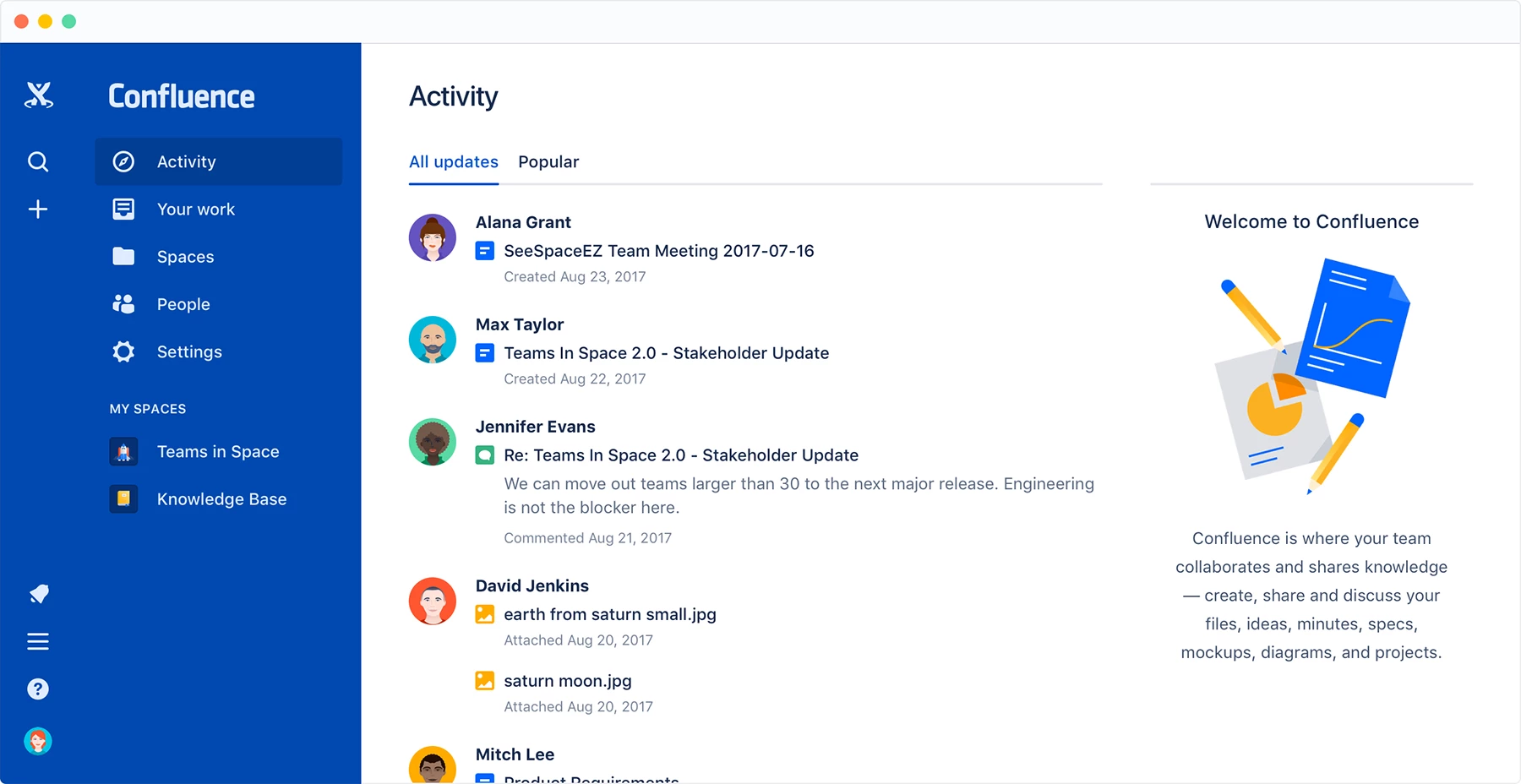
Confluence is particularly useful when someone needs to understand why a project took a certain direction. A decision page can preserve the alternatives considered and link to the work that followed, giving new contributors context that a task description may lack.
You'll get more value from it if someone owns the documentation. Agree on where decisions belong and when outdated pages should be archived. Adding a wiki won't resolve conflicting guidance unless your team maintains it.
If you mainly exchange standalone drafts with clients, test whether navigating a project space helps them complete their review or adds unnecessary steps.
Pricing
- Free: Up to 10 users
- Standard: Indicative price of $5.42/user/month
- Premium: Indicative price of $10.44/user/month
- Enterprise: Custom pricing
Note: Paid rates vary with team size and billing term; use its calculator for your team's total.
What Users Say
User feedback points to a trade-off between keeping project knowledge together and finding your way through it.
One reviewer describes search as "a bit rigid." For your trial, ask a colleague unfamiliar with the page structure to find a specific procedure or project decision.
Other Notable Features
- Page history for comparing and restoring earlier versions
- Whiteboards for visual planning
- Public links for sharing selected content externally
- Marketplace apps for extending documentation workflows
5. Dropbox: Best for Sharing Files With Clients
Choose Dropbox if client projects involve exchanging documents and creative assets across different applications.
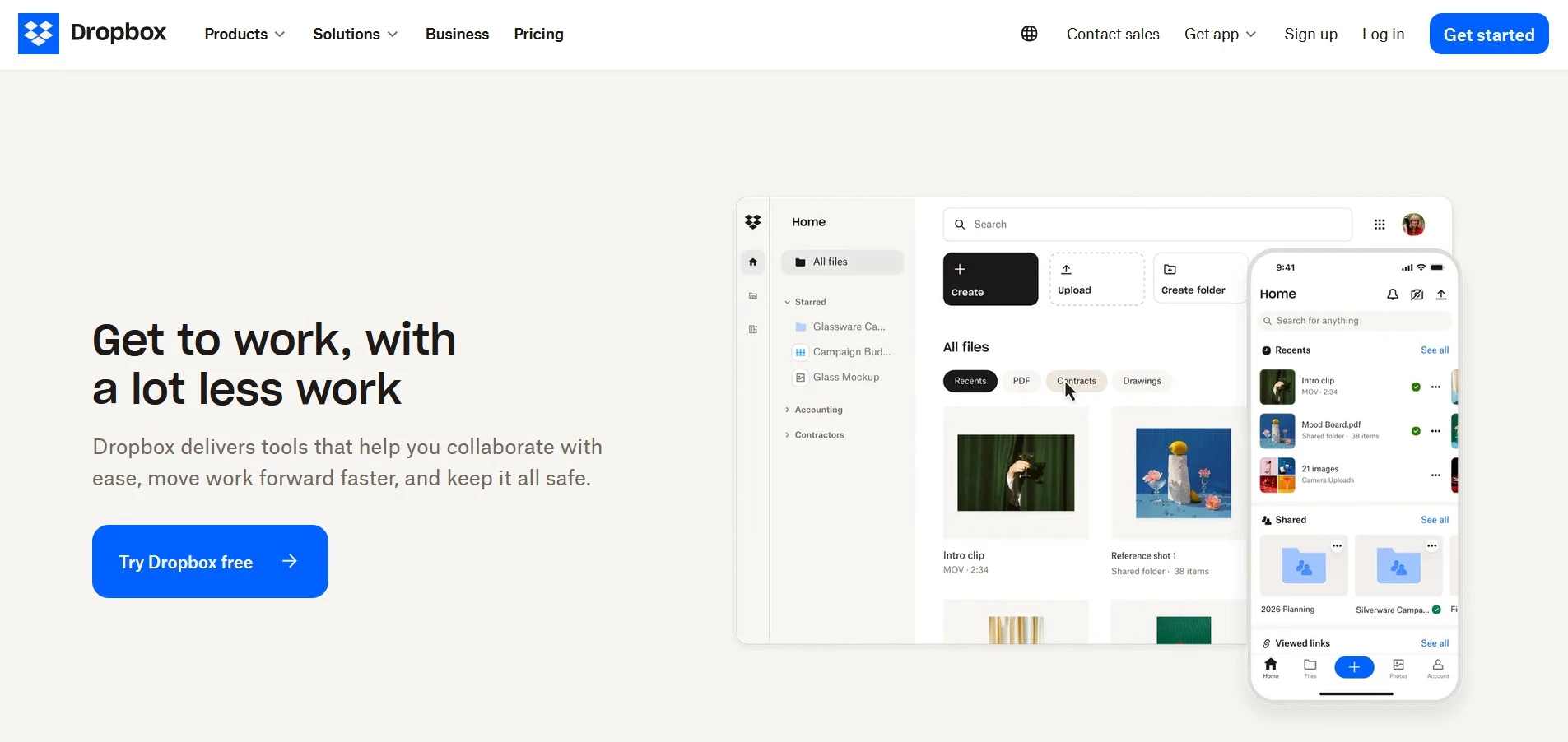
Client projects involve exchanging files throughout the work, from the initial proposal and reference materials to the final deliverables. Dropbox gives you a place to manage that exchange while your team keeps using its preferred tools to create the files.
You can send clients a link to preview files without asking them to create an account, or collect their materials through a file request. Uploads go into a folder that’s private by default, so receiving a client’s assets doesn’t require giving them access to your project files.
Reviewers who sign in can leave comments and mark specific areas of PDFs or images to identify which detail needs attention. If you need to revise the wording together, it also supports Office co-editing through Microsoft, though team accounts require an eligible Microsoft license as well.
Pros:
- Clients can preview shared files without a Dropbox account
- File requests collect client materials without granting folder access
- PDF and image annotations keep feedback attached to the relevant detail
- Eligible plans add password protection and link expiration dates
Cons:
- Account requirements differ between viewing, commenting, and editing
- Office editing for team accounts requires eligible Microsoft licensing
- Advanced sharing controls aren’t included in every plan
- The free plan’s 2 GB allowance leaves little room for asset-heavy projects
Dropbox’s file collaboration software lets you manage client handoffs without changing the tools you create work in. Send a viewing link for finished files, and reserve folder access for clients who need to contribute regularly. Eligible plans let you disable downloads, though this won’t prevent other ways of saving the content.
Pricing
- Basic: Free, with 2 GB of storage
- Plus: €9.99/month for one user
- Standard: €12/user/month
- Advanced: €18/user/month, with a three-user minimum
- Enterprise: Custom pricing
What Users Say
Capterra user feedback offers credit for easy file access across devices and convenient sharing, while cost draws some criticism. Syncing also gets mixed feedback as some report upload delays that interrupt work.
Hannah, a marketing and advertising vice president, described uploads as “unresponsive for long periods,” while Holly, an accounting business owner, questioned the value compared with OneDrive.
Other Notable Features
- Version history and deleted-file recovery, with retention varying by plan
- Dropbox Transfer for delivering completed files
- PDF editing and signature requests, with plan-dependent limits
- Downloadable comment records in TXT format
6. ClickUp Docs: Best for Connecting Documents to Tasks
Look at ClickUp Docs if feedback on a brief needs to become assigned work your team can track.
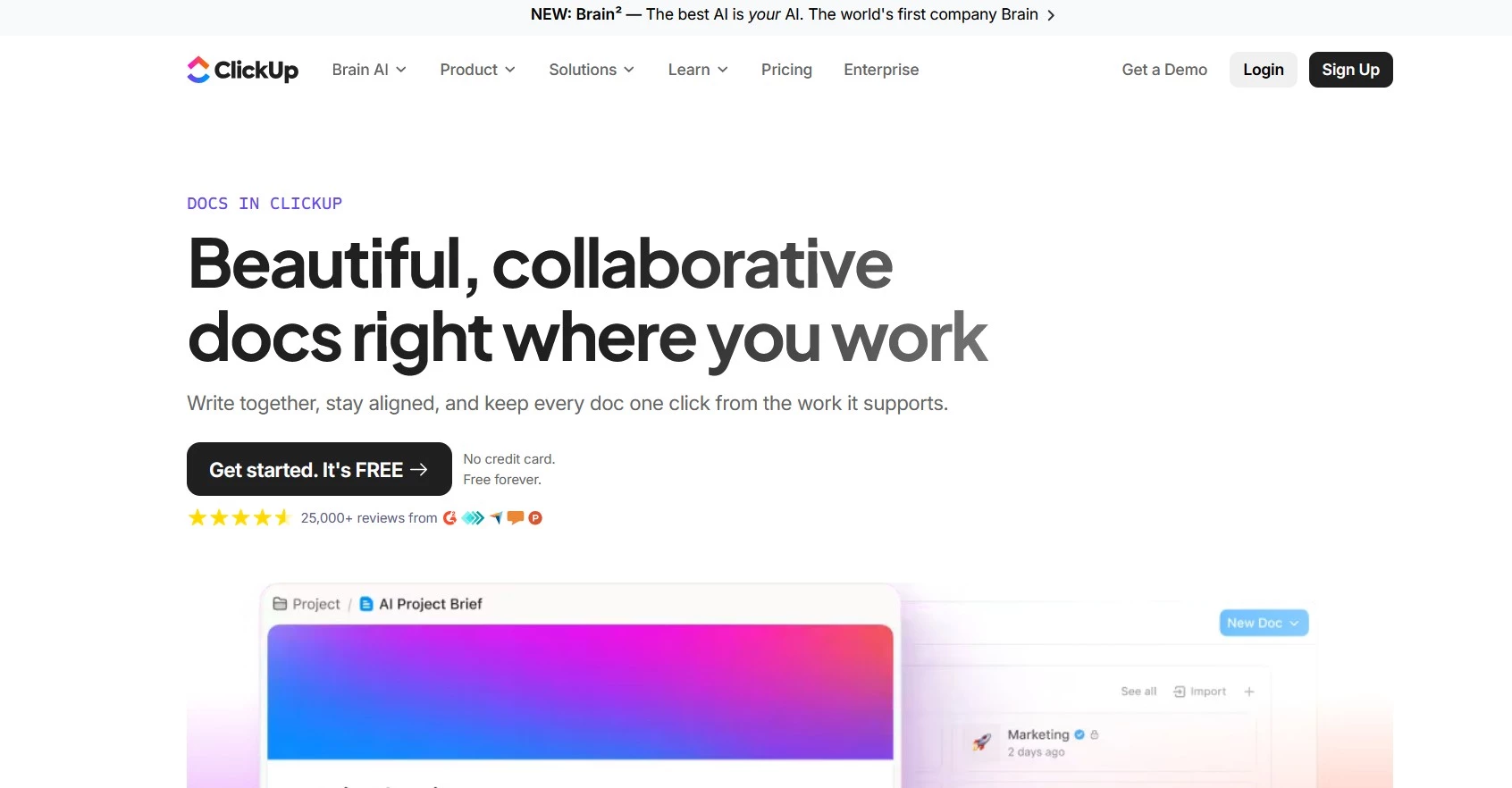
A comment asking someone to update a campaign brief can easily sit unresolved while the project moves ahead. ClickUp Docs lets you turn that feedback into a task and connect the document to the work it supports to help your team follow through on it.
You can edit together in real time, discuss specific passages, and link briefs or specifications to their related tasks. For a marketing team, that could mean keeping a launch brief alongside the work required to deliver it instead of copying instructions into separate task descriptions.
In terms of client access, on paid plans, view-only guests are free, but guests who comment or edit use your permission-controlled guest allowance. Once that allowance is exhausted, additional guests can cost the same as members. On the free plan, guests can edit and delete items you share with them. View-only or comment-only guest access requires a paid plan.
Pros:
- Connects briefs and documentation directly to project tasks
- Turns document feedback into trackable work
- Includes collaborative Docs on the free plan
- Paid plans offer controlled access for external contributors
Cons:
- Workspace setup can take time, especially for teams new to ClickUp
- Commenting and editing guests may increase your bill
- Free-plan guests lack granular permission settings
- Free storage is limited to 60 MB
ClickUp Docs makes the most sense when your team also manages work in ClickUp. If tasks remain elsewhere, you’ll need to maintain the connection between the document and that separate system.
Before closing a revision task, make sure the reviewer can find the updated passage and confirm that it addresses their feedback.
Pricing
- Free Forever: Free, including collaborative Docs
- Unlimited: $7/user/month
- Business: $12/user/month
- Enterprise: Custom pricing
Note: USD rates billed annually. These are ClickUp workspace plans, rather than separate Docs subscriptions.
What Users Say
Users seem to appreciate the convenience of organizing work in one place, alongside the effort needed to configure the broader platform.
Izzy, a marketing manager, specifically praised the way that it “combines task management, docs, time tracking, goals and chat boxes so I can easily communication and delegate tasks within my team.”
Other Notable Features
- Nested pages for organizing longer documents
- Version history for recovering earlier content
- Docs Hub for searching and filtering documents
- Reusable templates and embedded media
7. Document360: Best for Customer Help Content
Consider Document360 if your support and product teams need to turn shared expertise into help articles customers can find and follow.
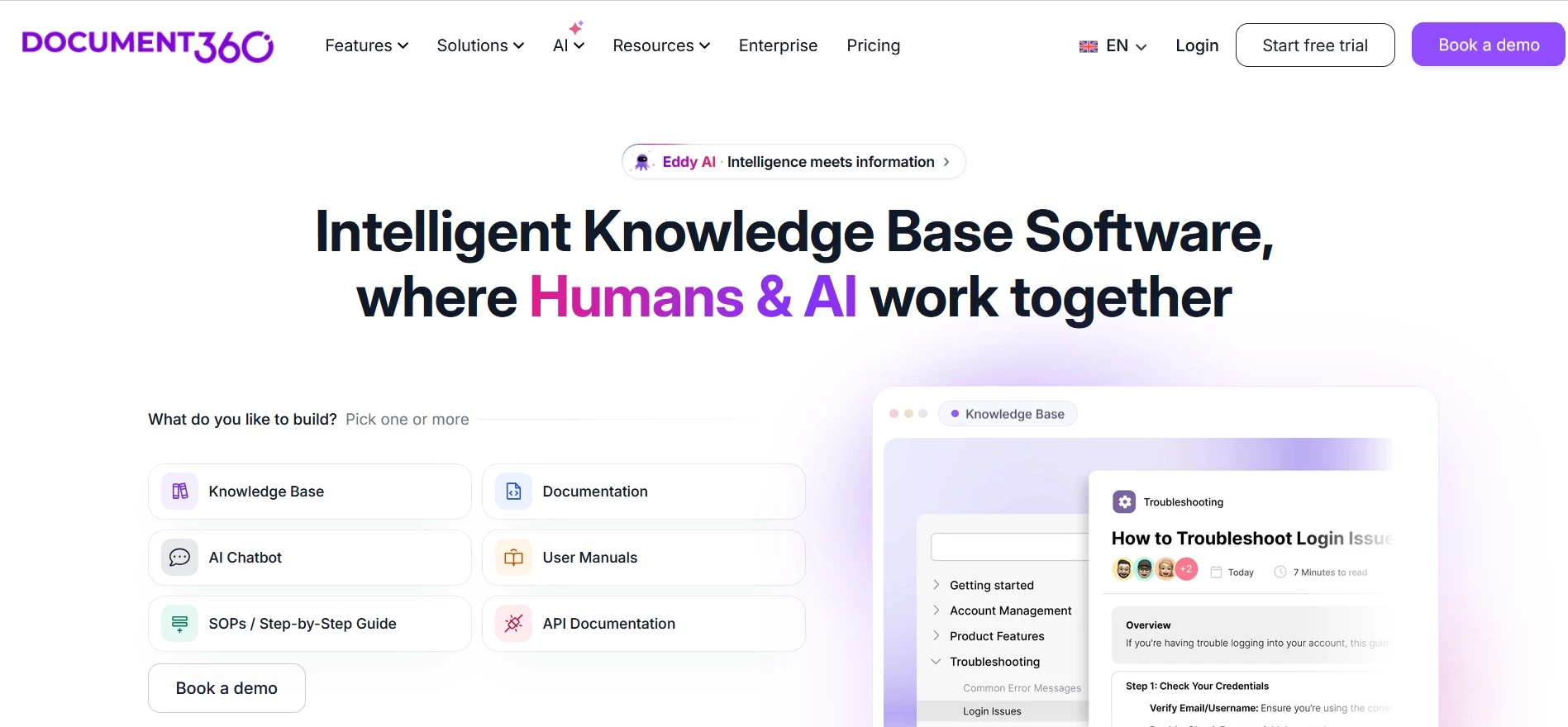
A product update can leave several help articles out of date at once. Document360 gives your team a place to write, review, and publish that guidance, with reusable content blocks that let you update repeated instructions across articles from one place.
Its custom workflows let you assign reviews to the people responsible for accuracy before an article goes live. A writer could draft a setup guide, send it to a product specialist for checking, and pass it to an editor for publication, with deadlines and reminders along the way.
Up to 10 contributors can work on an article together, including reviewers. Comments keep discussions alongside the draft, while separate editing and publishing permissions help you control who can change what customers see.
Pros:
- Review workflows with assignments, deadlines, and reminders
- Reusable content blocks reduce repeated updates across articles
- Separate editing and publishing permissions
- Supports public help centers and private knowledge bases
Cons:
- Custom pricing makes quick cost comparisons difficult
- More setup than occasional document sharing calls for
- Collaboration supports up to 10 contributors per article
- Some reviewers report formatting bugs and confusing publishing steps
Document360 suits teams that regularly maintain help content. You’ll still need someone to decide which articles need updating and who should check them, but the workflow gives those responsibilities a visible place.
Before moving your help center, choose a procedure that changes regularly and identify every article that references it. That will help you judge how much work reusable content and review reminders could save.
Pricing
- Custom pricing: Based on your team, workspaces, languages, security requirements, and AI usage
- Free trial: 14 days
What Users Say
Users on Capterra generally appreciate how easily they can organize and publish content, along with the responsive support. Some report formatting bugs, limitations in draft version control, and difficulty navigating review and approval steps.
Include occasional reviewers in your evaluation alongside regular writers to check whether both groups can complete their work comfortably.
Other Notable Features
- Markdown and visual editors
- Scheduled content review reminders
- Word imports and PDF exports
- An embedded help center for your app or website
8. Zoho Writer: Best for Document Approval Workflows
Look at Zoho Writer if documents regularly wait on several people’s approval before your team can use or share them.
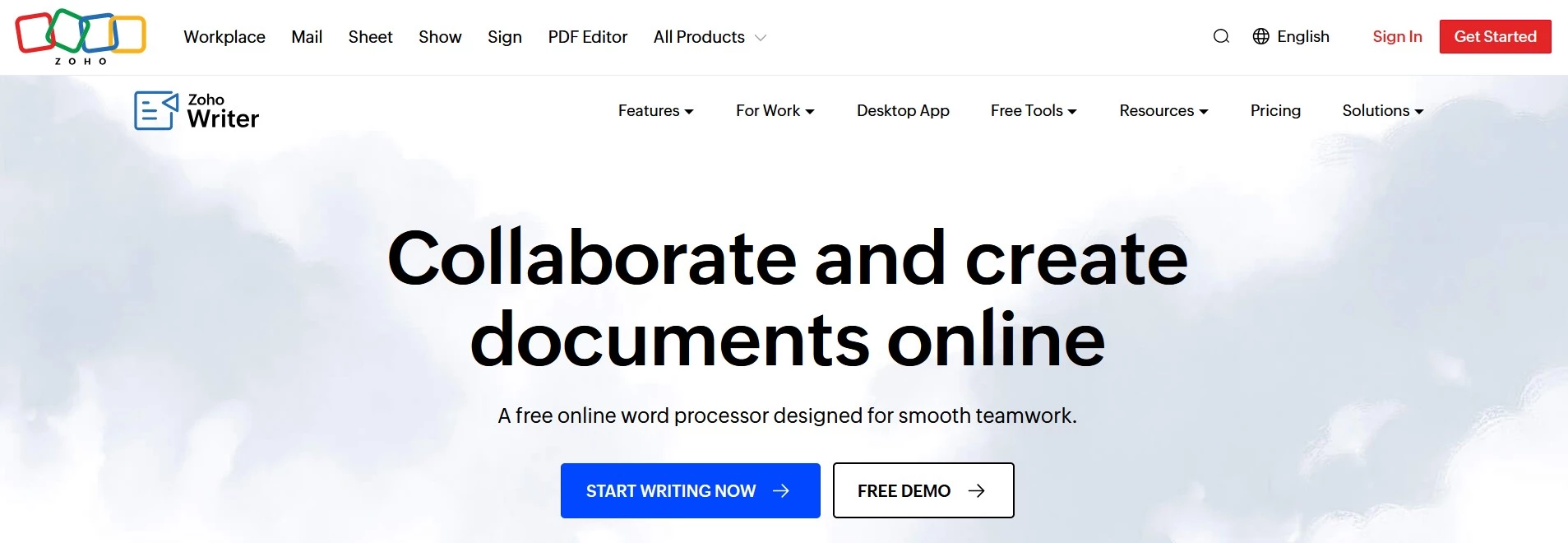
When several people need to review a document, Zoho Writer lets you decide who contributes and in what order. You can gather feedback at the same time or route approvals from one person to the next, with a clear view of progress without chasing email replies.
Reviewers can suggest changes before the document reaches its approvers, who accept or reject it. Due dates and automatic reminders help keep the process moving, and workflow history records what happened at each stage.
Note that these workflows apply only to documents hosted in Zoho WorkDrive, and an administrator must enable the feature. Each workflow supports up to 10 reviewers or approvers.
Pros:
- Separate review and approval stages
- Supports simultaneous feedback and a defined approval order
- Automatic reminders and a dashboard for outstanding assignments
- Workflow history shows the document at different stages
Cons:
- Approval workflows require WorkDrive-hosted documents
- Maximum of 10 reviewers or approvers per workflow
- Review stages restrict editing access, including the document owner’s
- Document generation beyond the included allowance requires paid automation credits
During review, only assigned reviewers can edit the document, so make sure the draft is ready before handing it over—the owner’s editing access will be restricted until the review ends.
For recurring documents, Writer also supports actions after approval, such as storing the finished file in a designated folder. If approval needs to trigger another task, you can use integrations or Zoho’s Deluge scripting language to automate the sequence.
Pricing
- Writer: Free word processor
- Business storage: Paid Zoho WorkDrive plans available
- Document automation: Included monthly credits; additional credits cost extra
Note: Zoho lists storage subscriptions and automation separately, so include those requirements when comparing costs.
What Users Say
In a customer testimonial published by Zoho, Chris Kiadii, director of The Real Estate CRM School, credits Writer’s workflows and automation with reducing manual work when onboarding instructors.
Author and editor Rusti Lehay points to the benefit of importing full-length manuscripts and creating a table of contents from chapter headings.
These are vendor-selected accounts rather than independent reviews, but Kiadii’s experience is a relevant example if you’re considering Writer for repeatable approval processes.
Other Notable Features
- Mail merge and document generation from business data
- Fillable forms
- Integrations with Zoho Sign, Docusign, and Adobe Sign
- Desktop apps with offline editing
How to Choose Document Collaboration Software
Use these checks to narrow your shortlist before you commit to a subscription or migration:
- Check whether clients can comment or edit without a paid seat, and whether they need an account. Make sure you can share a single document without exposing the wider workspace and revoke access when the project ends.
- Calculate the cost for everyone who needs access, including occasional reviewers. Check minimum seat requirements, annual billing commitments, and whether approval workflows or AI features require a higher plan. For self-hosted tools, budget for hosting and ongoing maintenance.
- Confirm who can access sensitive documents and where the platform stores and processes them. Check whether your chosen plan includes the permissions and audit logs you need. If you enable AI, review what document content it sends to the model provider.
Test Your Shortlist Before Committing
When comparing file collaboration software, run a real document through a complete review and approval cycle with an external reviewer. Check whether notifications reach the right people and everyone can identify the approved version without chasing updates in email or chat.
Then export it. Check whether formatting and comments survive, and whether you can retain version history. For a team wiki, make sure linked pages and attachments remain usable outside the platform.
Best Document Collaboration Software: Final Takeaway
The best document collaboration software solves the problem slowing your team down, whether that’s client feedback, approvals, or outdated guidance. Choose a tool that fits how you work, justifies its full cost, and lets you take your documents with you when your needs change.

Our team ranks agencies worldwide to help you find a qualified partner to implement and support your document collaboration software. Visit our Agency Directory for the Top Productivity & Collaboration Consultants, as well as: