

I tested today's top AI tools for mobile app development to find out which ones truly boost productivity and help you build smarter, faster apps. I discuss the features that impressed me, what fell short, and which tools are worth investing in.
Mobile App Development AI Tools: Key Findings
- FlutterFlow accelerates MVP builds with AI-assisted UI generation and smooth Firebase workflows, which is great for lean teams.
- GitHub Copilot speeds up scaffolding, API work, and tests—especially valuable for solo devs.
- Thunkable, Snyk, and Figma AI cover the rest: no-code app assembly, continuous security scanning, and faster mobile UI prototyping + handoff.
Top AI Tools in Mobile App Development Reviewed
AI is playing a part across the app lifecycle, from designing screens to keeping release cycles moving. Developers also report strong satisfaction with AI tools, 83%, while 68% say AI is improving the quality of their work.
AI is just one of the mobile app development trends shaping how teams build, launch, and scale apps in 2026.
I’ve tested these tools and evaluated how they help teams move faster, from better first-pass designs to cleaner builds and fewer bottlenecks getting ideas into users’ hands.
| Tool | Best For | Visual Builder | Real-Time Preview | Collaboration Tools | Pricing |
| FlutterFlow | Low-code app development | ✅ | ✅ | ✅ | Free plan available; paid plans start at $39/month (Basic) |
| GitHub Copilot | AI pair programming | ❌ | ✅ | ✅ | Free plan available; Pro plan starts at $10/month |
| Thunkable | Drag-and-drop app creation | ✅ | ✅ | ✅ | Free plan available; paid plans start at $18/month (billed annually) |
| Snyk | AI-powered code review | ❌ | ✅ | ✅ | Free plan available; Team starts at $25/month per contributing developer (min 5) |
| Uizard | UI design | ✅ | ✅ | ✅ | Free plan available; paid plans start at $16/seat/month (billed annually) |
If you’re looking to scale quickly and bring in expert execution, consider hiring one of the top mobile app development companies to turn your ideas into reality with the best tools in the stack.
1. FlutterFlow: Best for Low-Code App Development
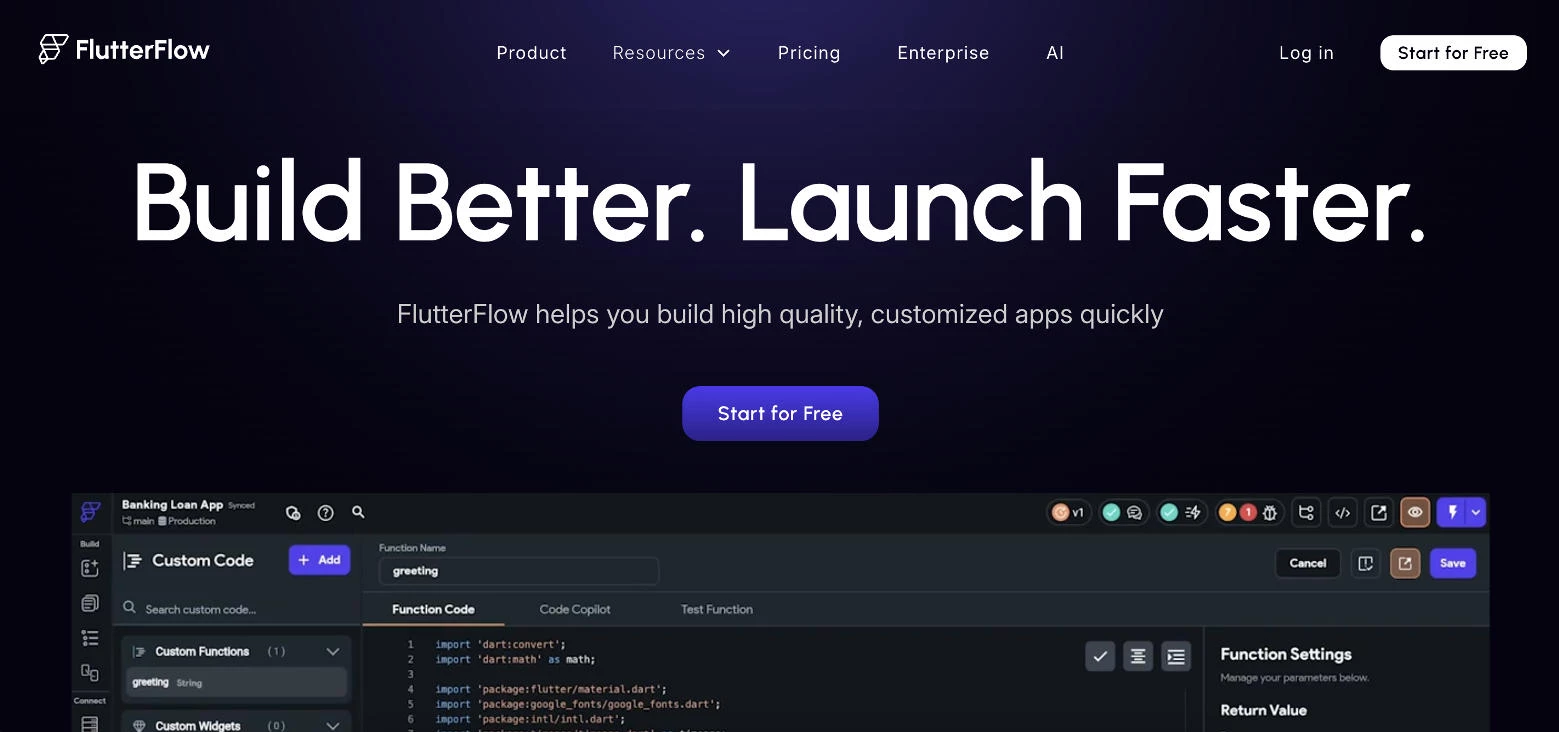
FlutterFlow is one of the most popular AI mobile app development tools today and with good reason. When I first tried it, I was curious whether a low-code tool could truly deliver production-ready mobile apps, especially for someone like me who prefers speed without sacrificing control.
| Pros | Cons | Pricing |
|
|
|
I was pleasantly surprised by FlutterFlow’s clean visual editor where I could drag-and-drop components, connect Firebase, and build responsive layouts without constantly jumping into the codebase.
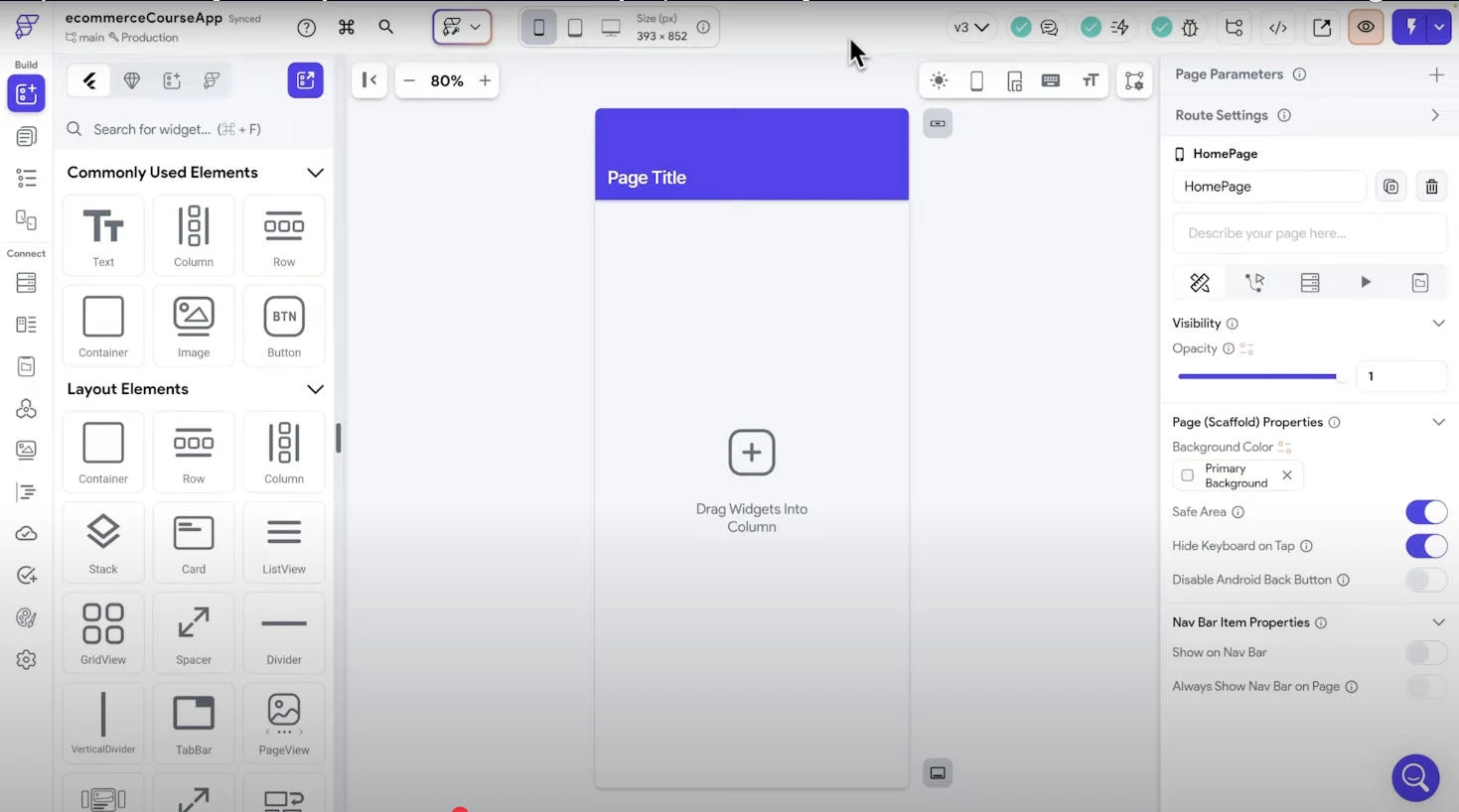
Another standout feature I found is the built-in AI assistant. It can help you auto-generate components just from a simple description. For example, I asked for a checkout page with a form and order summary and FlutterFlow mapped it out in seconds.
From there, I could then fine-tune everything visually or jump into the Flutter code when I wanted more control.
Get started with FlutterFlow for free.
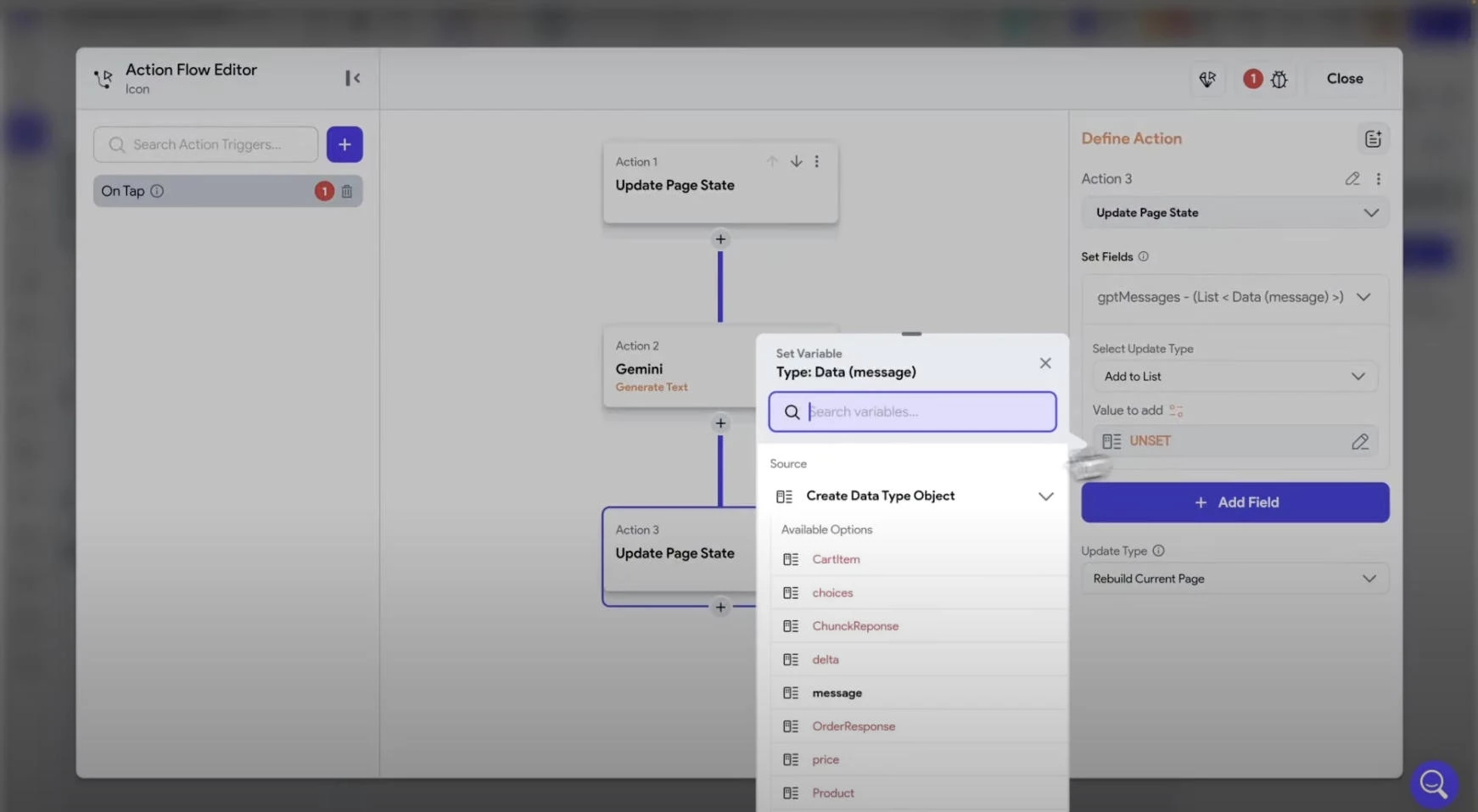
Another feature I loved was how easy it was to integrate external services into the app. With just a few clicks, you can set up authentication and pull live data without writing a single line of backend code.
If you need to call APIs or connect to third-party tools like Gemini or Google Maps, the setup is smooth and well-documented.
In my experience, this alone saves hours of manual work and lets you focus more on designing the app’s actual user experience.
What Users Say
Many users have reviewed FlutterFlow as a powerful tool for mobile app development, given its speed, flexibility, and professional output. Even non-coders managed to build beautiful apps. However, scaling and maintaining generated code can be difficult in the long run.
Who’s It For?
FlutterFlow is perfect for solo developers, startups, or small teams who want to move fast without getting buried in code and spending too much. It worked especially well for me when I needed to build a solid minimum viable product (MVP) quickly, without sacrificing design or functionality.
Other Notable Features
- AI assistant for UI generation
- Firebase + Supabase integration
- Export to clean Flutter code
- Built-in animations and transitions
- Real-time collaborative editing
- One-click deployment to web/app stores
2. GitHub Copilot: Best for AI Pair Programming
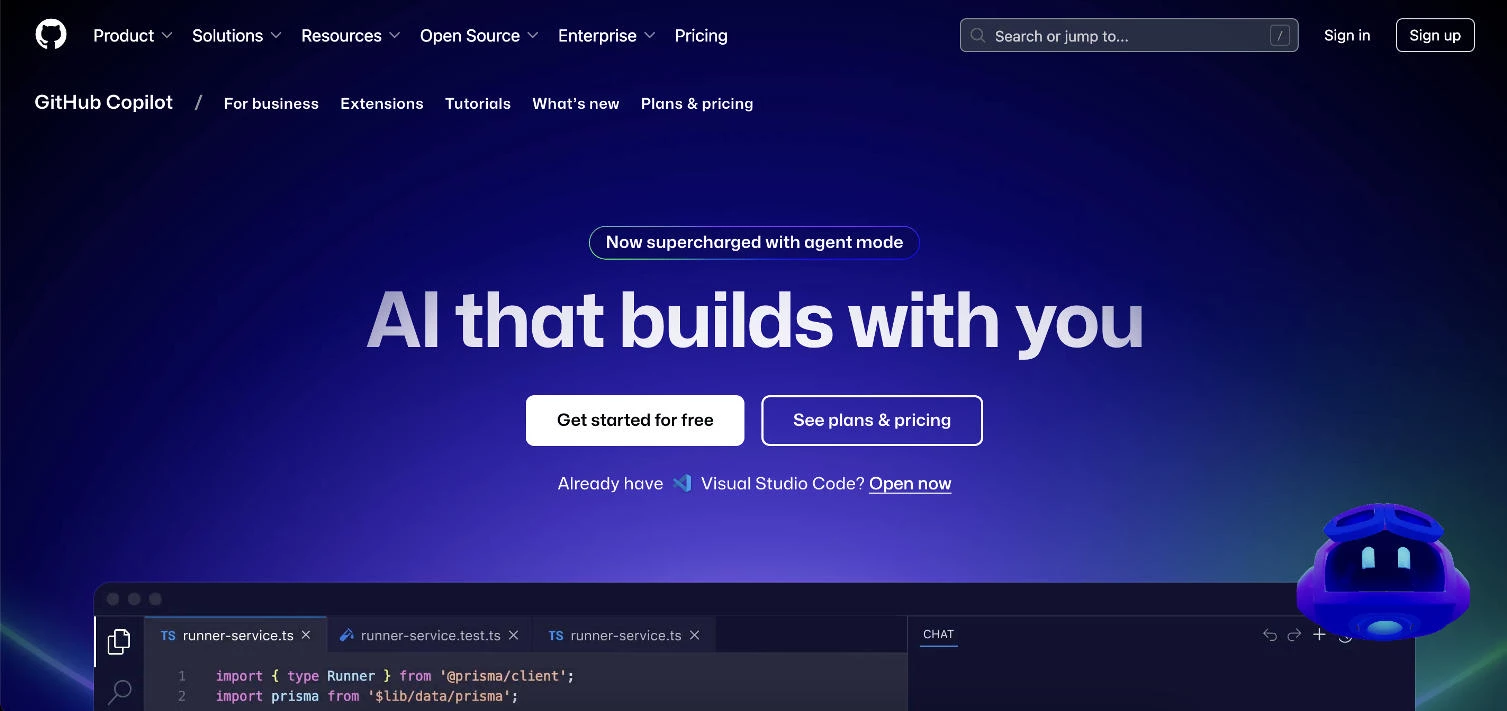
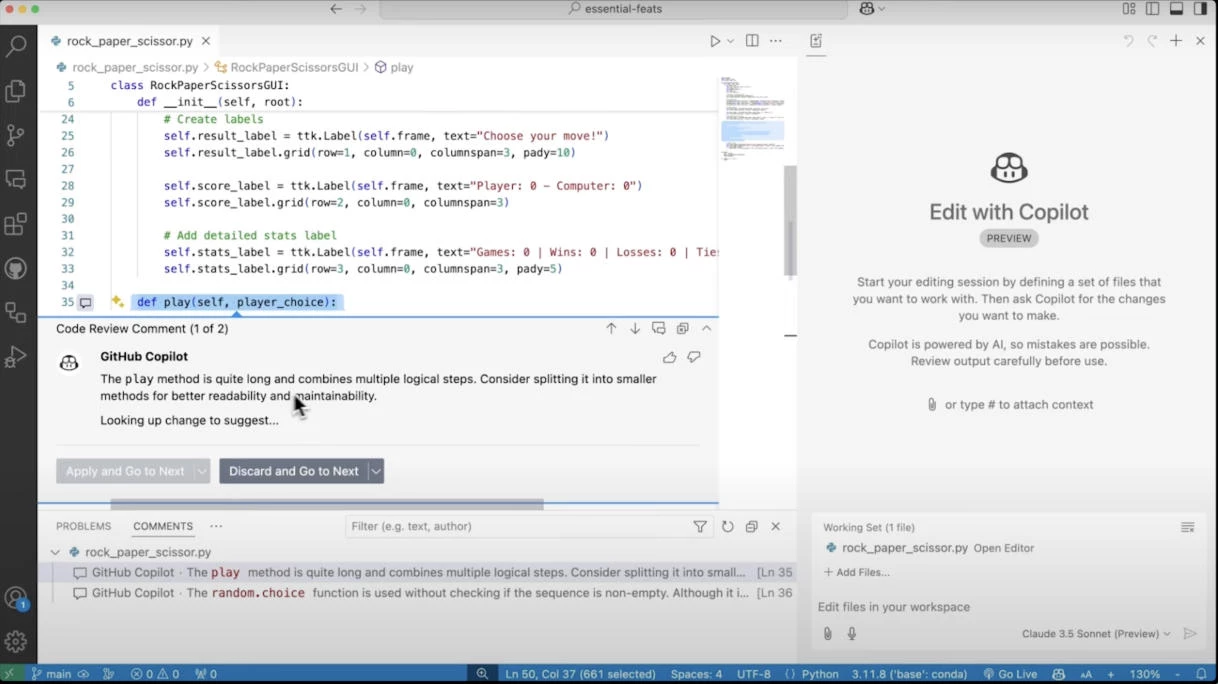
GitHub Copilot is an excellent option for AI-assisted app development. When I first started using it in Visual Studio Code, it felt like having a silent senior dev working alongside me. As I typed, Copilot would predict what I was trying to build, offering smart code suggestions.
Forget one-line completions, it generated full blocks of functional code that matched my exact intent.
| Pros | Cons | Pricing |
|
|
|
What impressed me most was how well GitHub Copilot adapted to the context of my existing code. For example, after writing a few custom utility functions, it started auto-suggesting variations that matched my naming conventions and logic style.
I was able to scaffold UI logic, model classes, and even test cases without constantly having to search Stack Overflow.
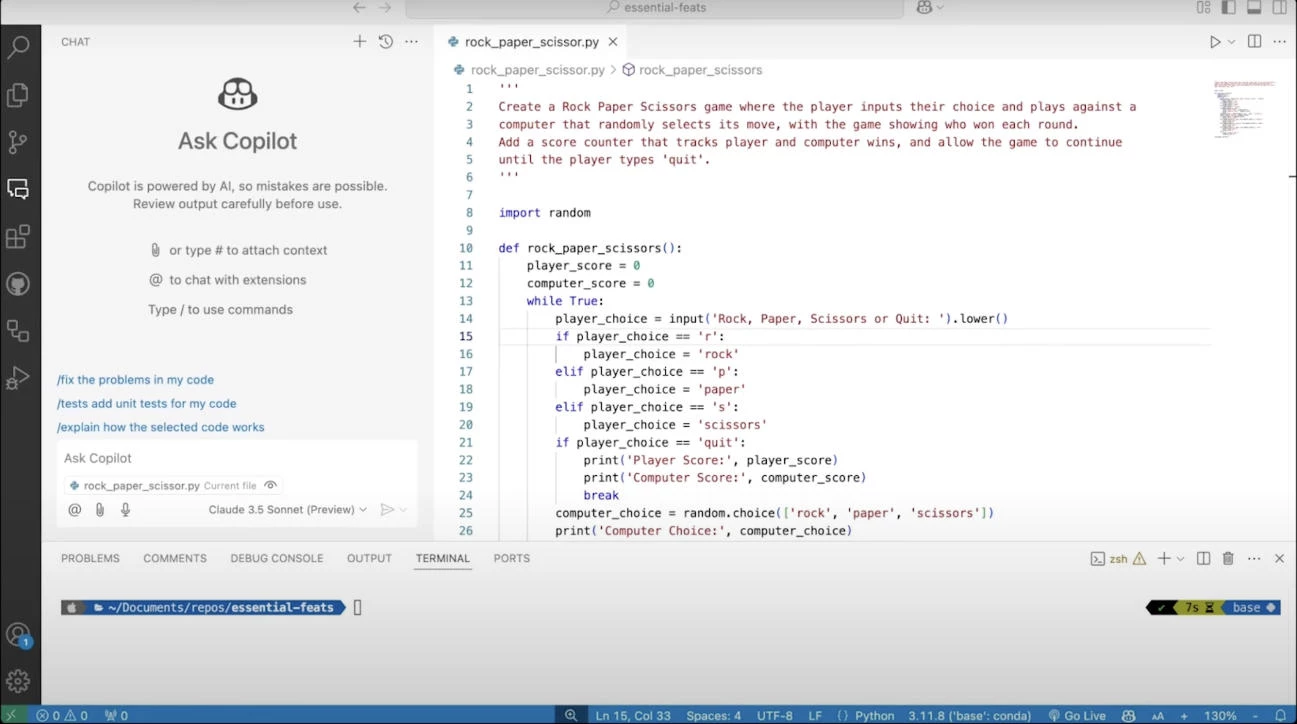
Another major benefit was speed. Tasks that used to take 30 minutes or more (like creating boilerplate state management logic, parsing JSON, or even reviewing code manually) were done in under five with Copilot’s suggestions.
And when I wasn’t sure how to start a method or loop, it offered solid starting points that kept me in flow instead of stuck.
What Users Say
@githubcopilot For what you need when you need it #github#dev#developer#githubcopilot#developers#node♬ original sound - Github Copilot
Users widely agree that GitHub Copilot is a huge time-saver, especially for routine tasks, rapid prototyping, and junior developers learning best practices. Many have praised how it boosted productivity and reduced “blank screen” moments.
That said, some reviewers warned that the tool isn’t foolproof; generated code still needs vetting, especially in sensitive or complex systems. Others noted that its suggestions sometimes lacked context or weren’t up to date with the latest frameworks.
Who’s It For?
From my experience, GitHub Copilot is a no-brainer for developers who spend a lot of time writing standard logic, working with APIs, or jumping between tasks. It’s especially valuable for solo devs and small teams who don’t have time to write everything from scratch.
I’d also recommend it for learners — seeing how it solves problems in real time helped me level up faster and catch things I otherwise might have missed if I had been coding manually.
Sign up for GitHub Copilot’s free plan here.
Other Notable Features
- Access to OpenAI, Anthropic and more
- Works in VS Code, JetBrains, and GitHub Codespaces
- Smart auto-completion for entire functions and classes
- Comment-driven code generation
- Supports test case scaffolding
- Regular updates and model improvements from OpenAI
3. Thunkable: Best for Drag-and-Drop App Creation
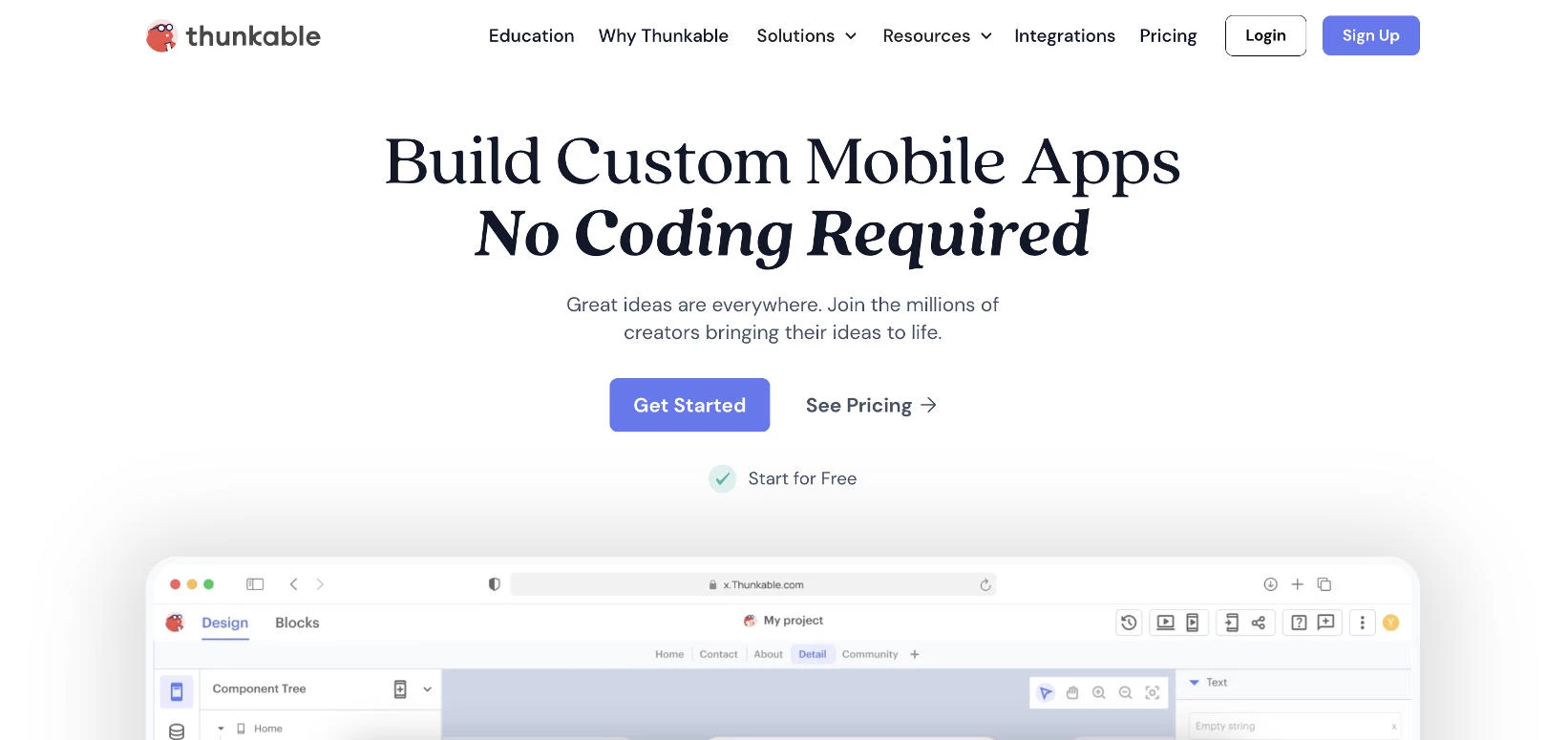
When I tried Thunkable for the first time, I didn’t write a single line of code and still ended up with a working mobile app. The drag-and-drop builder made it easy to stack screens, connect components, and design interfaces with total control.
| Pros | Cons | Pricing |
|
|
|
In under an hour, I built a multi-page mobile app with buttons, forms, media uploads, and real-time updates. I also tested logic blocks, animations, and data flow without leaving the builder.
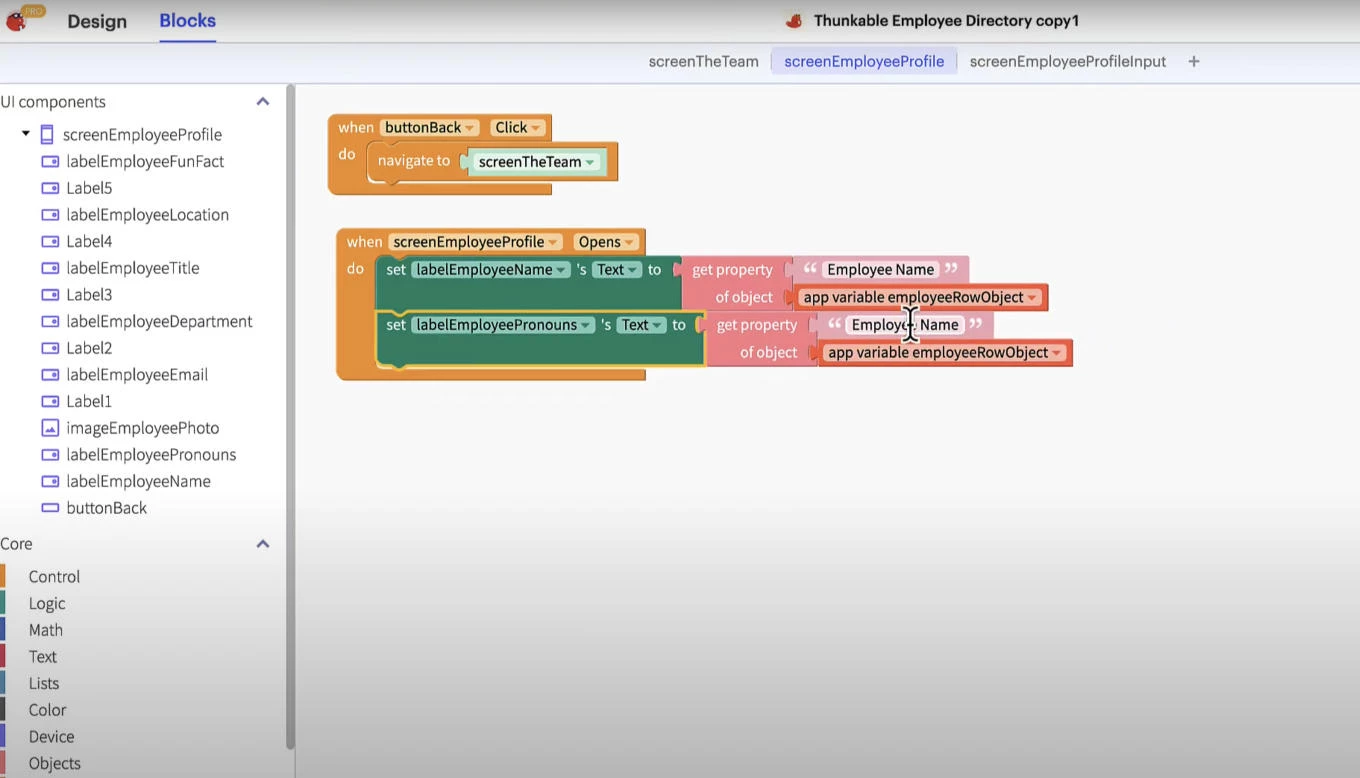
What I really liked about Thunkable’s drag-and-drop builder was how flexible and creative it was, even without writing any code. You can easily rearrange components, stack elements, and customize screen layouts just by dragging things around.
It gives you full control over how each screen looks and behaves, without locking you into strict templates. You can build multi-screen flows, add conditional logic, and tweak the app’s structure as you go. It’s like building with Lego blocks but for real mobile apps.
Get started with Thunkable's free plan here.
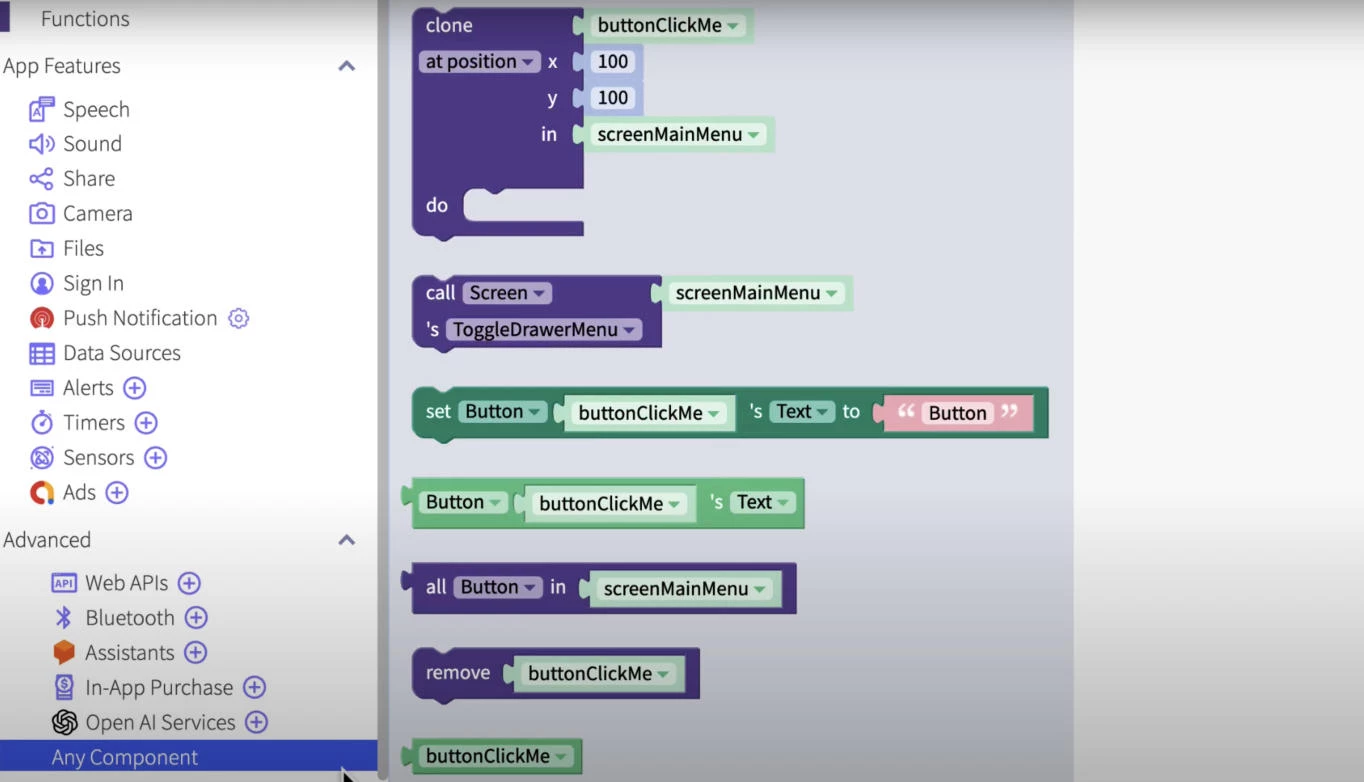
Thunkable also supports features like camera access, maps, sensors, and even voice input. You can add geolocation and push notifications into your builds with minimal setup.
For anyone needing to create a mobile app that feels native, Thunkable delivered way more power than I expected from a no-code tool.
What Users Say
Users reviewed Thunkable as an excellent starting point for non-coders and rapid prototyping. Many praised its simplicity and the ability to create functional mobile apps with zero programming experience.
However, some said that the platform could get sluggish with larger projects and that its design flexibility has limits compared to code-first tools. Some users wish for more advanced logic options and deeper AI model integrations out of the box.
Who’s It For?
Thunkable is great for creators, product managers, educators, and founders who want to build and launch apps quickly, especially if you don’t have a dev background. I found it especially helpful for early MVPs, app-based portfolios, and internal tools.
If you’re someone who wants to test ideas fast, explore AI features, or teach app-building in a classroom setting, Thunkable is a perfect fit.
Other Notable Features
- Drag-and-drop builder, no coding required
- Real-time device testing via Thunkable Live
- Web API component for AI and third-party integrations
- Logic blocks to define app behavior visually
- Easy UI design with responsive layout tools
- One-click publishing and version control
4. Snyk: Best for AI-Powered Code Review
When I started using Snyk, it was primarily to catch security vulnerabilities in my mobile app’s backend and frontend dependencies, but I quickly realized it did way more than that.
I connected it to my GitHub repo, and within minutes it scanned my entire stack, flagging outdated packages, potential injection risks, and even deep dependency issues that weren’t visible on the surface.
| Pros | Cons | Pricing |
|
|
|
Every time I pushed changes or opened a pull request, Snyk would automatically review the code, flagging anything risky before it reached production. This is huge for your peace of mind, especially when juggling multiple third-party SDKs and packages in mobile builds.
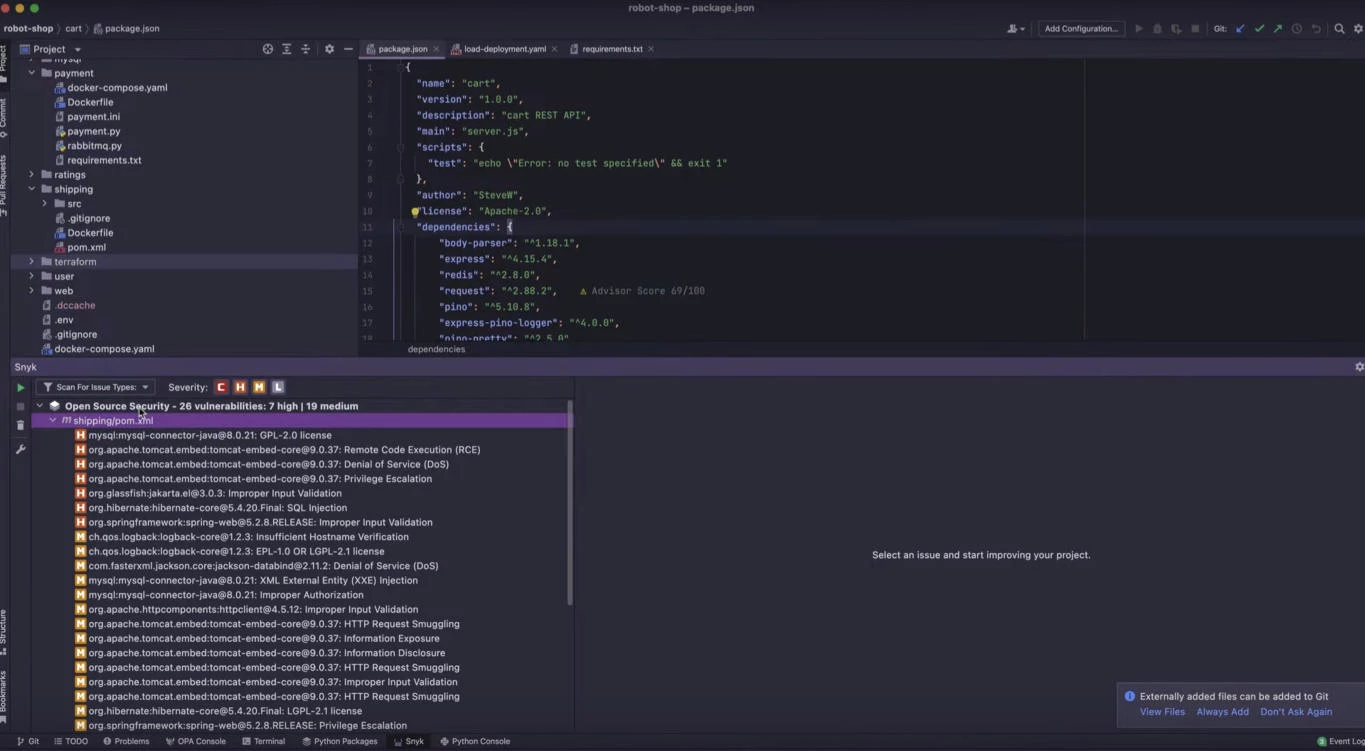
Another thing I really liked was how Snyk explained every issue clearly, with direct links to CVEs, affected versions, and suggested fixes I could apply with one click.
For example, if you have an outdated JSON parsing package in your mobile API layer, Snyk will not only flag it but also recommend a safer version. It even let you auto-generate a pull request to fix it.
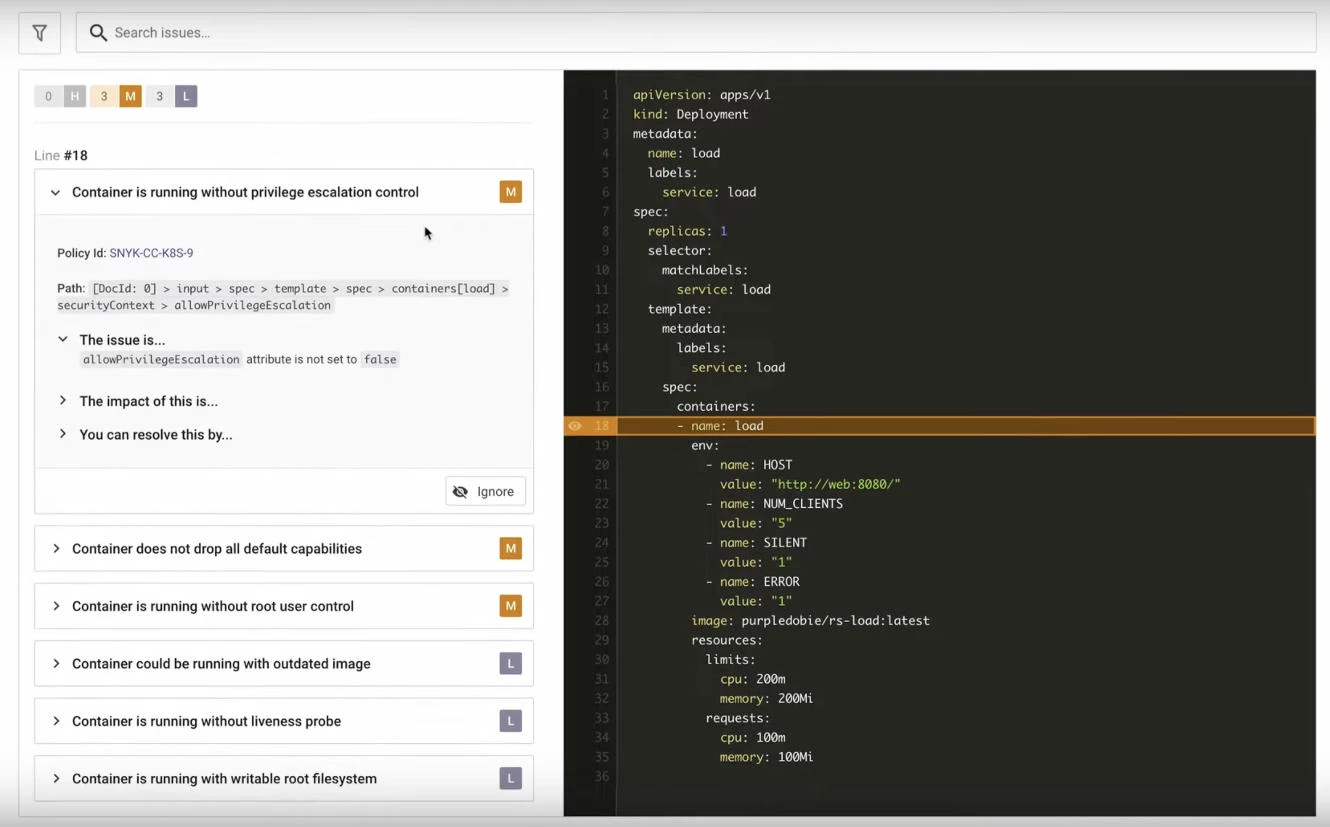
Snyk felt like a full-time security engineer working in the background. It didn’t just scan code, but it also tracked license issues, monitored for new vulnerabilities post-deployment, and kept my stack secure without having to constantly chase updates manually.
Try Snyk for free — no payment required.
What Users Say
Many users agree that Snyk is a top-tier security tool that fits right into modern DevOps workflows. IT works across the full development lifecycle, from local testing to production monitoring.
While it was noted that the volume of alerts could feel overwhelming on large projects, most agreed that the protection it offered far outweighed the noise.
Who’s It For?
Snyk is perfect for mobile developers, full-stack teams, or DevSecOps engineers who want security baked into their development processes, and not just tacked on at the end.
If you’re building enterprise mobile apps or apps that handle user data, payments, or anything sensitive, Snyk makes security reviews a whole lot easier.
Other Notable Features
- Automated vulnerability scanning across your stack
- AI-powered suggestions for fixes with one-click remediation
- Deep dependency scanning, including transitive dependencies
- License compliance monitoring
- Robust REST API for automation workflows
- Industry-leading CVE database and real-time alerts
5. Figma AI: Best for UI Design
After building and testing functionality in other tools, I wanted a faster way to explore mobile UI directions, tighten up screens, and get to a clickable prototype without spending hours on repetitive cleanup. Figma AI delivered.
It doesn’t design the whole app for you, but it does remove the tedious parts of getting from idea to prototype and handoff.
| Pros | Cons | Pricing |
|
|
|
When I tested it, I started with a rough idea for a mobile onboarding flow and used First Draft to generate an editable starting point.
@adrien.ninet This is how I build a premium website from scratch using AI + design tools ⚡️ I start in @Higgsfield AI to gerate a cinematic hero video. Then I design the full web concept in Figma. Finally, I push everything to Framer, add smooth animations, and publish the site live. This workflow is perfect when you want speed without sacrificing quality. #aidesign#webdesign#figma#framer#motiondesign♬ original sound - Adrien Ninet
What stood out from a user experience angle is how quickly it helped me stress-test the flow. I could spin up a few variations (short vs. long onboarding, optional vs. required steps), then immediately check the feel of the journey.
I could quickly see where users might hesitate, where the copy needs to reassure, and whether the hierarchy makes the next action obvious on a small screen.
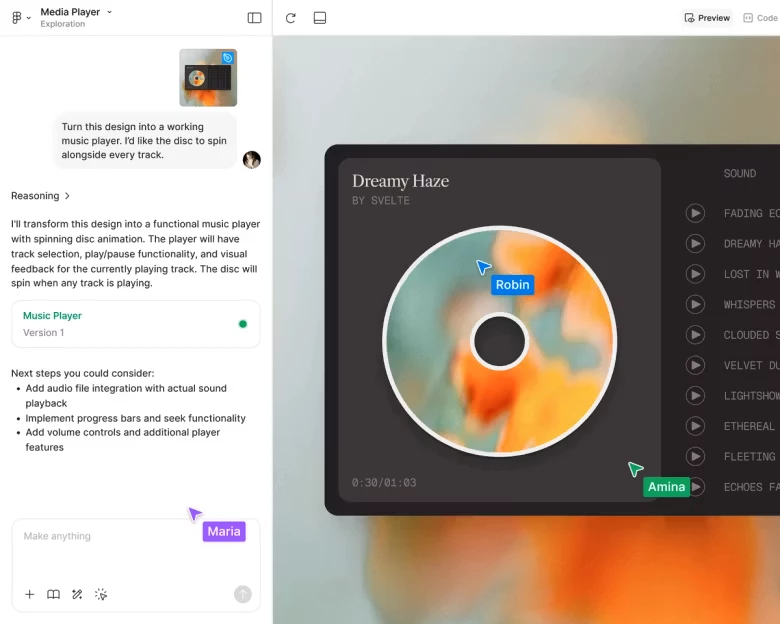
It also made it easier to catch common mobile UX issues early (tap targets, overcrowded screens, unclear progress indicators) because I could iterate on the interaction model while the design was still lightweight.
From there, I leaned on AI for the kind of work that normally eats a lot of time, like cleaning up placeholder copy, organizing layers, and quickly making the design interactive so I could click through screens (like a real app).
What Users Say
Reviewers consistently highlight Figma’s real-time collaboration and interactive prototyping as the big reasons it becomes a team’s default design workspace, and many call out how fast it feels to use, helped along by a deep plugin/community ecosystem.
The most common frustrations are cost as you scale, and frequent updates that can be annoying in locked-down corporate environments,
Who’s It For?
As AI app development tools go, Figma AI is a great fit for product teams and mobile app teams that need to iterate on UI quickly, align with stakeholders using clickable prototypes, and hand designs off cleanly to developers.
It’s especially useful when you want speed and a professional design system workflow (think libraries, components, or consistent patterns) rather than just quick mockups.
Other Notable Features
- First Draft to turn a prompt into an editable starting-point design
- AI help to add interactions and speed up prototyping
- AI to replace placeholder content with more realistic text
- AI to rename and organize layers for cleaner files
- AI-assisted search and discovery for designs and assets across teams/community
- Dev Mode features on paid plans to improve developer handoff and inspection

Our team ranks agencies worldwide to help you find a qualified partner. Visit our Agency Directory for the top mobile app development companies along with:
- Top Android App Development Companies
- Top iPhone App Development Companies
- Top Offshore Software Development Companies
- Top AI App Development Companies
- Top Software Development Companies
Our development experts also spotlight the most groundbreaking app projects from around the world. Visit our Awards section to explore the best in app development.
AI in Mobile App Development FAQs
1. Can I use AI tools if I’m not a developer?
Yes, platforms like Thunkable and Uizard are designed for non-developers. They let you create mobile apps visually using drag-and-drop tools, and some even include AI features like design generation or voice-based interfaces without writing code.
2. Are AI tools secure for mobile app development?
Most reputable AI tools are secure and designed with enterprise-grade compliance. Still, you should always vet third-party services, monitor permissions, and follow best practices for data handling and encryption.
3. Do AI tools work for both Android and iOS apps?
Most modern AI development tools are cross-platform. Tools like FlutterFlow and Thunkable support both iOS and Android, so you can build apps once and deploy them to both platforms with AI-enhanced workflows.
4. Can I publish an app to the App Store / Google Play if parts were AI-generated?
Yes. You still need to meet normal store rules: correct permission use, clear privacy disclosures, licensed assets, accessibility, and solid performance. Always review AI-generated copy/claims for accuracy before submission.
5. Who owns the UI, copy, and code these AI tools generate?
Usually you can use the output, but it depends on each tool’s terms. Check output ownership, whether your inputs are used to train models, and any licensing limits on generated assets. Keep a simple log of prompts/uploads for provenance.
6: What should I avoid pasting into AI assistants while building an app?
Avoid secrets and sensitive data: API keys, signing keys, passwords, customer PII, and proprietary code you can’t risk exposing. Share error messages and sanitized examples instead, and use org/enterprise controls when available.
7: How can I reduce vendor lock-in with no-code/low-code AI app builders?
Keep data and logic portable: use standard APIs, independent backends, and exportable schemas. Prefer tools with code export or clean integration layers, and document your key contracts (data model, endpoints, design tokens) so migration is feasible.