

Migrating your store is both a technical task and a high-stakes business decision. One wrong move and you risk losing critical customer data, traffic, or months of revenue.
Magento To Shopify Migration: Key Points
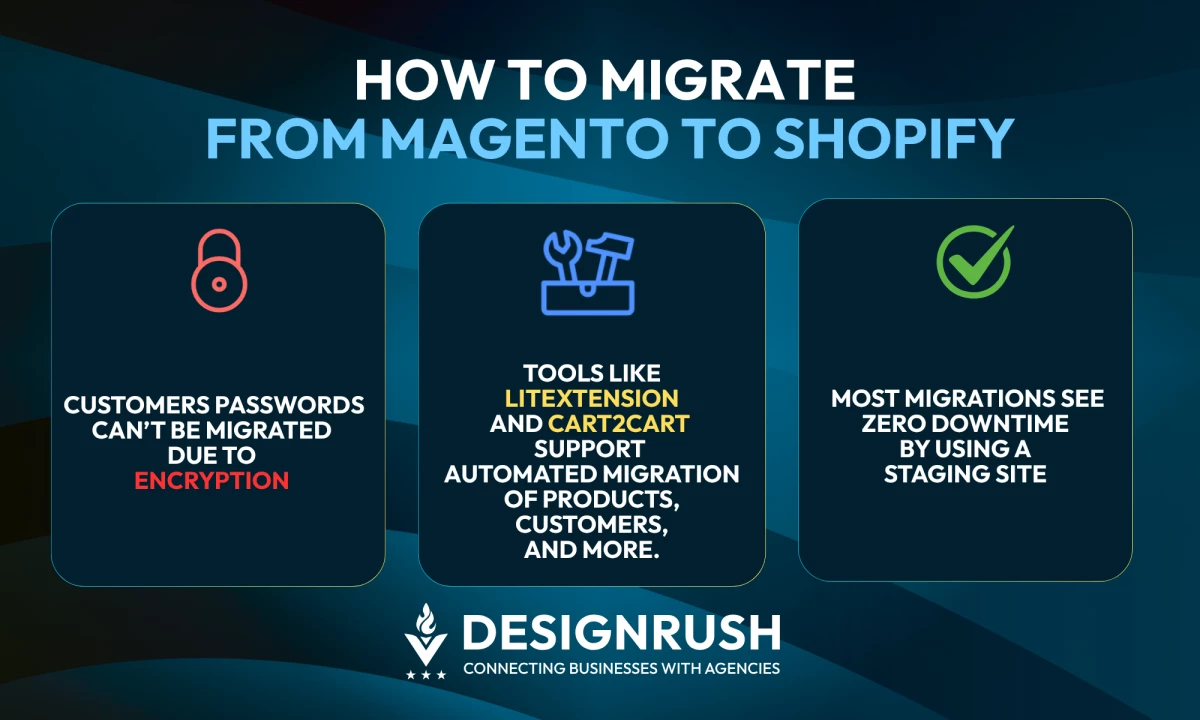
- Tools like LitExtension and Cart2Cart support automated migration of products, customers, orders, categories, CMS pages, and SEO URLs, even for stores with over 1,000 SKUs.
- Customer passwords cannot be migrated due to encryption; stores must send activation or reset emails via bulk-invite apps post-import.
- By using a staging environment and testing on low-traffic windows, most migrations proceed with zero downtime and no revenue loss.
Migrate To Shopify With Confidence
That's why having a clear, tested migration strategy matters.
Knowing what to move, how to move it, and what to watch for along the way can mean the difference between a seamless upgrade and weeks of cleanup.
We’ll show you how to migrate from Magento to Shopify the right way.
Follow These Steps to Move From Magento to Shopify
Website migration is a series of smaller moves that need to happen in the right order. Don’t skip any step because each one plays a critical role in making the switch smooth and error-free.
This section breaks down the full process, so you know exactly what to do and when to do it.
- Prepare Your Magento Data for Migration
- Back Up Everything, No Exceptions
- Choose the Migration Method That Fits Your Store
- Move Your Data Into Shopify
- Set Up Your New Shopify Storefront
- Test Everything Before You Go Live
1. Prepare Your Magento Data for Migration
 Before you move anything, you need a clean, accurate view of what’s in your Magento store.
Migrating messy data wastes time and increases the risk of broken product listings, missing customer info, and post-launch issues in Shopify.
Here’s how to prep your Magento data:
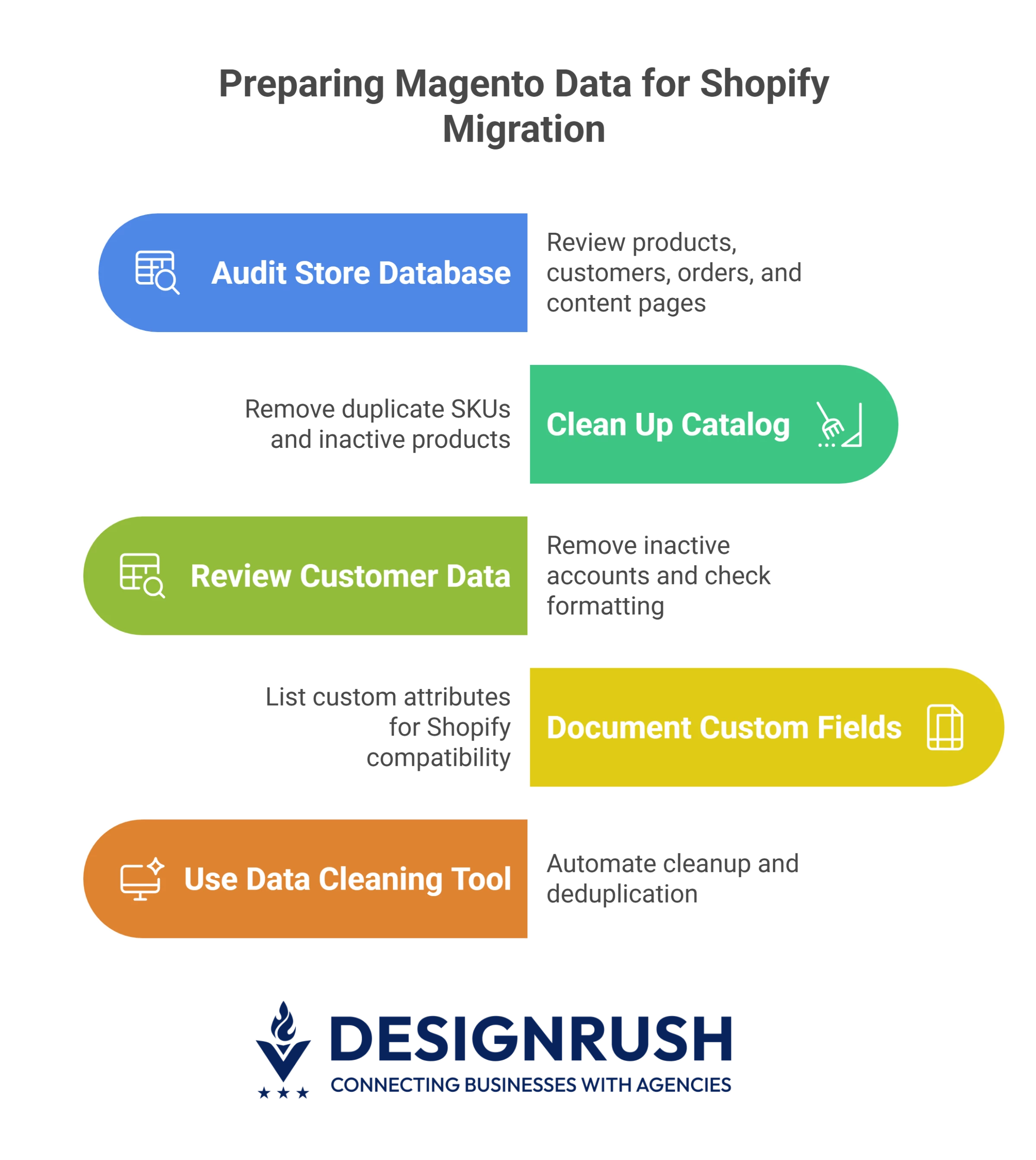
- Audit your store database
In the Magento Admin Panel, go to:
Reports > Data Analysis
to review products, customers, orders, and content pages.
- Clean up your catalog
Remove duplicate SKUs, inactive products, and outdated inventory. Consolidate categories and make sure naming conventions align with how Shopify uses collections.
- Review customer data
Remove inactive accounts, check for formatting inconsistencies (emails, phone numbers), and tag VIP or wholesale customers for segmentation later.
- Document custom fields and data types
If you’re using custom attributes in Magento (like tiered pricing or grouped products), list them out now. You may need Shopify apps or workarounds to support them.
- Use a data cleaning tool
Tools like OpenRefine can help automate cleanup and deduplication, especially for larger catalogs.
This upfront work saves hours later and reduces the chance of data loss during import.



2. Back up Everything, No Exceptions
Before you make any changes or start exporting data, create a complete backup of your Magento store. If anything goes wrong during migration, this is your safety net.
Here’s how to properly back up your store:
- Use Magento’s built-in backup feature
Go to: System > Backups and select “Create Backup.” Be sure to include the database, media files, and file system.
(Note: Magento deprecated this feature in version 2.3. Use it only if still available or rely on manual backups or hosting control panels instead.)
- Create a manual database dump (recommended)
If you have server access, use this command:
- Download your media assets
Pull product images, banners, and other visuals from the /pub/media/ folder in Magento. These will need to be re-uploaded to Shopify. - Save backups offsite
Store all backup files securely in Google Drive, Dropbox, or an S3 bucket to ensure redundancy. - Test your backup
If possible, restore your backup to a staging environment. This confirms the backup works and gives you a safe place to test your migration process.
Skipping this step is risky. Even if you're working with an agency or using a tool, you’re responsible for protecting your store’s data.
3. Choose the Migration Method That Fits Your Store
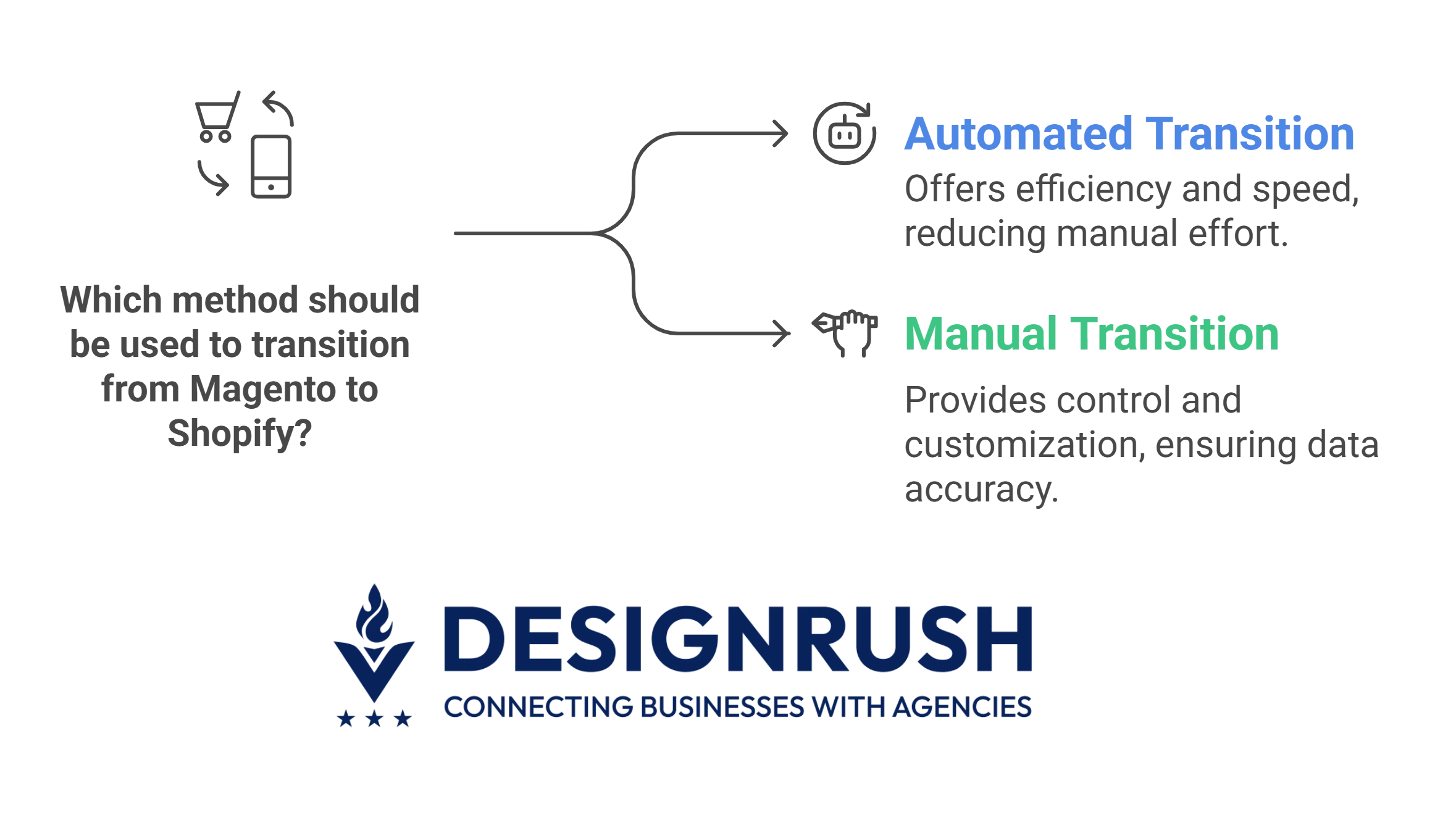
There are two main ways to migrate from Magento to Shopify: automated or manual. The right approach depends on your store’s size, complexity, and internal resources.
3.1 Automated Migration (Best for Most Stores)
If your store has thousands of products, customer records, or orders (or you just want to avoid the grunt work) use a specialized tool like LitExtension or Cart2Cart.
These platforms handle data mapping and transfer for:
- Products and categories
- Customer data
- Order history
- Product reviews and SEO URLs (depending on the tool)
How it works:
- Create an account on your tool of choice.
- Connect your Magento and Shopify stores via API or URL + credentials.
- Select the data types to migrate.
- Run a demo migration (recommended).
- Launch the full migration and monitor the results.
3.2 Manual Migration (If You Need Full Control)
Prefer a hands-on approach? You can export and reformat your Magento data into Shopify’s required CSV templates.
Steps to migrate manually:
- In Magento, go to: System > Data Transfer > Export
- Choose CSV format for each data set (Products, Customers, Orders)
- Open the files in Google Sheets or Excel
- Match fields to Shopify’s format
- Clean, validate, and save for upload
Manual migration takes more effort but can be useful for stores with niche requirements or limited tool compatibility.
| Manual migration makes sense if: |
|
4. Move Your Data Into Shopify
Once your data is cleaned and your migration method is set, it’s time to move everything into Shopify.
The process looks different depending on whether you're using a tool or going manual.
4.1 If You’re Using an Automated Tool
Your migration platform (like LitExtension or Cart2Cart) will do most of the heavy lifting here:
- Log in to your tool dashboard and start the full migration.
- Monitor the transfer. Watch for skipped items or errors.
- Once complete, log into your Shopify Admin and review:
°Products
°Customers
°Orders|
°Collections and tags
Use the tool’s support team if anything looks off.
4.2 If You’re Migrating Manually
You’ll upload your data using Shopify’s built-in importers:
- Products:
Go to Shopify Admin > Products > Import. Upload your cleaned CSV and check for formatting issues. - Customers:
Navigate to Customers > Import.
Remember: Shopify won’t import passwords. You’ll need to send activation emails using an app like Bulk Account Invite Sender. - Orders:
Shopify doesn’t allow direct import of historical orders without a third-party app.
You can manually recreate key past orders under:
Orders > Create Order or use an app like Matrixify.
| Pro Tip |
| Before moving on, double-check all critical fields (pricing, stock, categories) and flag anything missing. Clean imports will save you from customer service headaches later. |
5. Set Up Your New Shopify Storefront
With your data now in Shopify, it’s time to configure your storefront so it’s functional and optimized for selling. Here’s how:
5.1 Pick a Theme That Fits Your Brand
Choose a Shopify theme that matches your design goals and product types.
You can start with a free theme like Dawn or explore paid themes in the Shopify Theme Store. Customize fonts, colors, and layouts to align with your brand.
5.2 Install Essential Apps
Shopify’s App Store offers thousands of tools, but start with the essentials that replace key Magento functionality such as:
- SEO (e.g. Smart SEO by Sherpa)
- Reviews (e.g. Loox)
- Analytics (e.g. Hotjar)
- Redirects (e.g. Easy Redirects for SEO continuity)
5.3 Configure Core Settings
Get your shipping, taxes, and payments dialed in. These settings directly impact your checkout flow and operational accuracy, so don’t treat them as an afterthought.
- Set up shipping zones, rates, and delivery rules under:
Settings > Shipping and Delivery - Add tax settings based on your store’s location under:
Settings > Taxes - Set up payment gateways under:
Settings > Payments
Note: Shopify supports PayPal, Stripe, Shop Pay, Apple Pay, and more.
5.4 Match Your Navigation Structure
Your site’s structure affects usability, search engine optimization (SEO), and conversions. Recreate your Magento menu using:
Online Store > Navigation
Also, ensure categories and collections are clear, intuitive, and mobile-friendly.
5.5 Add Key Store Pages
Legal and informational pages build trust and protect your business. Make sure they’re clearly worded, discoverable, and fully functional.
Before launch, preview the entire store from a customer’s perspective to catch anything off-brand or broken.
| When adding key store pages, also include: |
|
6. Test Everything Before You Go Live
A successful migration doesn’t end with setup; it ends with a fully tested store that performs under pressure.
Final testing ensures your Shopify site works exactly as expected across every touchpoint. Here’s what you should do:
6.1 Run Checkout Simulations
Place test orders using different payment methods: credit card, PayPal, Shop Pay, Apple Pay. Validate discounts, tax calculations, and shipping rates.
6.2 Test for Broken Links and Missing Media
Browse all major pages, collections, and products. Check for missing images, broken buttons, or misaligned layouts.
For this, you can use tools like Broken Link Checker or Ahrefs Site Audit.
6.3 Verify 301 Redirects
If your URLs have changed from Magento to Shopify, set up redirects under:
Online Store > Navigation > URL Redirects
Then, map and test top-performing pages to preserve SEO rankings
6.4 Check Mobile Responsiveness
Preview the site on various devices and browsers. Ensure the layout, buttons, and text scale properly for mobile users
6.5 Run Speed and Performance Audits
Use Google PageSpeed Insights or GTmetrix. Address issues related to image optimization, app bloat, or third-party scripts.
6.6 Prep Your Announcement
Draft an email and social media post to let customers know about the upgrade. Highlight any improvements: new features, better UX, or faster checkout.
Once you're confident everything works, you’re ready to go live with a fully migrated Shopify store built to perform.
What You Can and Can’t Migrate to Shopify
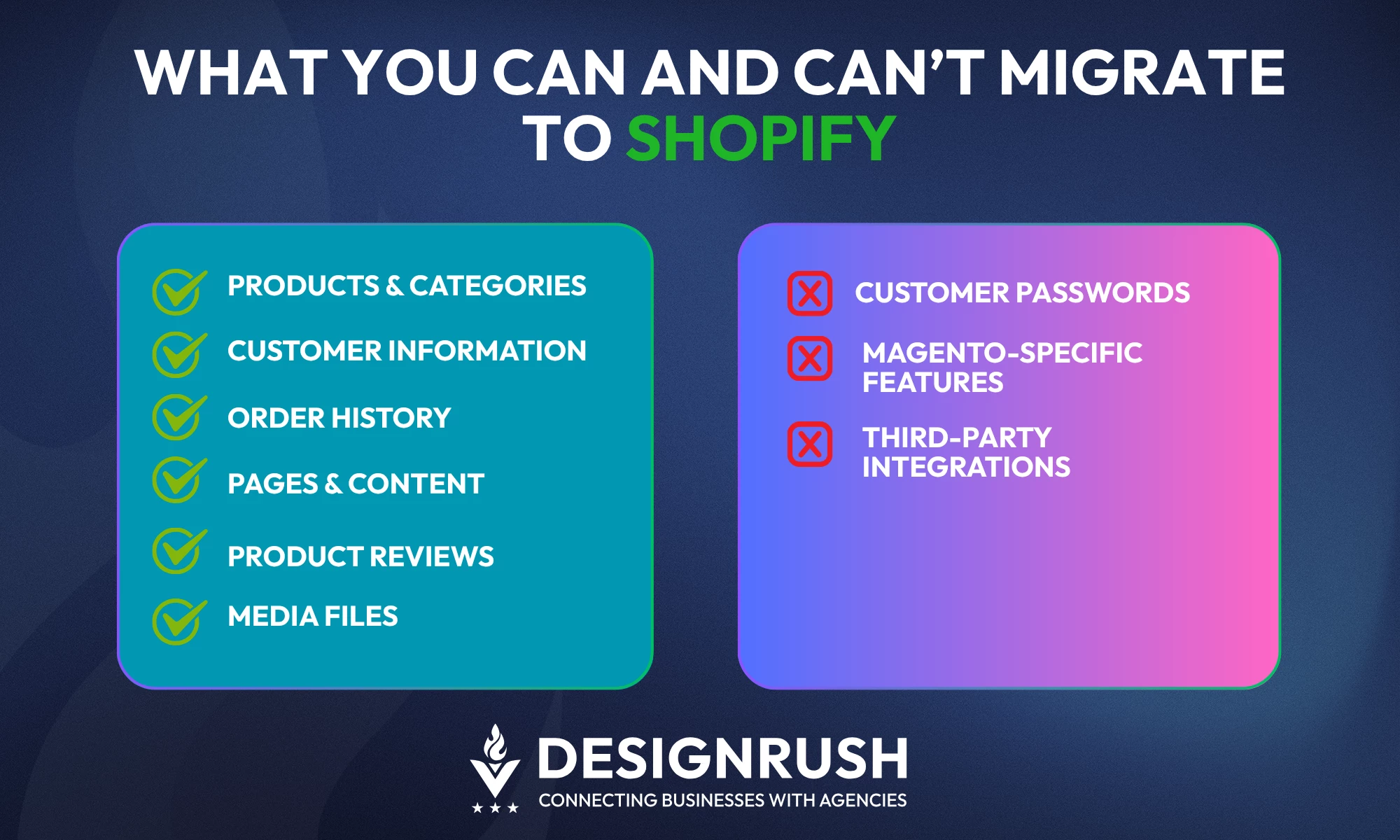
Not everything transfers cleanly between platforms. Knowing what’s fully supported and what requires workarounds helps you avoid surprises mid-migration.
What You Can Migrate
These data types are generally supported by both Shopify and migration tools:
- Products and categories
Includes names, descriptions, SKUs, pricing, stock levels, and linked categories (mapped as Shopify “collections”). - Customer information
Names, emails, phone numbers, account status, and group tags. - Order history
Past transactions, shipping and billing details, and invoice data (depending on tool or app used). - Pages and content
Includes “About Us,” contact info, return policies, and other CMS pages — these can be recreated manually or with export tools. - Product reviews
Most migration tools support review transfers, but you may need an app like Judge.me to preserve formatting. - Media files
Product images, banners, and videos can be downloaded from Magento and re-uploaded into Shopify’s media library.
What You Can’t Migrate (Directly)
Some items require manual handling or third-party apps:
- Customer passwords
Due to encryption, these can’t be transferred. Customers will need to reset or activate accounts in Shopify. - Magento-specific features
Custom modules, bundled product types, or tiered pricing may need Shopify equivalents or apps. - Third-party integrations
CRMs, ERPs, or marketing plugins won’t carry over automatically. They’ll need to be reconnected or replaced.
4 Common Migration Challenges and How To Solve Them
Even with the right tools and preparation, migrating from Magento to Shopify can trigger issues that affect performance, visibility, or customer trust.
Here’s how to solve the most common ones before they cause damage:
1. Data Loss or Corruption
Improper exports, incompatible file formats, or errors during import can cause missing products, broken listings, or incomplete customer data.
| How to fix: |
|
2. Compatibility Issues
Custom Magento features like complex product bundles or store-specific modules may not have direct equivalents in Shopify.
| How to fix: |
|
3. SEO Disruptions
Changing URLs, metadata, or site architecture without a redirect plan can hurt your search rankings and kill organic traffic.
| How to fix: |
|
4. Downtime and Launch Delays
Unexpected technical errors, incomplete data transfers, or app conflicts can delay your go-live, costing you revenue and customer trust.
| How to fix: |
|
These challenges aren’t dealbreakers, but if you ignore them, they’ll become expensive cleanup jobs.
Caleb Bradley, CEO of Bighorn Web Solutions, suggests:
“Develop a comprehensive migration plan outlining goals, timelines, and responsibilities that has been reviewed and signed off by all stakeholders (visible and hidden). Implement proper 301 redirects, retain URL structures where possible, and ensure metadata is preserved.”
So, plan for the challenges upfront, and your Shopify migration will be a true upgrade, not just a platform swap.
Magento To Shopify Migration: Conclusion
Switching from Magento to Shopify is both a technical and a business move. You're trading complexity for speed, flexibility, and a platform that keeps up as you grow.
Bradley emphasized:
“Brands that evolve their technology stacks and mindsets accordingly will thrive.”
But migrations have real stakes.
Data integrity, customer trust, and search visibility are all on the line. That’s why execution matters as much as strategy.
If the process feels too high-risk or resource-heavy, working with an experienced eCommerce agency can take the pressure off. You’ll get the job done faster, with fewer mistakes, and greater confidence at launch.

Our team ranks agencies worldwide to help you find a qualified partner. Visit our Agency Directory for the best eCommerce development agencies, as well as:
- Web Development Companies
- WordPress Web Design Companies
- Web Design Agencies
- Shopify Plus Agencies
- Magento Developers
Our design experts also recognize the most innovative design projects across the globe. Visit our Awards section for the best & latest in website design.
How To Migrate From Magento To Shopify: FAQs
1. Do I need a developer to migrate from Magento to Shopify?
Not always. Tools like LitExtension or Cart2Cart handle most of the heavy lifting. But if you have custom features or want a tailored storefront, working with a developer or agency is recommended.
2. Will I lose my Magento store during the migration?
No. Your Magento store stays live until you're ready to launch on Shopify. You can fully build and test your Shopify store in parallel without disrupting existing operations.
3. Can I migrate my blog content or CMS pages?
Yes, but blog posts and CMS pages typically need to be manually recreated or copied into Shopify’s blog editor or page builder.
Some tools support partial content migration, but formatting usually needs cleanup.