
Content creation tools used to be judged on how fast they helped you publish, but speed isn't the advantage it was. AI Overviews answer questions before anyone clicks, and audiences increasingly find creators through short videos instead of search results.
What wins today is original thinking that works in more than one format.
We'll walk you through the content software that helps at each stage, from research and writing to video and scheduling, along with what each one costs.
Tools for Content Creation: Key Findings
- All-in-one platforms cut the hand-offs where time and quality leak. Canva covers visuals, while Riverside handles video and podcasts from recording to publishing
- Free content creation tools cover most starter stacks. Google Trends and Google Docs are free, and Canva, ChatGPT, CapCut, Buffer, and Notion have solid free plans.
- AI repurposing turns one piece into many. Riverside turns a single recording into clips, blog posts, and show notes, while expert input from Connectively helps it stand out.
Best Content Creation Tools: Quick Comparison
Content creation tools help you produce, edit, optimize, and distribute content, from articles and social posts to videos, graphics, podcasts, and emails. They range from free, single-purpose apps to all-in-one content production software that covers several stages of the workflow.
The right mix depends on what you create, your team size, your budget, and how much you want to automate.
Use this table to compare all 12 tools for content creation at a glance, including what each does best and what it costs to get started.
Tool | Use Case | Best For | Free Tier | Starting Price |
All-in-one / Design | All-around visual content | Yes | $18/mo | |
All-in-one / Video & Podcast | End-to-end video and podcast production | 14-day free trial | $24/mo | |
Research | Trending topic discovery | Yes (free) | Free | |
Research | Expert quotes and source connections | Yes | $11/mo | |
Writing | Drafting, scripts, and editorial review | Yes | $7/user/mo | |
Writing / AI | Brainstorming, drafting, and repurposing | Yes | $8/mo | |
Design | Quick on-brand visuals in the Adobe ecosystem | Yes | $9.99/mo | |
Design | Collaborative design systems and brand templates | Yes (Starter) | $3/seat/mo | |
Video | Short-form social video editing | Yes | $19.99/mo | |
Video / Podcast | Transcript-based editing of existing footage | Yes | $16/mo | |
Distribution | Simple social scheduling and analytics | Yes (3 channels) | $5/channel/mo | |
Planning | Editorial calendars, briefs, and documentation | Yes | $10/member/mo |
How We Chose These Tools
We evaluated digital content creation software across every stage of the workflow and narrowed the list to 12 using six criteria.
- Workflow coverage: Tools that handle one or more full stages ranked higher, which is why three all-in-one platforms lead the list.
- Output quality: We checked whether each tool's output, including AI output, needs only light edits.
- Ease of use: We favored tools a new user can learn in an afternoon.
- Collaboration and scale: We looked at approvals, permissions, and brand controls, and whether each tool works as teams grow.
- Hand-off cost: Tools that reduce exports and lost context between apps scored higher.
- Pricing and free-tier value: We compared free plans and hidden costs like per-seat pricing, AI credit caps, and renewal increases.
Pricing was checked against each vendor's official site in September 2026, but prices change often, so confirm before you buy.
All-in-One Content Creation Platforms
These tools cover multiple production stages in one place, so you don't have to keep exporting and reformatting files between apps.
Each one handles a full content type: Canva for visuals and Riverside for video and audio. If you're starting from scratch, pick the one that matches what you produce most:
- Canva – Best all-around tool for visual content
- Riverside – Best all-in-one tool for video and podcast production
1. Canva – Best All-Around Tool for Visual Content
For creators and marketing teams who need on-brand graphics, social posts, presentations, and marketing materials produced quickly
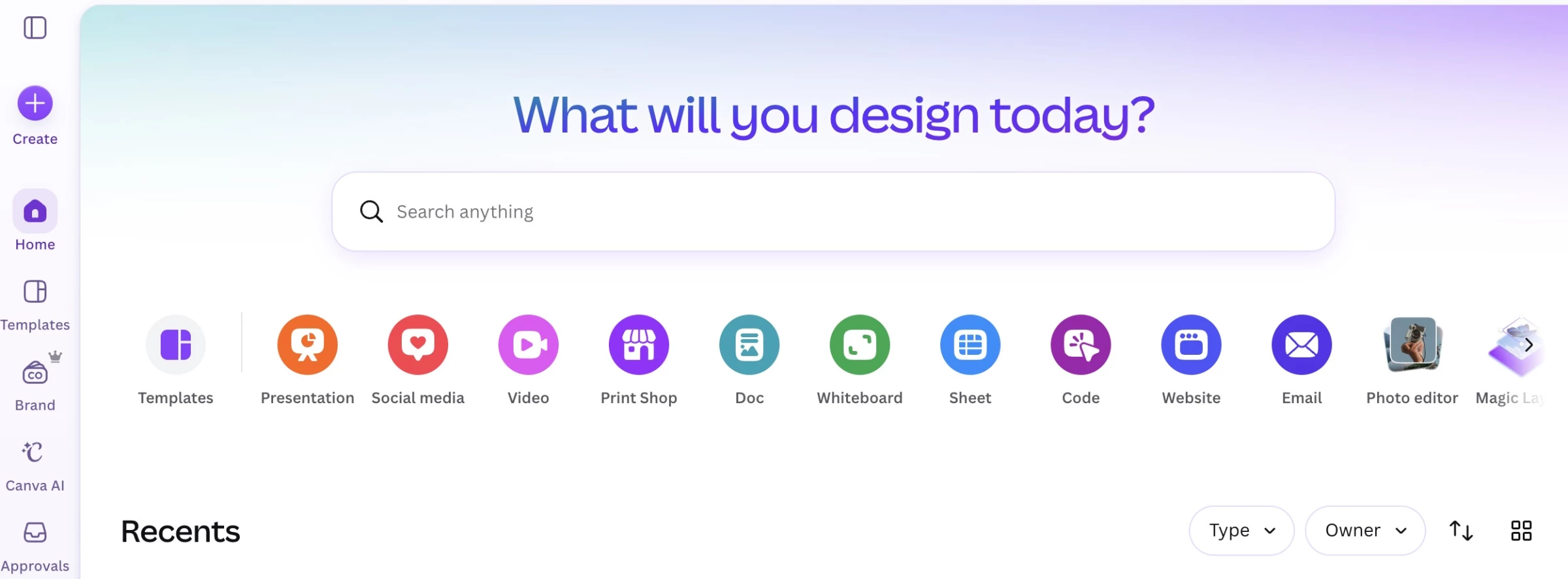
Canva is browser-based digital content creation software that makes professional-looking visuals achievable for people with no design training. Anyone can make an Instagram post, slide deck, flyer, or short video using templates, drag-and-drop editing, and built-in AI.
You can also post directly to social platforms, schedule content, order prints, or publish a design as a website, so for many small teams, Canva covers the whole visual workflow.
Its most useful features cut out repetitive work. Magic Switch resizes one design for every platform, and Brand Kit stores your fonts, colors, and logos so the whole team stays on-brand.
Pricing:
- Free: $0, no time limit
- Pro: $18/month or $180/year for one person
- Business: $25/month or $250/year per person
- Enterprise: Custom pricing
- Education and nonprofits: Free for K-12; nonprofits get one free team of up to 50
Key Features:
- Thousands of templates for almost every format, including social posts, presentations, resumes, flyers, ads, and video
- AI tools include text-to-image, Image Enhancer, and Magic Layers for editable AI designs.
- Shared editing, view-only links, and asset folders make collaboration easy.
- Video tools cover trimming, text animation, and MP4 export for social clips.
- Direct social publishing and scheduling are available on Pro.
- You can order prints or publish designs as websites.
Pros:
- Non-designers can produce professional assets from day one.
- Handles creation through distribution in one tool.
- The free plan is generous enough for a real trial.
- Admin AI controls make approval easier at larger companies.
Cons:
- Limited precision for trained designers compared with Figma.
- Popular templates are widely recognizable, so customize them.
- Downgrading re-watermarks premium elements in existing designs.
2. Riverside – Best All-in-One Tool for Video and Podcast Production
For podcasters, video creators, and content teams who want to record, edit, repurpose, and publish from one platform
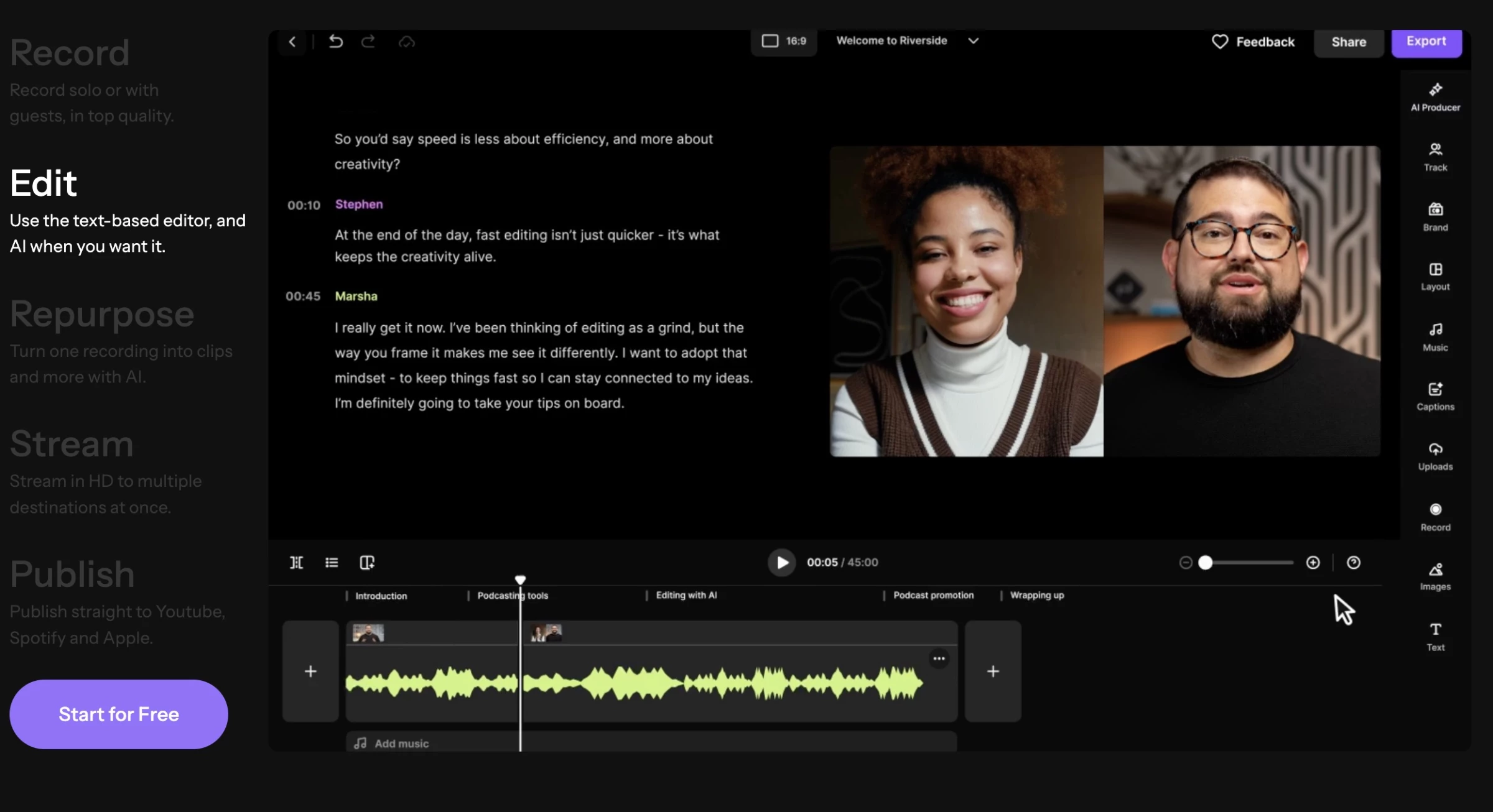
Riverside is an end-to-end AI-powered platform for recording, editing, repurposing, and publishing studio-quality video and podcasts.
It replaces the usual chain of recording in one tool, editing in another, and uploading to a third, where every step adds delays and compression.
Each participant is recorded locally in up to 4K with uncompressed audio, so a guest's bad Wi-Fi won't ruin the final file.
"Downstream quality is decided by the least technical person in the room – usually a guest who's never seen the tool," says the Riverside team.
"Riverside protects that with a browser-based join (no downloads or setup for guests), local recording that captures them in high quality automatically (nothing for them to configure), and a host or producer who can remotely control their camera and mic to fix issues before they're baked in.”
After recording, you can edit the transcript and let AI handle cleanup, B-roll, and dubbing. Magic Clips and AI Co-Creator turn one session into clips, blog posts, and show notes.
Because files upload during the session, your edited episode, clips, and transcript are ready when you stop recording.
As the Riverside team puts it, "What sets the pace isn't rendering horsepower – it's whether the tool eliminated the export/upload/hand-off queue. Riverside removes it, so the first clip can be out before you've closed the tab.”
Pricing:
- Free trial: 14 days
- Pro: $24/month
- Grow: $34/month
- Webinar: $79/month
- Business: Custom pricing, with 10,000-attendee webinars, producer controls, team permissions, and timeline export
Start your 14-day free trial with Riverside.
Key Features:
- Local recording in up to 4K captures clean audio and video regardless of internet quality.
- Magic Clips and AI Co-Creator turn one recording into clips, posts, and show notes.
- HD live streaming reaches multiple platforms at once, with call-ins and branded overlays.
- The text-based editor and AI tools handle cuts, filler words, eye contact, B-roll, and dubbing.
- Built-in podcast hosting publishes to YouTube, Spotify, and Apple, with analytics included.
Pros:
- Studio-quality recordings without a studio.
- Handles everything from recording to publishing in one tool.
- Strong AI repurposing for every channel.
- First clips can go out minutes after a session ends.
Cons:
- There's no free-forever plan, only a 14-day trial.
- Key team features require custom Business pricing.
- Advanced color grading and sound design still need a dedicated editor.


Research and SEO Tools for Finding the Right Topics
Research tools show you what people are searching for, what they want, and what top results already cover, so you're not guessing at topics.
They also help you add the original insight AI summaries can't replicate. Here are the research tools worth adding to your workflow.
- Google Trends – Best free tool for trending topic discovery
- Connectively – Best for expert quotes and source connections
3. Google Trends – Best Free Tool for Trending Topic Discovery
For creators who want to catch rising interest, seasonal patterns, and timely content opportunities before competitors
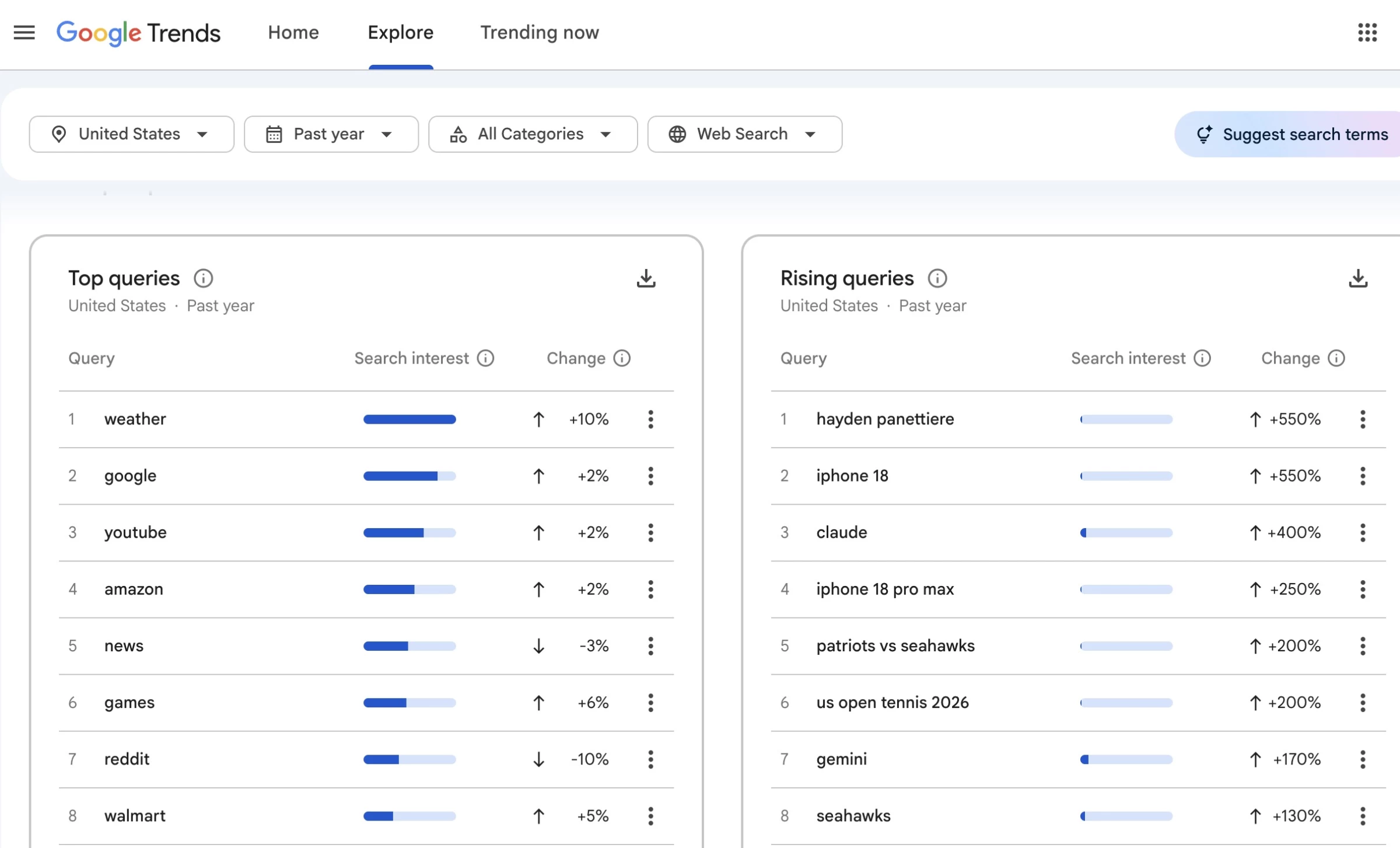
Google Trends is Google's free tool for seeing what people search for, how interest changes over time, and where it's concentrated.
Trending Now shows what's spiking in your region and why, with related news alongside. Explore lets you check a topic's five-year history for seasonal peaks and find rising queries as interest builds.
Compare shows which phrasing your audience actually uses, and video creators can switch to YouTube search data, which often looks very different from web demand.
Pricing:
- Free: No paid plans, and no sign-up required.
- Daily Trends newsletter: Free by email, English only.
Key Features:
- Related topics and queries highlight top and fastest-rising searches.
- Search type filters cover web, image, news, shopping, and YouTube.
- The Daily Trends newsletter sends a summary of what's trending.
- Free training from Google covers basic to advanced u
Pros:
- Real Google search data at no cost
- Shows when to publish, not just what to cover
- Linked news stories explain why topics are rising
- YouTube data helps with video planning
Cons:
- Shows relative interest, not actual search volume
- Niche topics often have too little data.
- Short-lived spikes rarely justify long content.
4. Connectively (formerly HARO) – Best for Expert Quotes and Source Connections
For creators who want real expert input in their content, and for experts who want to build authority by contributing to publishers
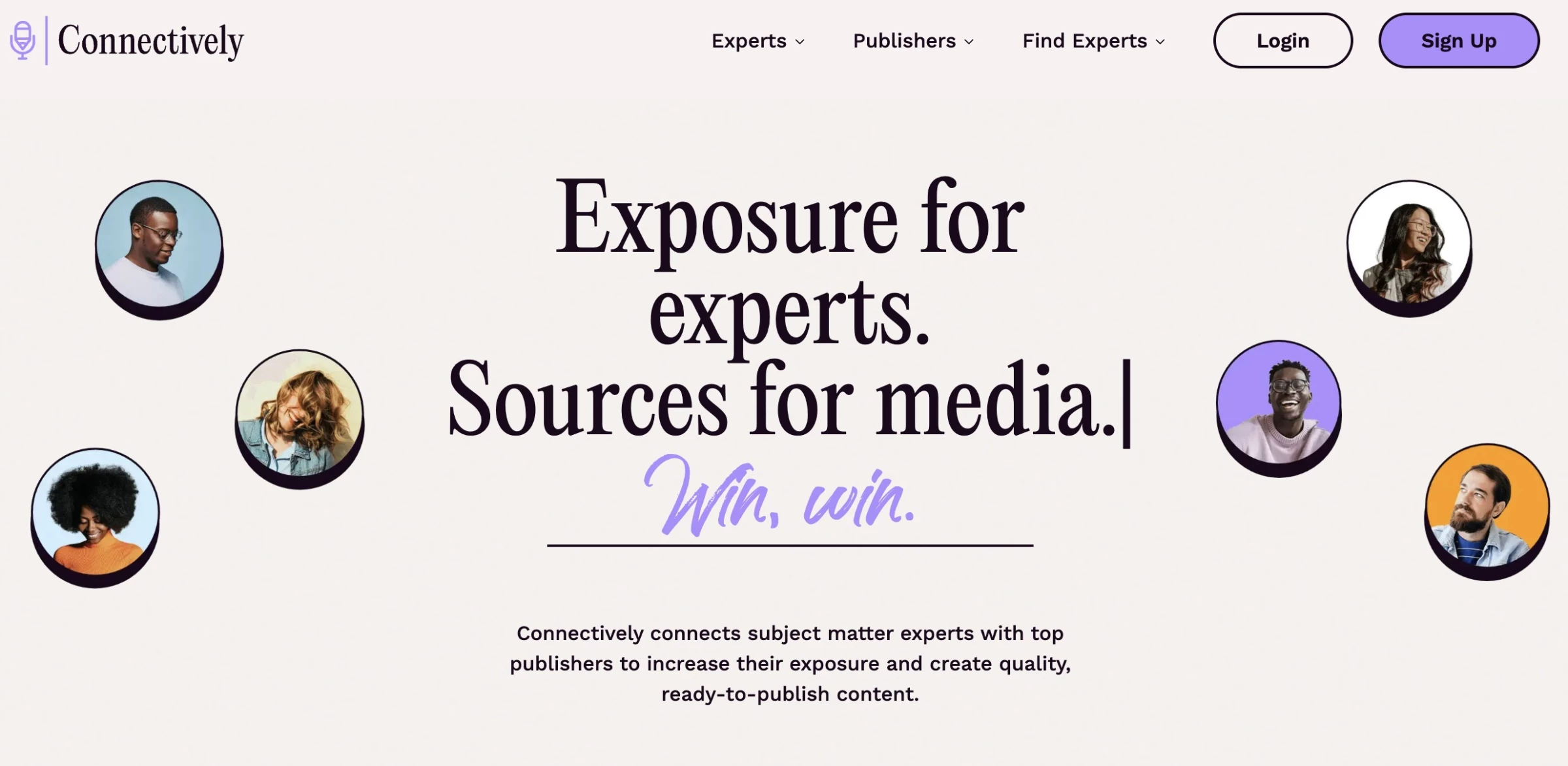
Connectively connects subject matter experts with publishers. Publishers post questions, and experts respond with answers, bylined articles, or interviews.
It's run by Featured, which also owns HARO, so HARO queries appear here in real time, often hours before the email digests. With AI content flooding search, genuine expertise is harder to fake and more valuable than ever.
As a publisher, you post a query and experts pitch you. As an expert, speed matters, since reporters often choose from the first strong pitches.
Keyword alerts flag relevant queries, and one dashboard tracks your pitches and placements.
Pricing:
- Free: $0, with 3 answers and 1 bylined article per month.
- Lite: $19/month, or $11/month billed yearly
- Pro: $49/month, or $29/month billed yearly
- Business: $99/month, or $59/month billed yearly
- Pay-as-you-go: credits from $6.99 each, with no expiration.
Key Features:
- Publishers and podcast hosts can post queries and receive expert pitches.
- Experts can contribute answers, bylined articles, or interviews.
- Keyword alerts flag queries that match your expertise.
- A single dashboard handles pitching, tracking, and placements.
Pros:
- Adds original expertise AI content can't match
- Useful for both sourcing quotes and building authority
- The free plan is enough to test it properly
Cons:
- Pitch quality varies, so expect to filter
- Placements aren't guaranteed and average 18 days
- The best rates require yearly billing
Writing and Editing Tools for Content Creators
Writing tools help with outlining, drafting, and headlines, while editing tools catch errors, dense sentences, and weak phrasing.
Together, these tools for content creators take you from a blank page to a publish-ready draft.
- Google Docs – Best free tool for drafting, scripts, and editorial review
- ChatGPT – Best AI tool for brainstorming, drafting, and repurposing
5. Google Docs – Best Free Tool for Drafting, Scripts, and Editorial Review
For creators and teams who need a shared place to draft articles, write scripts, collect ideas, and run editing rounds
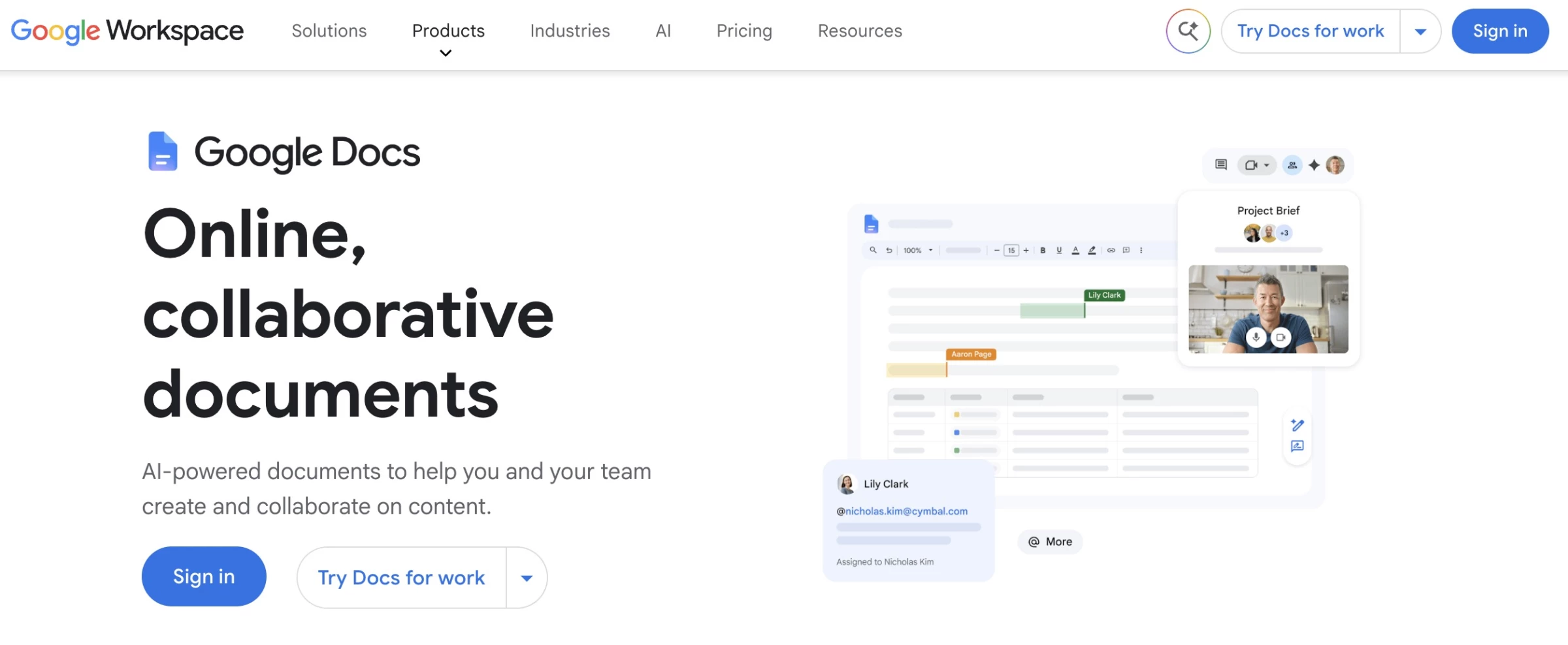
Google Docs is a free browser-based editor, and it's still where most content gets written.
Its collaboration features allow several people to edit at once; suggestion mode lets writers accept or reject edits one by one, and comments can be assigned as tasks.
On Workspace plans, Gemini can draft documents from your files and emails, then match your style and formatting.
Pricing:
- Free: Available with any Google account.
- Business Starter: $7/user/month annually or $8.40 monthly
- Business Standard: about $14/user/month, with full Gemini in Docs.
- Workspace Individual: $9.99/month
Key Features:
- Real-time co-editing works across web, mobile, and tablet
- Suggestion mode and assignable comments streamline reviews
- Templates and "@" building blocks insert structured elements quickly
- Custom building blocks store reusable text like bios and disclaimers
- Gemini drafts documents and matches your style (Workspace plans)
Pros:
- Free and familiar to almost everyone
- Clean, traceable editorial reviews
- Handles scripts as well as articles
Cons:
- No status or deadline tracking for editorial planning.
- Full Gemini features require Business Standard.
- No built-in SEO or readability scoring.
6. ChatGPT – Best AI Tool for Brainstorming, Drafting, and Repurposing
For creators who want a flexible AI assistant for ideas, outlines, drafts, research, and repurposing
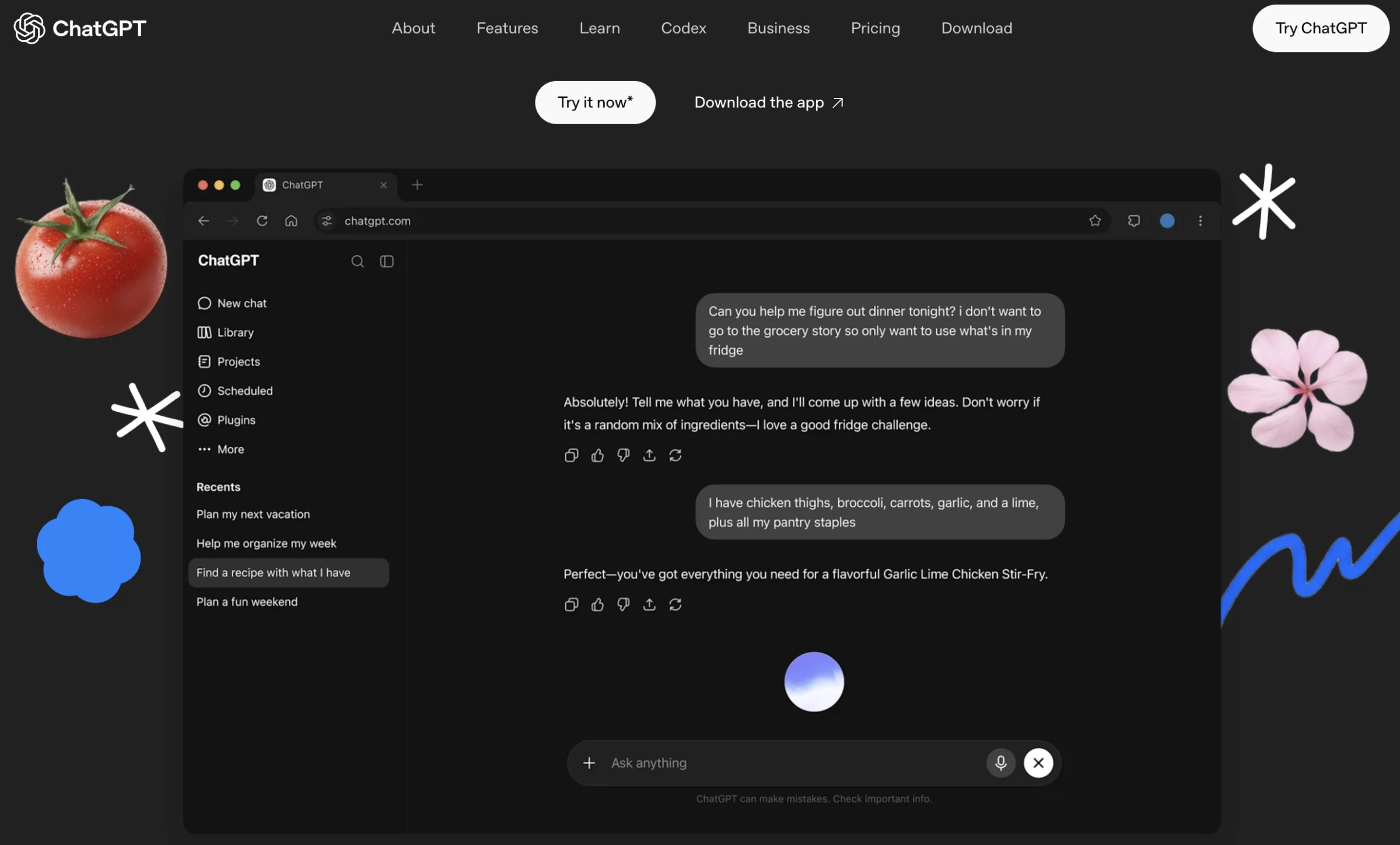
ChatGPT helps in drafting, rewriting, summarizing, and brainstorming. It's most useful for repurposing and revision, like turning a podcast transcript into LinkedIn posts or asking for the strongest objection to your argument.
Most generic output comes from missing context, and several features fix that. Projects keep your style guide and examples in one place, custom GPTs give a whole team the same brand setup, and Canvas lets you edit drafts with inline suggestions.
AI search and deep research deliver cited background, though you should check every source before publishing.
Pricing:
- Free: $0, with limited flagship model access.
- Go: $8/month
- Plus: $20/month
- Pro: $100/month
- Business: $25/seat monthly or $20 annually, with a two-seat minimum.
- Enterprise: Custom pricing.
Key Features:
- Drafting, rewriting, summarizing, and translating work across any format
- Search provides current, source-backed answers
- Deep research produces cited, structured reports
- Image generation creates and edits visuals from text prompts
- Scheduled tasks handle recurring jobs like news checks
Pros:
- Handles almost any content format
- Built-in research with cited sources
- The free plan covers everyday writing tasks
Cons:
- Output is generic without detailed context
- It can state errors confidently, so verify everything
- No search volume or ranking data
- Plans, limits, and models change often
Graphic Design and Visual Tools for On-Brand Assets
Design tools help non-designers create on-brand social graphics, presentations, and ads.
Canva, covered above, is the default for most teams. The tools below fill specific gaps or suit creators already working in other ecosystems:
- Adobe Express – Best for quick on-brand visuals in the Adobe ecosystem
- Figma – Best for collaborative design systems and brand templates
7. Adobe Express – Best for Quick On-Brand Visuals in the Adobe Ecosystem
For teams who want quick social graphics, flyers, and videos that match the work of designers using Adobe's professional apps
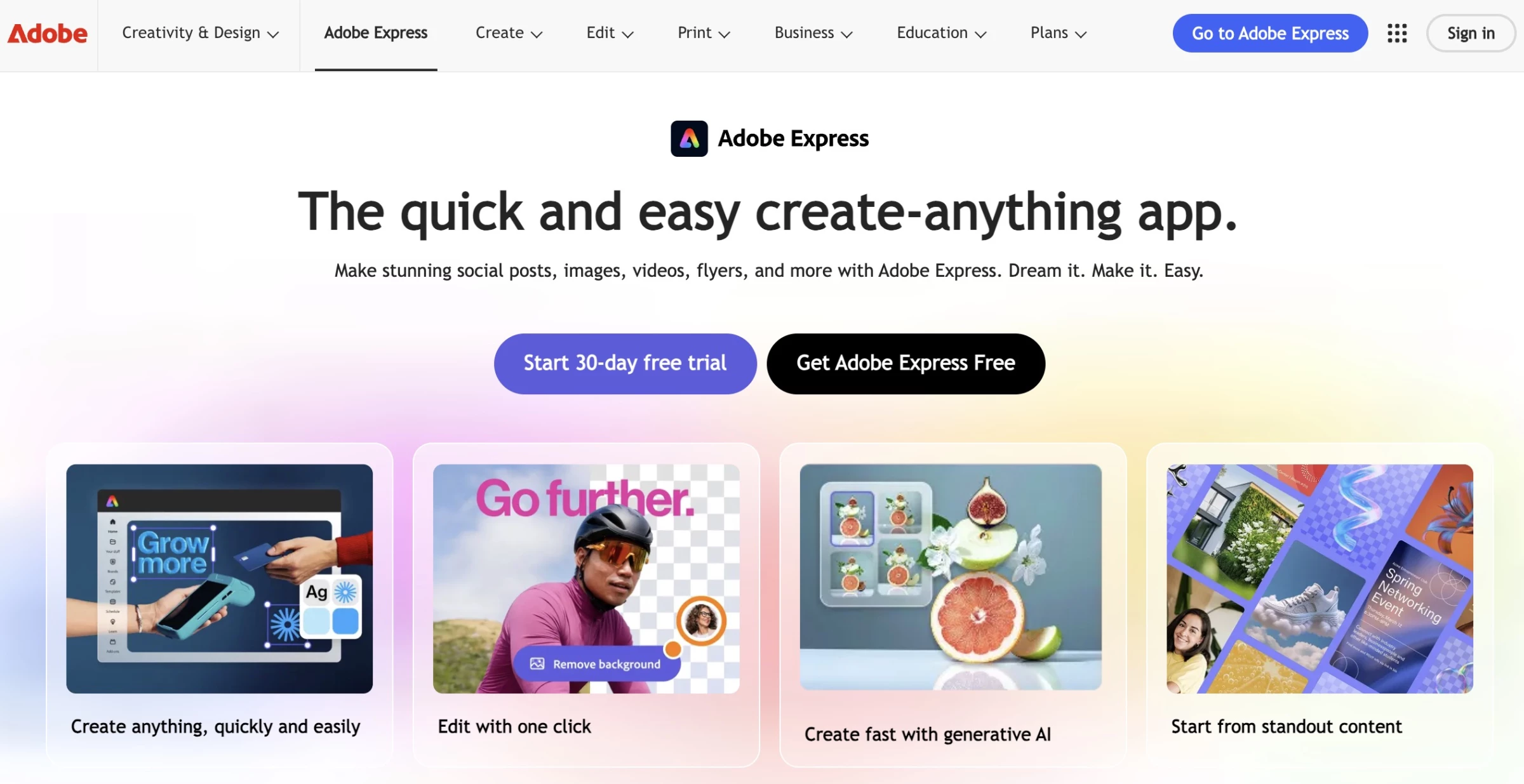
Adobe Express is a quick-creation app for social posts, flyers, and short videos, available in the browser and on mobile. It competes with Canva on templates and AI, but its edge is ecosystem fit.
Express syncs brand assets with Adobe's professional apps, so marketers' quick designs match their designers' campaign work. Adobe's generative AI is also designed to be commercially safe, which matters for ads and client work.
One-click resizing also adapts a design for every channel, and brand kits apply your fonts and colors instantly.
Pricing:
- Free: $0, with 25 generative AI credits per month.
- Premium: $9.99/month or $99.99/year
- Adobe Firefly Pro: $19.99/month
- Teams: $4.99/license/month for the first year
- Enterprise: Custom pricing.
Key Features:
- Millions of templates and assets, plus free stock photos
- One-click resize adapts designs for every channel
- Scheduling and publishing happen inside the app
- Content and brand assets sync with Adobe's professional apps
- Video tools include bulk editing, self-recording, and Vimeo publishing.
Pros:
- Fits naturally into Adobe workflows
- Often included in existing Adobe subscriptions
- Commercially safe AI lowers risk for brand content
Cons:
- Generative credits don't roll over and can run out
- Teams requires two seats and a yearly commitment
- The AI Assistant is limited to Premium, desktop, and US English
8. Figma - Best for Collaborative Design Systems and Brand Templates
For teams where designers build the brand system, and marketers produce assets from it
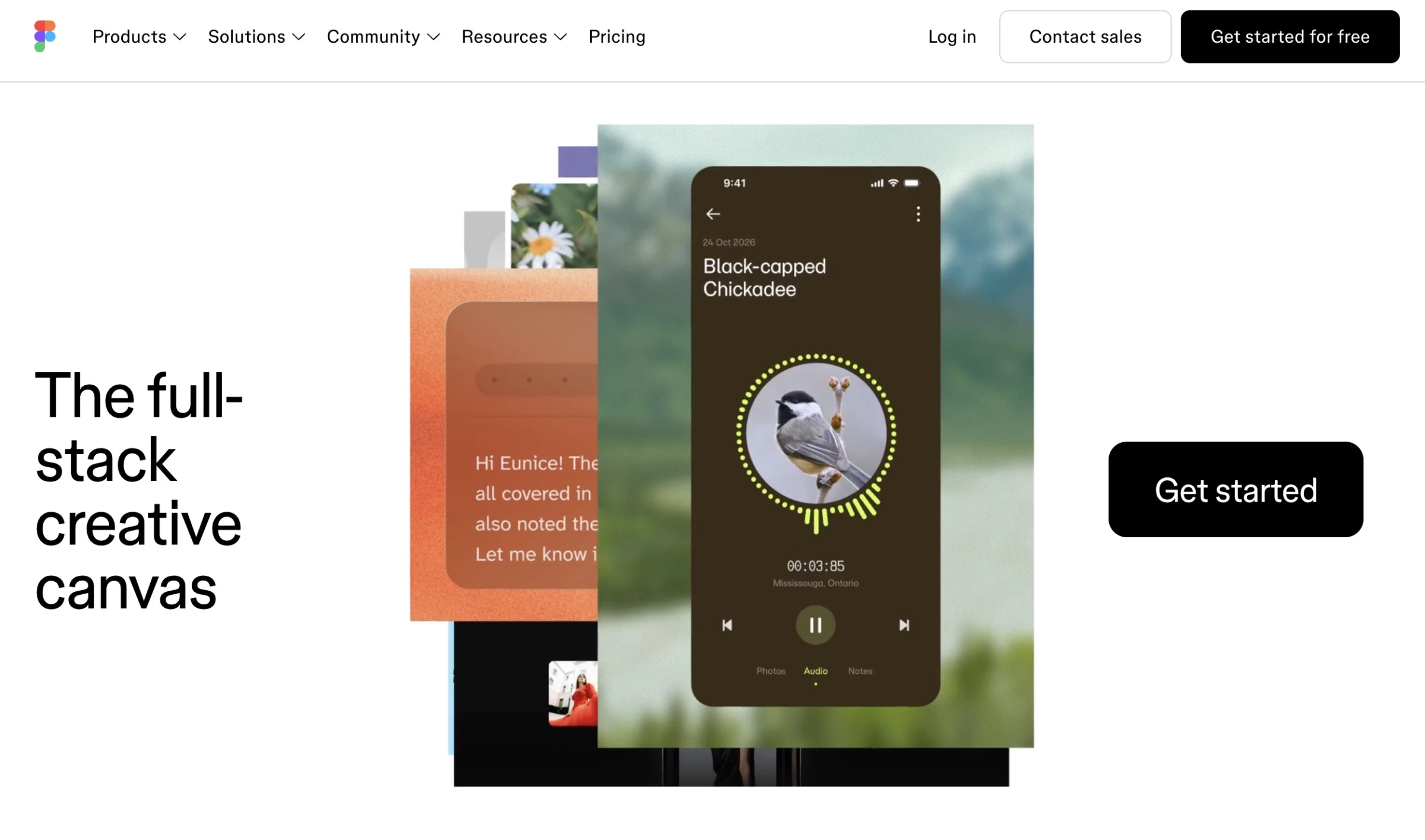
Figma is a browser-based design platform built for real-time collaboration. It has grown from an interface design tool into a full creative workspace, covering design, illustration, whiteboarding, presentations, marketing assets, and web pages.
Canva is faster for editing templates, while Figma gives designers precise control and a real design system.
Its most valuable feature is shared components. Update a master logo or template, and every linked design updates too. Figma Buzz also lets marketers create assets from designer-built templates.
Pricing:
- Starter: free, with 3 design files and 500 AI credits per month.
- Professional: Full seat at $16/month annually ($20 monthly), Dev seat at $12 ($15), and Collab seat at $3 ($5).
- Organization: Full seat at $55/month, Dev at $25, and Collab at $5, billed annually.
- Enterprise: Full seat at $90/month, Dev at $35, and Collab at $5, billed annually.
- Viewers: Free on any paid plan.
Key Features:
- Real-time collaboration with in-context comments.
- Shared components and libraries update every linked design.
- Auto layout adjusts designs as copy changes.
- AI tools include Figma Make, Weave, and a Figma agent in beta.
Pros:
- Live collaboration shortens feedback loops
- Designers and marketers work from the same source
- One brand system across many formats
- Widely adopted by designers and agencies
Cons:
- Harder for non-designers, with fewer stock assets and templates
- AI credits are shared and metered
- The free plan is too limited for team use
Video Creation and Editing Tools for Every Format
Video is now the dominant format on social media and YouTube, and it's increasingly common in blog content.
Riverside, covered above, handles recording through publishing. The tools below range from quick short-form editors to full content production software, with AI captions, text-based editing, and automatic clips:
- CapCut – Best for short-form social video editing
- Descript – Best for transcript-based editing of existing footage
9. CapCut – Best for Short-Form Social Video Editing
For creators and teams making TikToks, Reels, and Shorts who want fast, AI-powered editing
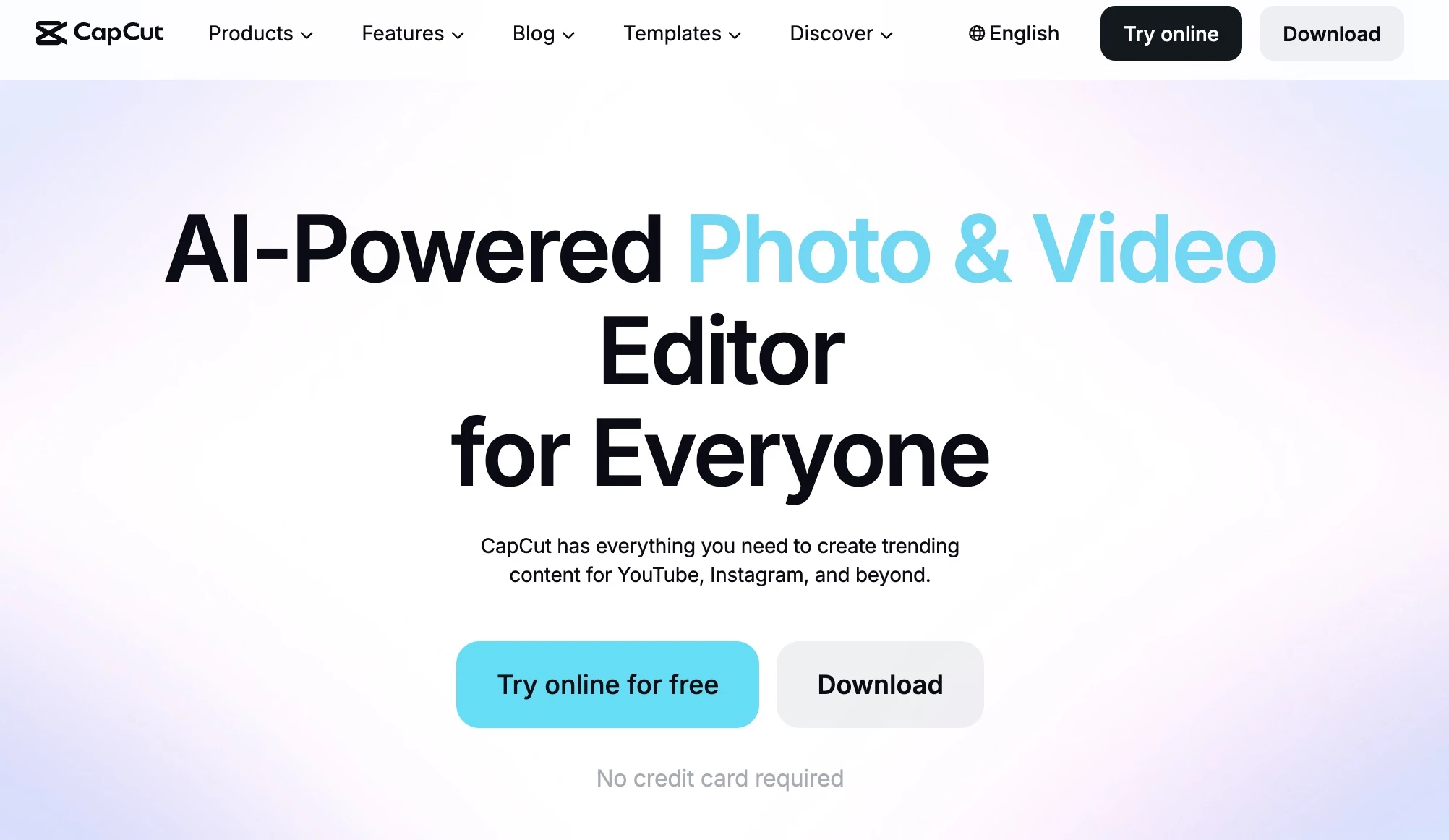
CapCut is an AI-powered video and photo editor from ByteDance, the company behind TikTok. It works on mobile, desktop, and web.
Built for short-form social video, it offers trend-based templates and one-tap captions and background removal. It also includes pro tools like keyframes, chroma key, and color grading, with 8K export even on the free plan.
Newer AI tools build videos from a chat, generate clips from text or images, and assemble rough cuts from raw footage. AI Design also creates thumbnails and social graphics, so you can do everything in one app.
Pricing:
- Standard: Free, with core editing and 8K export
- Pro monthly: $19.99/month
- Team: From about $24.99/month.
Note: Prices vary by region, platform, and promotion, and cancellation takes effect the following month.
Key Features:
- A multi-layer timeline supports keyframes, chroma key, color grading, and lip sync.
- AI auto captions work in multiple languages.
- Templates follow current TikTok and Reels trends.
- Video Studio builds videos from a chat with an AI editor.
- Auto-editing assembles raw clips into a video with music.
- Pro adds motion tracking, premium assets, and about 1TB of cloud storage.
Pros:
- Designed around short-form social video
- The free plan covers most editing needs
- Works on any device
Cons:
- Free users get no cloud storage
- Popular templates look generic without customization
- Not suited to long-form or cinematic projects
10. Descript – Best for Transcript-Based Editing of Existing Footage
For creators and teams who want to edit video and podcasts by editing a transcript
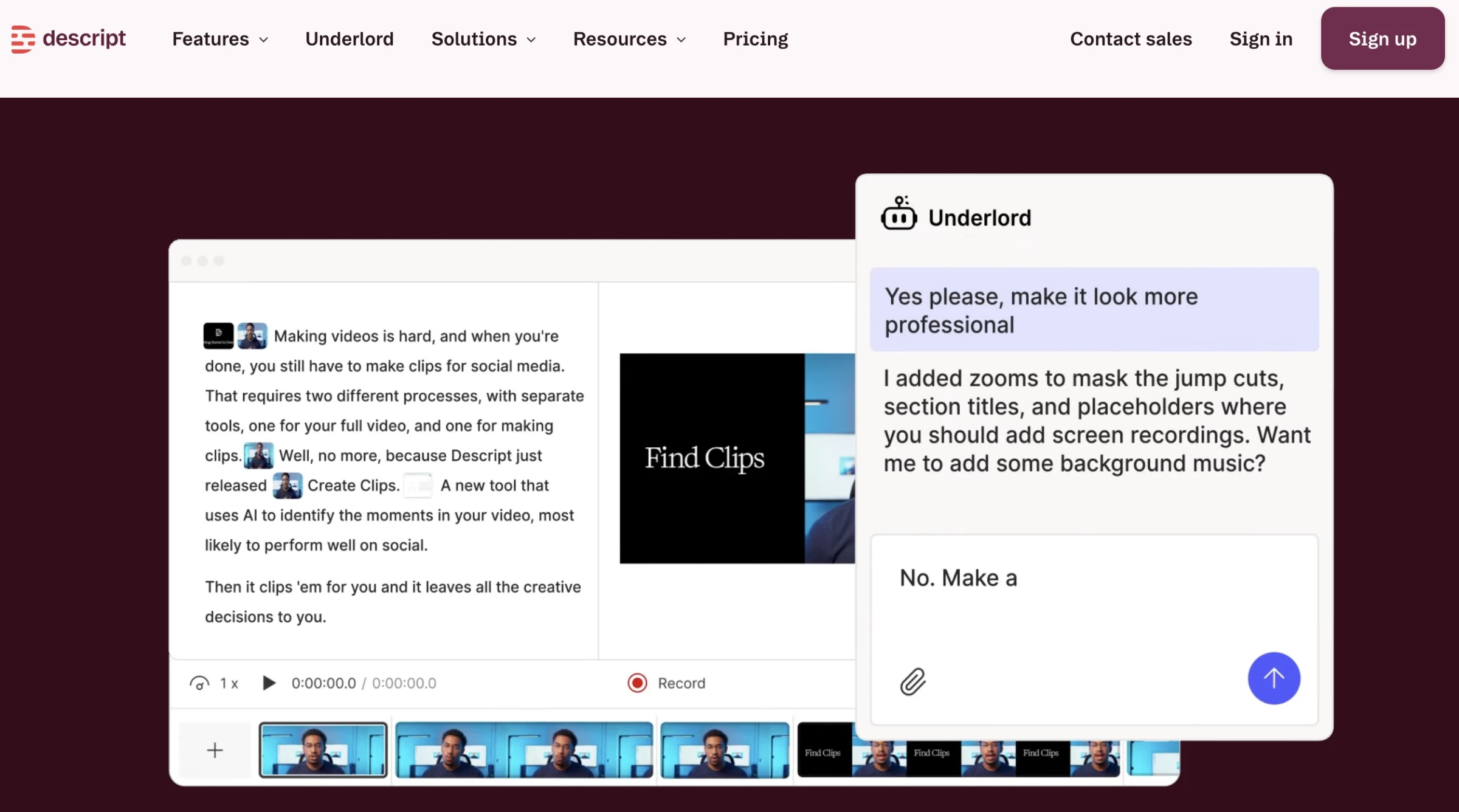
Descript is an AI-powered video and podcast editor that makes editing video as easy as editing a document. It transcribes any recording in seconds, and deleting a sentence from the transcript removes it from the video.
You can also record inside Descript, but its real strength is turning raw footage into a finished cut. More than 6 million creators and teams use it.
It's best for podcasters, YouTubers, and marketers editing talk-driven video, especially those without editing experience.
Pricing:
- Free: $0, for trying the editor and AI tools.
- Hobbyist: $16/person/month annually ($24 monthly)
- Creator: $24/person/month annually ($35 monthly)
- Business: $50/person/month annually ($65 monthly)
- Enterprise: Custom pricing
Key Features:
- Edit video and audio by editing the transcript.
- Its AI co-editor, Underlord, turns raw recordings into tight cuts from plain-language prompts.
- Create Clips turns long recordings into social-ready clips.
- AI generation fills gaps with B-roll, voice, music, and images.
- Brand Studio keeps teams on-brand (Business and Enterprise).
Pros:
- Editing feels like editing a document
- Studio Sound makes imperfect audio sound professional
- Small mistakes can be fixed without re-recording
- Strong tools for repurposing long content
Cons:
- Heavy AI use can exhaust credits
- Less useful for visual, low-dialogue video
Content Planning & Distribution Tools for Reaching Your Audience
Creating content is only half the job, since even great content rarely builds an audience without consistent distribution. Distribution tools schedule posts, manage accounts, and track performance.
Planning tools keep calendars, deadlines, and approvals out of scattered email threads. Together, these tools keep your work organized and show you whether it's working:
- Buffer – Best for simple social media scheduling and analytics
- Notion – Best for editorial calendars, briefs, and content documentation
11. Buffer – Best for Simple Social Media Scheduling and Analytics
For creators, small teams, and agencies who want easy scheduling and analytics across every major platform
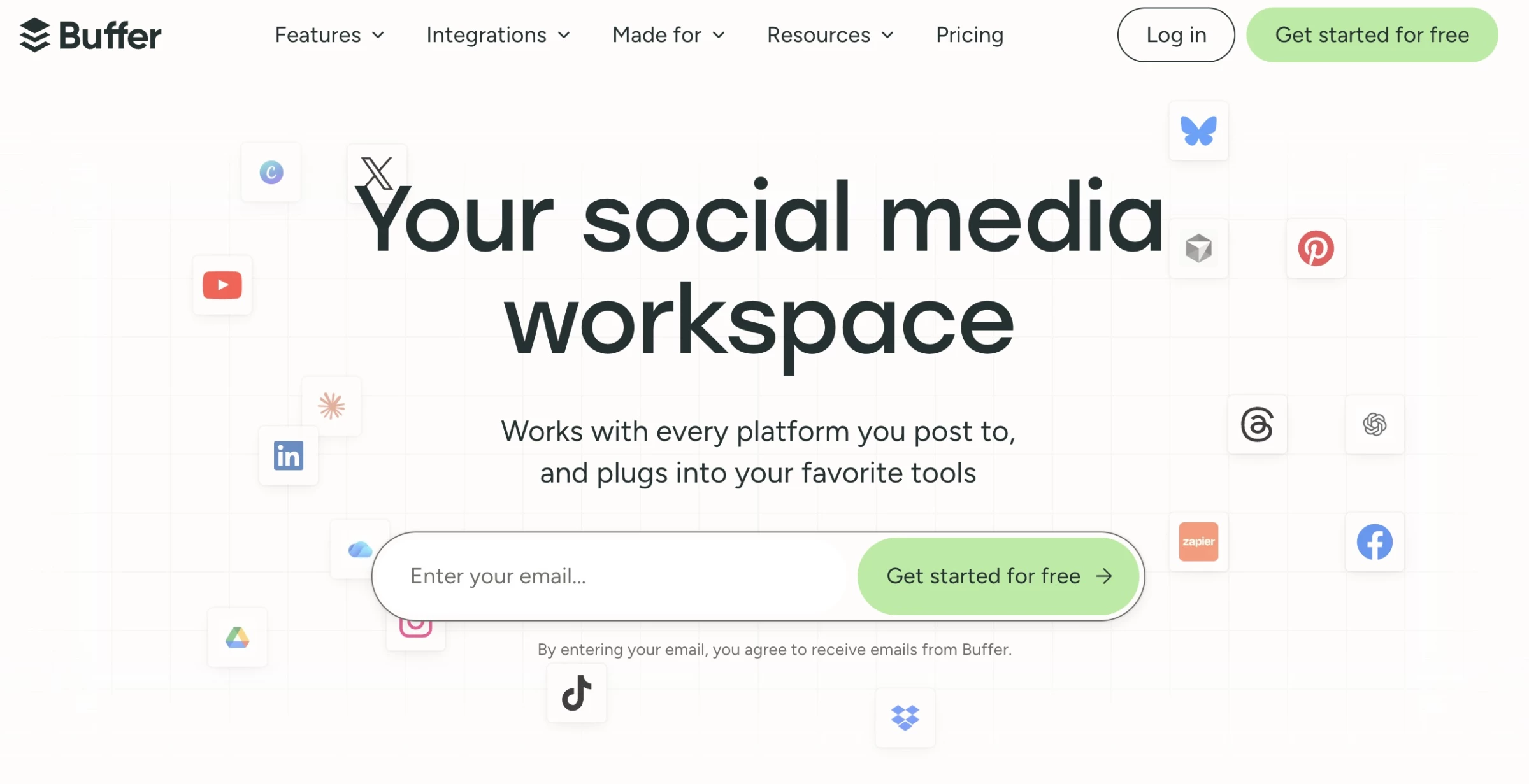
Buffer is a social media workspace for planning, scheduling, publishing, and analyzing posts from one dashboard. It connects to 12 platforms, including Instagram, TikTok, LinkedIn, Threads, YouTube Shorts, and Substack.
The Create space stores post ideas and turns them into versions for each platform, with AI help for rewriting. A shared inbox gathers comments from every channel, and Insights shows which posts perform best.
Buffer also connects to AI assistants like ChatGPT, so you can plan and queue posts from a conversation. Just note that pricing is per channel, which suits agencies but adds up for brands with many accounts.
Pricing:
- Free: $0, with 3 channels, 10 scheduled posts per channel, and 1 user.
- Essentials: $5/channel/month billed yearly
- Team: $10/channel/month billed yearly
- Free trial: 14 days on paid plans.
Key Features:
- Publishing covers 12 platforms, including Instagram, TikTok, and Substack
- Calendar and queue views make planning visual
- The Create space organizes ideas, drafts, and templates
- The AI Assistant brainstorms and adapts posts for each platform
- Insights tracks top posts and performance trends
Pros:
- Quick to learn and set up
- The free plan covers many solo creators
- Per-channel pricing suits agencies
- Supports newer networks like Threads, Bluesky, and Substack
Cons:
- Costs rise with every channel you add
- The free plan limits how far ahead you can schedule
- Available features vary by platform
- No design or video editing tools
12. Notion - Best for Editorial Calendars, Briefs, and Content Documentation in One Workspace
For content teams of two to fifty people and agencies managing several clients
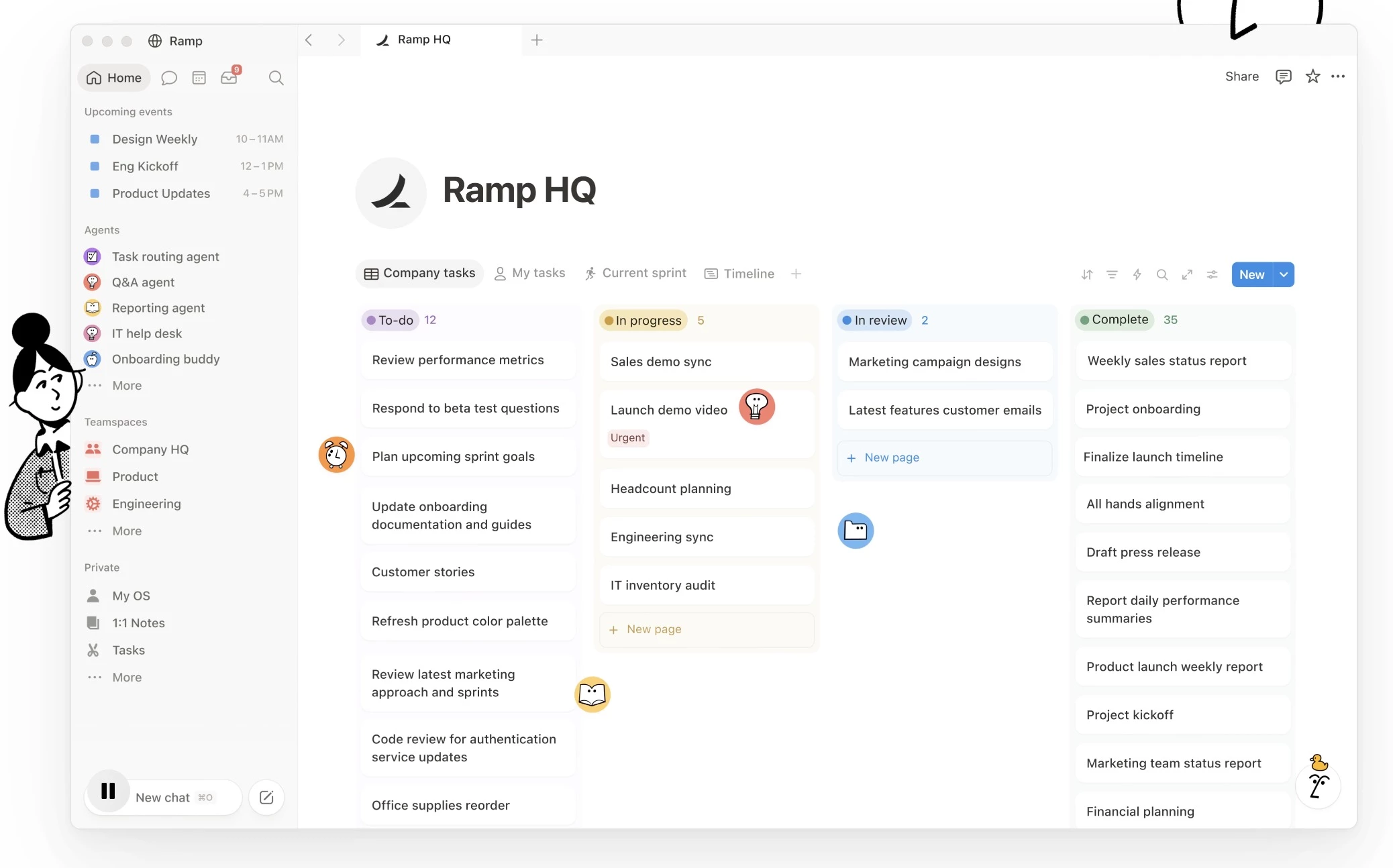
Notion is a connected workspace that combines docs, databases, wikis, and AI agents, used by more than 100 million people.
For content teams, it works best as an editorial calendar built on a database, which you can view as a board, calendar, timeline, or table.
Templates make recurring formats like podcast episodes repeatable, and forms collect pitches or requests directly into a database.
Pricing:
- Free: $0 per member, with databases, basic forms, and an AI trial.
- Plus: $10/member/month billed yearly
- Business: $20/member/month billed yearly
- Enterprise: Custom pricing
Key Features:
- Databases show content as boards, calendars, timelines, or tables
- Briefs and drafts live inside calendar entries
- Templates make recurring formats repeatable
- Notion Agent drafts, edits, and takes actions across your workspace
Pros:
- Strong documentation for style guides and processes
- AI turns team know-how into shared workflows
- The free plan works for small teams
Cons:
- Setup can take a long time
- Key AI features require the Business plan
- Custom Agents add usage costs
- Many teams still prefer Google Docs for drafting
How To Choose the Right Content Creation Tool Stack
The best stack is often the smallest set of content software that covers what you create, fits your team, and doesn't force you to move work between apps.
These five steps will help you build it:
- Start with your content formats
- Map tools to your workflow stages
- Consolidate before you scale
- Prioritize free tiers when starting out
- Match tool complexity to team size
Start With Your Content Formats
Choose tools based on the formats you produce. List what you create or plan to create, then match each format to the right tools:
- Podcasts and video interviews: Riverside for recording through hosting, Descript for existing footage, and Connectively for finding guests.
- Short-form social video: CapCut for editing, Riverside's Magic Clips for repurposing, and Buffer for scheduling.
- Social graphics: Canva for non-designers, Adobe Express for Adobe teams, and Figma for teams with designers.
- Blog and SEO articles: Google Trends for timing, and Google Docs and ChatGPT for writing and editing.
- Webinars and live streams: Riverside for streaming and repurposing recordings.
Some tools serve several formats. Canva, ChatGPT, and Riverside each cover more than one format above, so they're usually the first worth paying for.
Map Tools to Your Workflow Stages
Every stage should have one clear owner tool. When two tools overlap, one usually goes unused.
Workflow stage | Tools |
Research | Google Trends for timing, Connectively for expert input |
Writing and Editing | Google Docs for drafts and scripts, ChatGPT for ideas and repurposing |
Design | Canva or Adobe Express for fast templates, Figma for shared design systems |
Video and podcast | Riverside for recording through publishing, CapCut for short-form, Descript for editing footage recorded elsewhere |
Distribution and planning | Buffer for scheduling and analytics, Notion for the editorial calendar |
Consolidate Before You Scale
Every hand-off between tools costs time, quality, and context.
As the experts at Riverside explains:
- “Every export/import step costs a few things: money, time (exports often take longer than the edit itself), quality (each re-compression degrades audio and video), and context (transcripts, layers, speaker tracks, and edits don't travel between tools, so work gets redone).
- Riverside collapses record → edit → repurpose → publish into one workflow so none of that leaks out."
The same goes for writing, where a brief in one tool and a status in another will eventually disagree. Start with one tool per stage and add more only when a real gap appears.
Keeping production in one place also protects quality from start to finish.
"Because the raw capture is clean by default, everything repurposed from it – every clip, quote, and cutdown – starts from studio-quality source instead of amplifying a bad recording," the Riverside team says.
Prioritize Free Tiers When Starting Out
Google Trends and Google Docs are completely free, and the free plans of Canva, ChatGPT, CapCut, Buffer, and Notion cover the basics.
Upgrade when a free plan's limits slow you down every week, not just occasionally.
Match Tool Complexity to Team Size
Collaboration problems usually show up before production problems, so grow your content software stack with your team:
- Solo creators can run on Canva, Google Docs, ChatGPT, and the free plans of Buffer and Notion.
- Small teams of two to five need consistency, so consider Canva Pro for Brand Kit, Notion Plus for a shared calendar, and Buffer's Team plan for approvals.
- Growing teams and agencies should add Figma for a shared design system, and Riverside's Business plan for team video production.
Best Content Creator Tools: Final Words
AI Overviews and short-form feeds reward content that's original and built for more than one format, and the best content creator tools make that far easier to produce.
Start with your main format. Canva handles visuals, Riverside takes video and podcasts from recording to publishing, and Semrush Content Toolkit covers SEO writing from research to repurposing.
Then fill the gaps with free tools like ChatGPT, Google Trends, and Google Docs and upgrade only when a limit slows you down.
Our team ranks agencies worldwide to help you find a qualified partner. Visit our Agency Directory for the Top Content Marketing Agency as well as:
- Top NYC Content Marketing Agencies
- Top Content Creation Companies
- Top Digital Marketing Agencies
- Top Marketing Strategy Agencies
- Top Social Media Marketing Agencies
- Top Digital Advertising Agencies
And don’t miss our Awards section, where we celebrate the most innovative projects in design — from logo and app design to print and packaging.