
Podcast recording software captures audio or video from one or more participants, either in a studio setup or remotely over the internet
It ranges from simple audio capture tools to full production platforms that handle recording, editing, and publishing in one place.
In this guide, we’re sorting 12 platforms by what each does best. We’ll explain what each plan meters and end with a simple way to test a platform before you commit.
Best Podcast Recording Platforms: Key Findings
- Riverside and Zencastr suit quality-focused remote interviews, StreamYard leads for live broadcasts, and Cleanfeed specializes in audio-only production.
- Local recording with separate participant tracks is the most important feature for remote shows because it protects the finished audio and video from unstable internet connections.
- Audacity and GarageBand cover most solo or in-person audio needs for free, while paid all-in-one platforms earn their cost when hosting, video, or collaboration saves meaningful production time.
Audio and Video Podcasts Need Different Recording Tools
Spotify reported that more than 500 million users had streamed a video podcast by May 2026, while YouTube now reaches more than 1 billion monthly podcast viewers.
Roughly 42% of monthly podcast listeners use YouTube to access podcast content, compared with approximately 33% who use Spotify and 24% who use Apple Podcasts.
This doesn’t mean that video is essential for every show.
Audio-only broadcasters may place greater value on live sound quality and connection reliability. However, creators targeting YouTube, Spotify, and social media need to evaluate local video recording, resolution, separate participant tracks, guest access, and export options before choosing a platform.
The wrong recording method can create additional costs even when the subscription looks affordable. A team may eventually need a second recording tool, extra editing software, or an entirely new workflow to support formats its original platform cannot handle.
For that reason, we assessed these platforms by the workflows they support rather than treating every tool as a direct substitute.
Pricing and feature information comes primarily from each vendor’s pricing pages, help center, and product documentation.
Podcast Recording Tools: Quick Comparison
| Tool | Best For | Video Recording | Editing Tools | Hosting/Publishing | Starting Price (billed annually) |
| Riverside | High-quality remote recording with local 4K capture | Yes | Yes | Yes | $24/month |
| Zencastr | Recording, hosting, and distribution in one platform | Yes | Yes | Yes | Free |
| Alitu | Automated recording, editing, and publishing | Yes | Yes | Yes | $32/month |
| Async | AI-assisted podcast creation | Yes | Yes | Yes | $11.99/month |
| Adobe Podcast | Free AI-assisted audio cleanup | No | Yes | No | Free |
| Zoom | Familiar remote interview recording | Yes | No | No | €76.67/month |
| StreamYard | Live streaming to multiple platforms | Yes | Limited to AI clips | No | $35.99/month |
| Cleanfeed | Audio-only broadcast production | No | Live mixing only | No | Free for Lite |
| Audacity | Free audio recording and editing | No | Yes | No | Free |
| GarageBand | Mac users recording their first podcast | No | Yes | No | Free |
| Reaper | Customizable audio production with a one-time license | No | Yes | No | $60 one-time purchase |
| Logic Pro | Full-featured audio production for Mac | No | Yes | No | $12.99/month |
How We Chose These Podcast Recording Platforms
We created an initial list by researching the current podcast software market, industry coverage, and platforms commonly used for remote, in-person, audio-only, and video podcast production.
We then narrowed it to 12 tools that represent distinct recording workflows and provide enough reliable information for a meaningful comparison.
Expert perspectives on real-world recording, collaboration, and production workflows helped us assess the platforms beyond their published specifications.
We evaluated every platform using the same six criteria:
- Recording method: Whether it records locally, in the cloud, or through a live connection affects quality and reliability.
- Audio and video quality: We compared the highest supported resolution, file formats, and availability of separate participant tracks.
- Guest experience: We consider whether guests need an account or software and how easily they can join a recording.
- Plan limits: We checked restrictions on recording hours, exports, storage, seats, credits, and guest access.
- Production features: We reviewed editing, transcription, live-streaming, hosting, distribution, and collaboration tools.
- Price: We compared entry-level paid plans while accounting for annual billing requirements and important feature restrictions.
Best Podcast Recording Software Compared
The comparison below shows how each platform handles audio, video, editing, publishing, and pricing so you can quickly identify the right fit.
- Riverside: Best for quality recording
- Zencastr: Best for combining production and distribution
- Alitu: Best for automating podcast editing and publishing
- Async: Best for AI-assisted multimedia creation
- Adobe Podcast: Best for free AI audio cleanup
- Zoom: Best for remote interviews with minimal guest setup
- StreamYard: Best for live streaming to multiple platforms
- Cleanfeed: Best for audio-only broadcast shows
- Audacity: Best free audio recording and editing
- GarageBand: Best for Mac users recording their first show
- Reaper: Best for building a custom production workflow
- Logic Pro: Best for advanced podcast and branded audio production
1. Riverside: Best for Quality Recording
Try Riverside if audio and video quality are your top priorities.
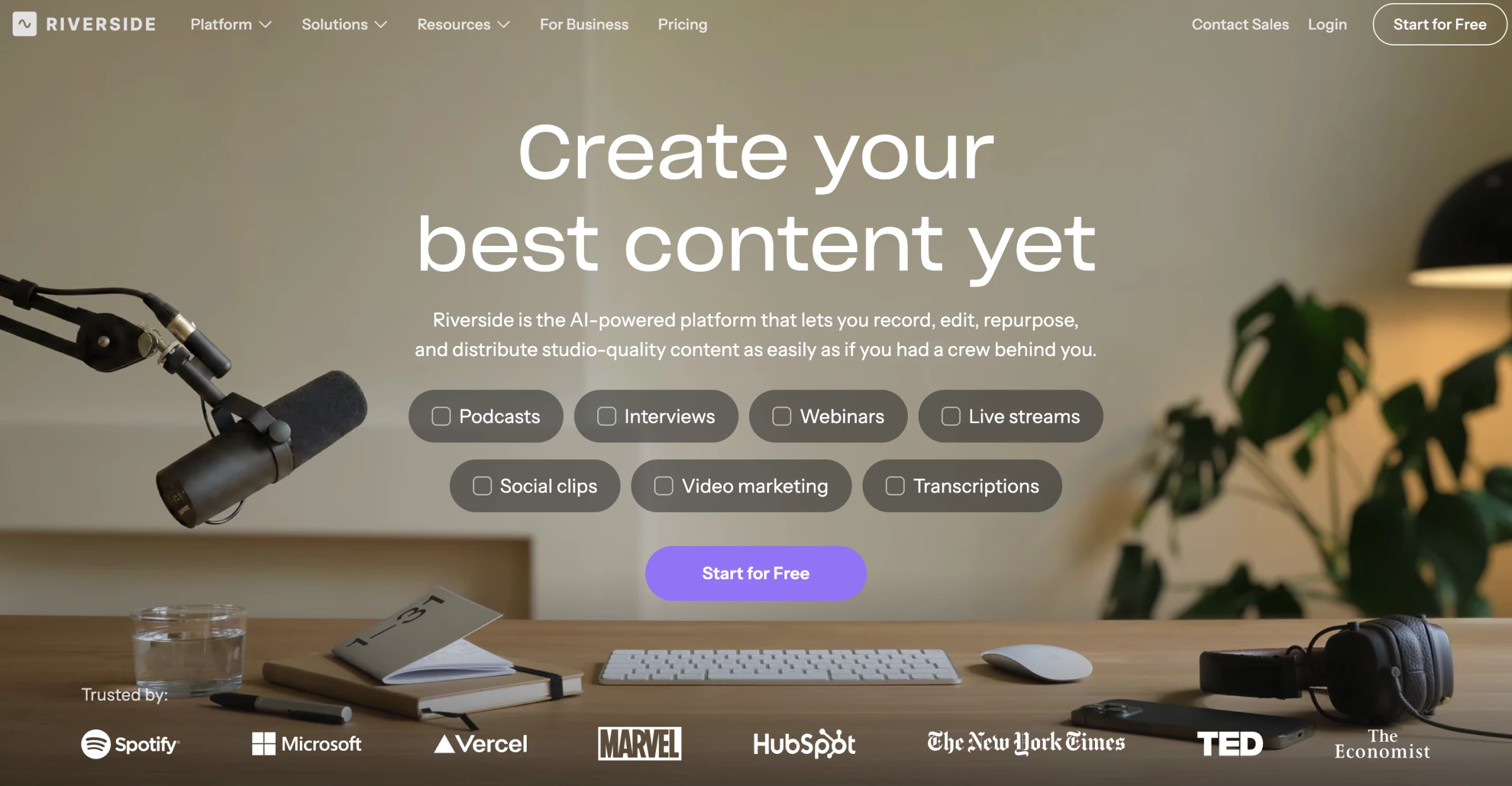
Riverside captures each participant locally on their device instead of using the compressed audio and video traveling through the live call. It progressively uploads separate files and supports up to 4K video and uncompressed 48 kHz WAV audio on paid plans.
This local recording method separates Riverside from a standard meeting platform.
A guest’s video may freeze during the conversation, but the final file can remain clear because Riverside captures the original camera and microphone feeds before the connection affects them.
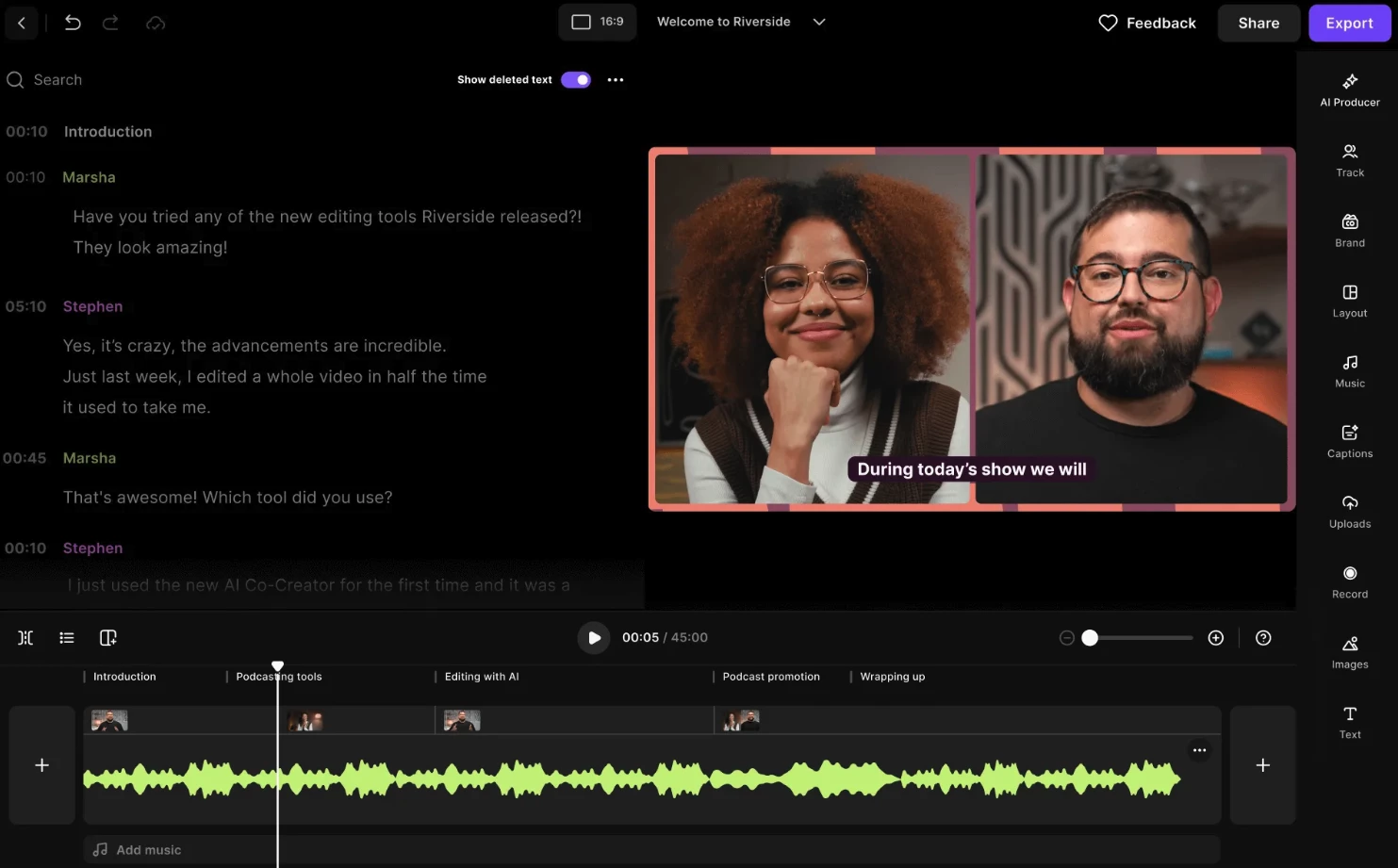
The files still need to finish uploading, so producers should keep guests in the studio until Riverside confirms completion. Teams recording frequent or long 4K sessions should also compare their monthly recording allowance with the length and number of planned episodes.
Riverside can also record internal meetings and screen shares, though its strongest value lies in producing polished, reusable content.
“Riverside is for people who care that the output looks and sounds professional and becomes content afterward,” the team says.
That broader workflow provides value to both marketing teams building multichannel campaigns and creators who want to streamline recording, editing, and publishing.
Well-known shows like How I Built This with Guy Raz, The Tim Ferriss Show, Freakonomics Radio, and Waveform: The MKBHD Podcast all record on Riverside.
Pros:
- Records separate local audio and video tracks.
- Protects final quality from unstable connections.
- Combines recording, editing, repurposing, and publishing.
Cons:
- Up to 4K video, 48kHz audio and separate track downloads require paid plans.
- Team permissions may require a higher-priced plan.
Test Riverside’s recording workflow with its 14-day free trial.
Pricing (billed annually)
- 14-day free trial
- Pro: $24/month
- Grow: $34/month
- Webinar: $79/month
- Business: Custom pricing
What Users Say
Capterra feedback supports Riverside’s appeal to quality-conscious remote teams, with users highlighting its polished recordings, easy guest access, and time-saving editing features.
The most consequential complaints involve recordings or uploads that fail unexpectedly, followed by billing concerns and delays in getting support when something goes wrong.
Other Notable Features
- Magic Clips turns longer recordings into short-form video.
- Transcript-based editing connects text changes to the media timeline.
- The teleprompter helps hosts deliver scripted introductions and advertisements.
- Screen sharing captures demonstrations, presentations, and product walkthroughs.
- Mobile recording lets participants use compatible phones as cameras.
2. Zencastr: Best for Combining Production and Distribution
Try Zencastr if you are an independent podcaster or a small team that wants to record, edit, host, and distribute a show from one platform.
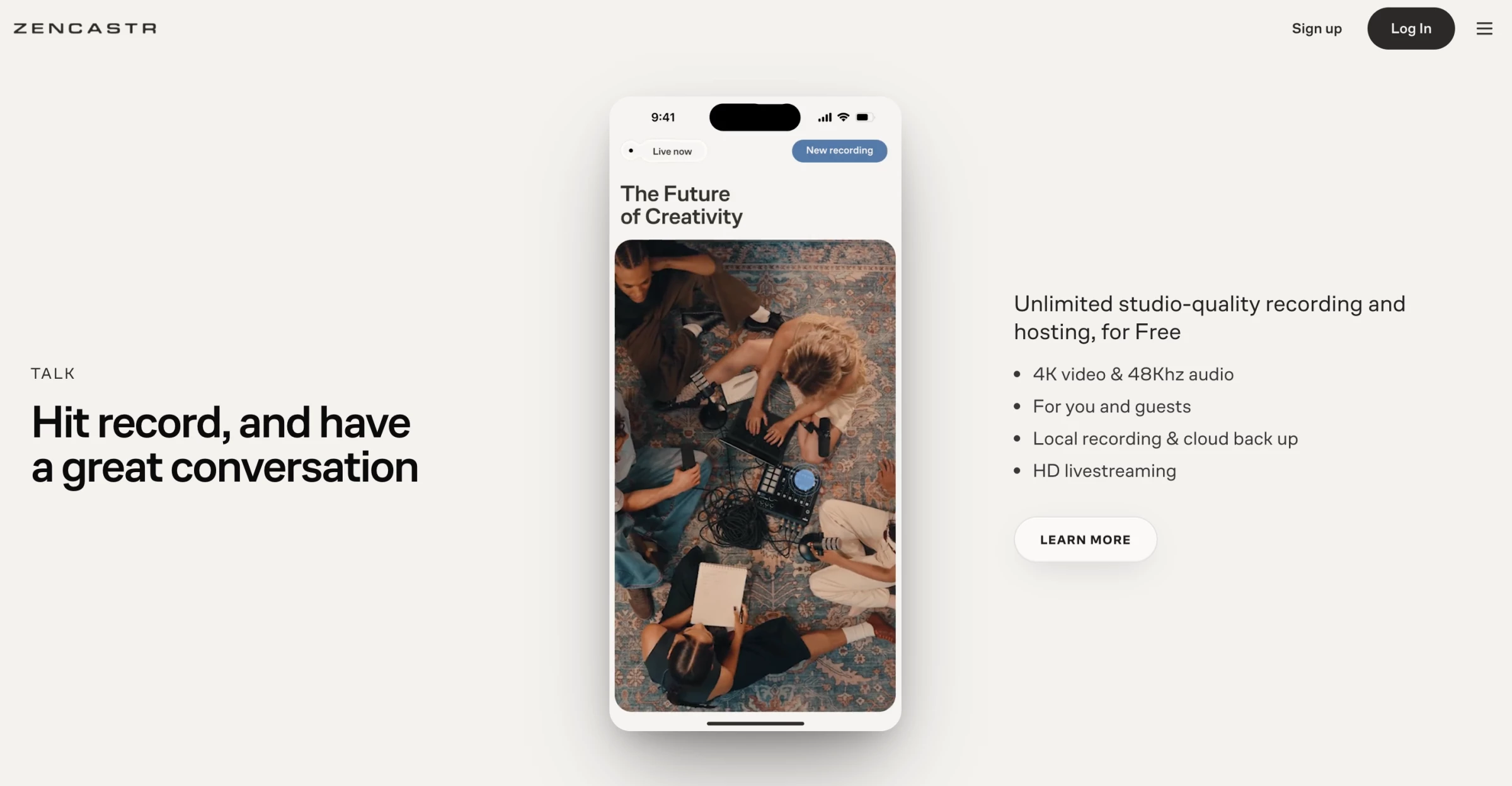
Zencastr records separate local tracks in up to 4K video and 48 kHz WAV audio on eligible plans. The platform also provides transcript-based editing, AI clips, episode hosting, and distribution to podcast directories.
Zencastr can host the podcast’s RSS feed, so the production team does not need to export every episode and re-enter its title, description, artwork, and publishing details in another service.
That can remove a recurring handoff from the workflow.
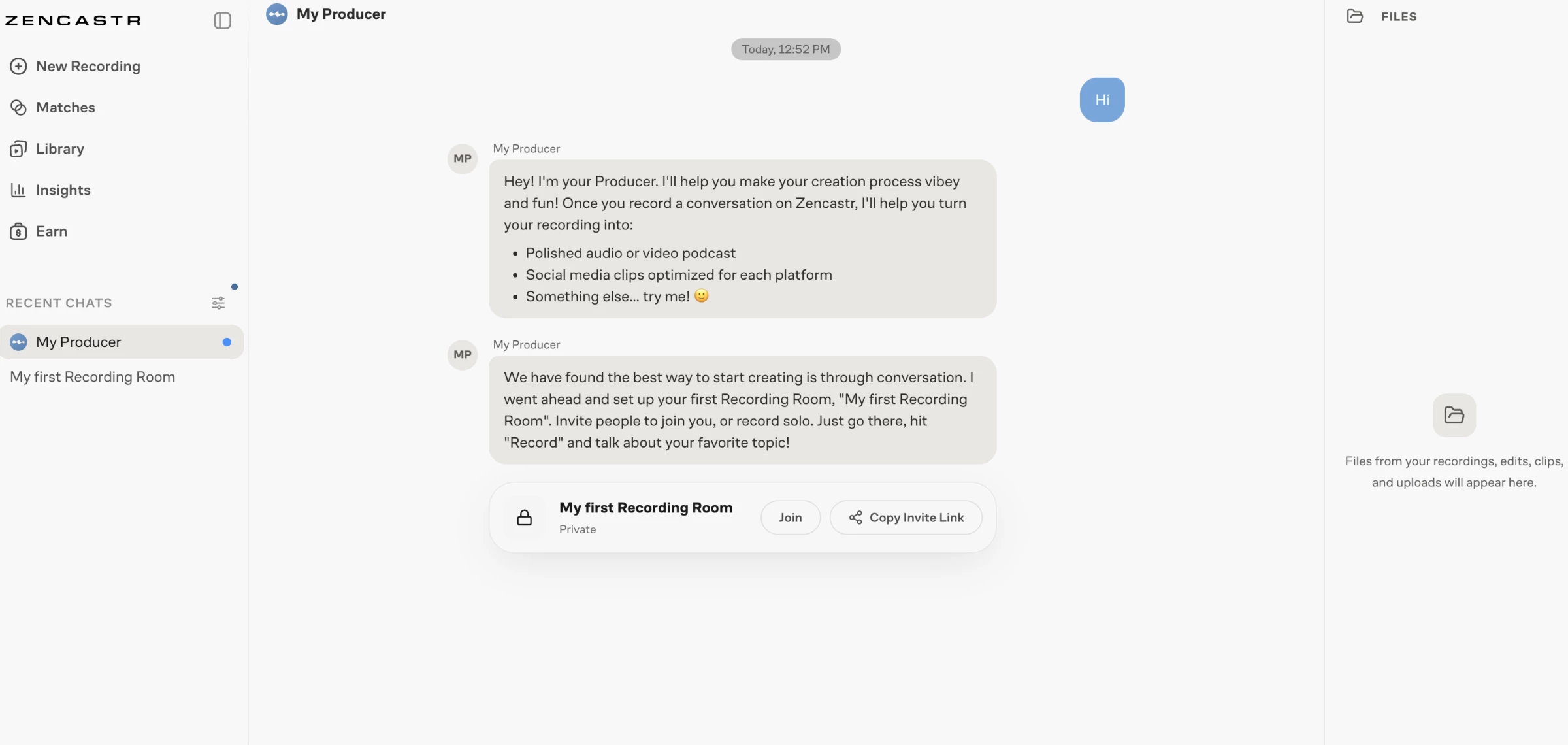
The tradeoff is a greater platform dependence. Replacing Zencastr later may involve moving the show’s hosting, analytics, and distribution workflow as well as its recorder.
Pros:
- Covers recording, editing, hosting, and distribution.
- Captures separate local participant tracks.
- Includes analytics and monetization options.
Cons:
- Plan limits vary across several feature categories.
- The broad interface may feel excessive for recording-only users.
- Moving away may require a hosting migration.
Pricing
- Free
- Custom
What Users Say
Separate participant tracks stand out as one of Zencastr’s most valued features in Capterra reviews, particularly among podcasters trying to improve remote interview audio.
Experiences become more mixed around connection stability, interface friction, and the speed of customer support when a recording problem occurs.
Other Notable Features
- AI clipping converts long recordings into shorter social content.
- Text-based editing lets users edit recordings through the transcript.
- Automated noise and filler-word removal speeds up basic cleanup.
- Podcast analytics track episode and audience performance.
- Monetization tools help eligible creators manage advertising revenue.
3. Alitu: Best for Automating Podcast Editing and Publishing
Try Alitu if you are a first-time or solo podcaster who wants to publish consistently without learning technical audio editing.
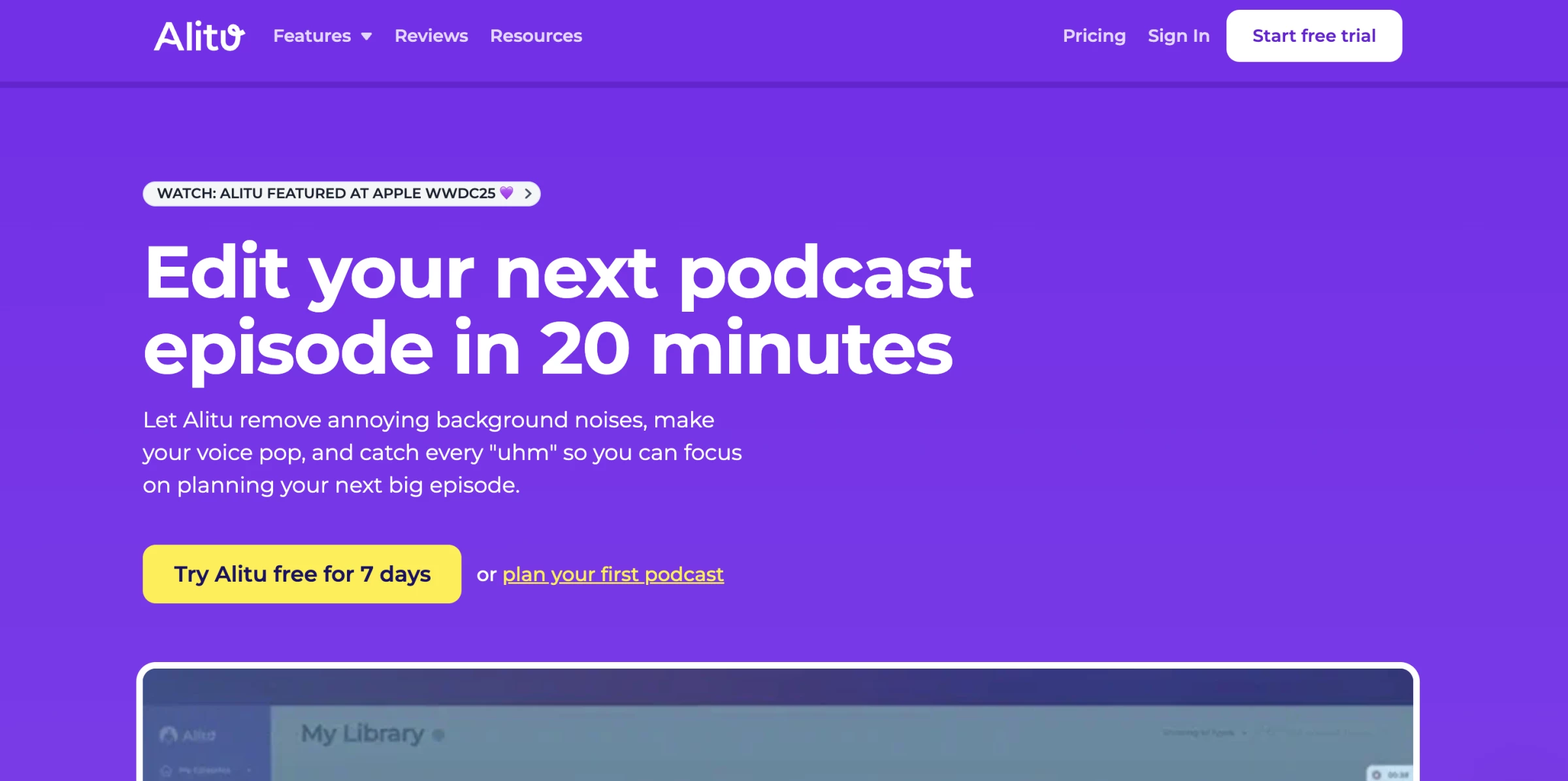
Alitu automatically processes recorded or uploaded audio, balances levels, reduces noise, and places the cleaned files into a simplified episode builder.
You can add an introduction, outro, music, advertisements, and transitions before publishing through Alitu or another supported host.
It provides the most value when the alternative is spending several hours learning compression, loudness targets, fades, and export settings.
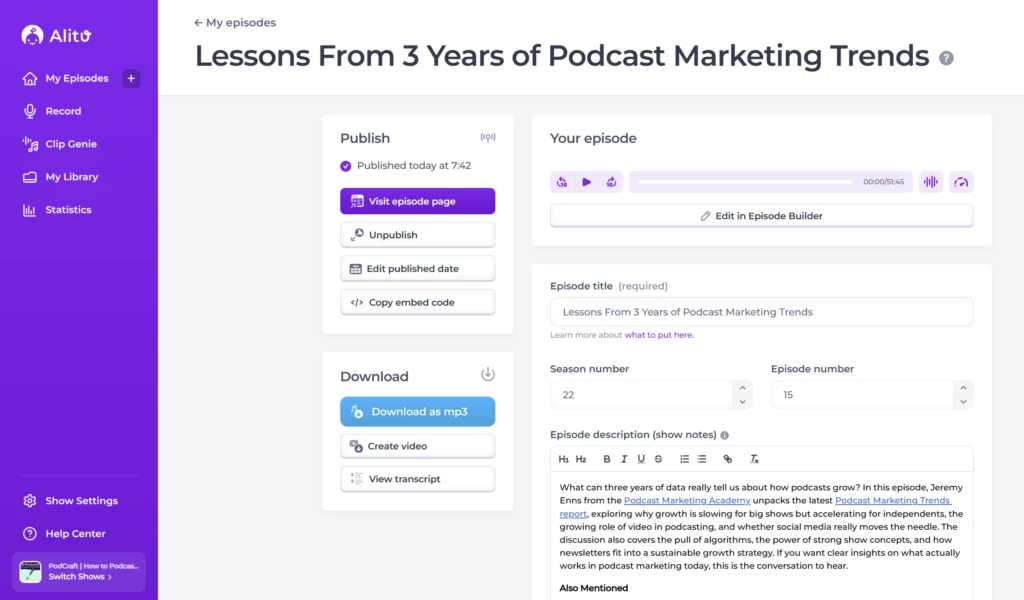
Instead of opening a blank timeline, the creator follows a guided production sequence. This makes it easier to maintain a publishing schedule without hiring an editor.
But that simplified workflow comes at the expense of precision. An experienced producer who wants to repair individual frequencies, create complex sound design, or adjust every processing parameter may find Alitu restrictive.
The monthly price also becomes harder to justify when a show publishes infrequently.
Pros:
- Automates repetitive audio-processing tasks.
- Guides beginners through episode assembly.
- Includes recording, hosting, and publishing.
Cons:
- Provides less technical control than a full DAW.
- Automated processing may not suit every recording.
- The subscription may be expensive for occasional shows.
Pricing (billed annually)
- Starting at $32/month
What Users Say
Trustpilot users tend to describe Alitu less as a precision editor and more as a practical way to keep a podcast moving.
Its automated cleanup and guided episode builder appeal most to creators who want to assemble and publish episodes without learning a traditional audio workstation.
Other Notable Features
- Magic Filter automatically cleans and balances spoken audio.
- Transcript editing lets users remove sections through text.
- Silence removal shortens long pauses without manual cuts.
- The royalty-free library provides music and transitions.
- Built-in hosting includes an RSS feed and podcast website.
4. Async: Best for AI-Assisted Multimedia Creation
Try Async if you are a creator or marketing team producing podcasts alongside AI-generated videos, voiceovers, clips, and multilingual content.
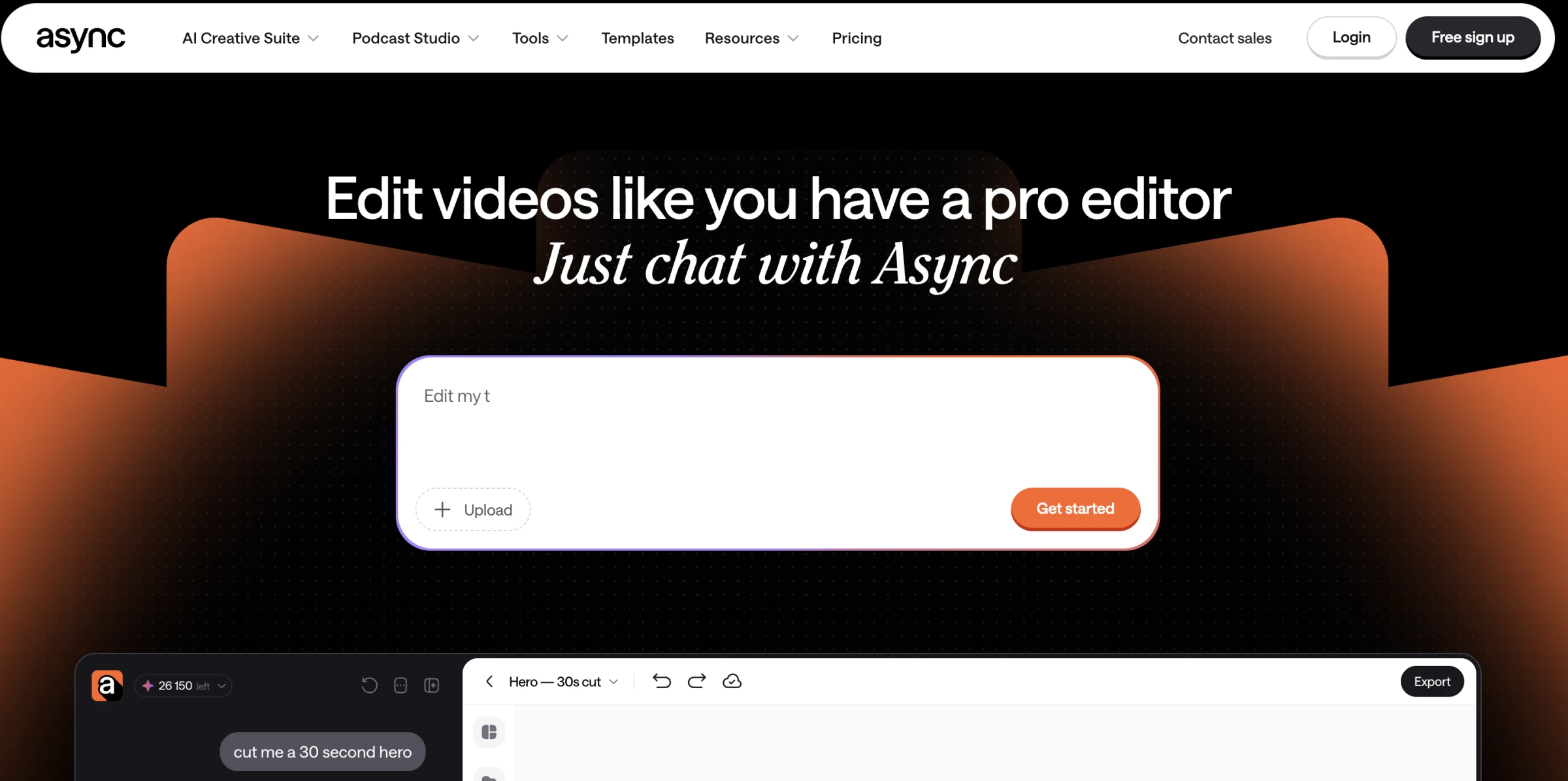
Async combines remote multitrack recording with editing, transcription, hosting, voice cloning, subtitles, dubbing, and generative media tools. Eligible plans support up to 4K video and 48 kHz audio.
Async’s breadth pays off when its tools replace several separate subscriptions.
You can record an interview, clean the audio, generate clips, dub the video, create a voiceover, and publish the episode without repeatedly moving files.
However, many AI features consume credits according to the model, resolution, duration, and complexity of the request.
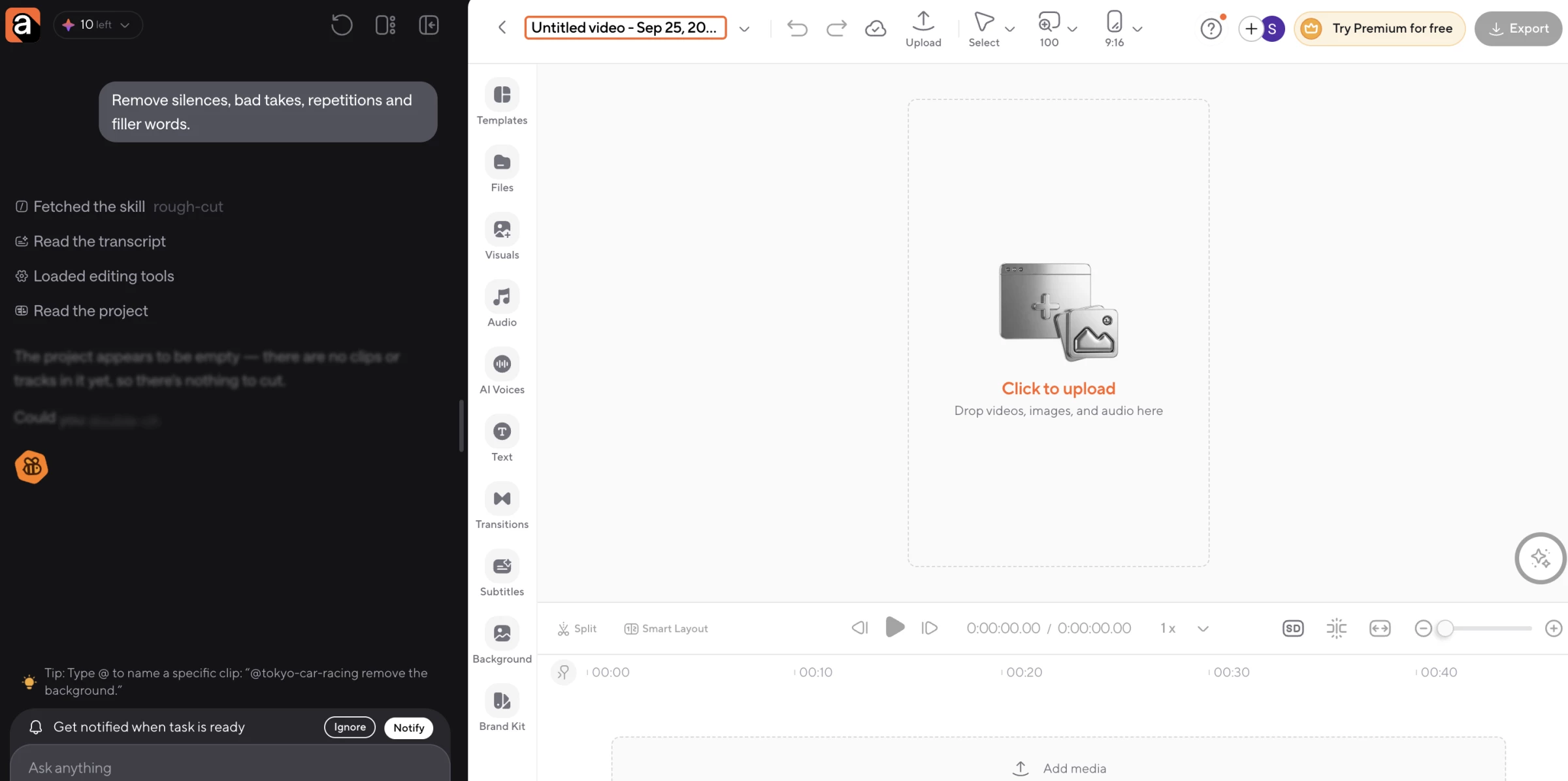
If you’re producing large volumes of generated video or dubbing should estimate credit consumption before treating the subscription price as its full production cost.
For straightforward interview recording, the platform may introduce more complexity than value.
Pros:
- Covers recording, editing, hosting, and AI creation.
- Supports several audio and video content formats.
- Reduces transfers between separate production tools.
Cons:
- AI credit use can be difficult to predict.
- Subscription credits do not roll over.
- Recording quality and limits vary substantially by plan.
Pricing (billed annually)
- Essentials: $11.99/month
- Pro: $23.99/month
- Teams: $49.99/month
- Business: Custom
What Users Say
Feedback on Trustpilot suggests Async works well for newer creators who want recording, audio enhancement, and social-video production under one account.
However, reports of failed recordings or uploads, refund disputes, and inconsistent support make it sensible to test the full workflow with noncritical content before relying on it for an important production.
Other Notable Features
- Magic Dust reduces noise and improves spoken audio.
- AI Clips identifies sections for short-form content.
- Dubbing and lip-sync tools adapt videos for other languages.
- Voice cloning generates speech from typed text.
- Podcast hosting distributes episodes through an RSS feed.
5. Adobe Podcast: Best for Free AI Audio Cleanup
Try Adobe Podcast if you are a beginner, interviewer, or budget-conscious creator who needs to improve imperfect voice recordings quickly.
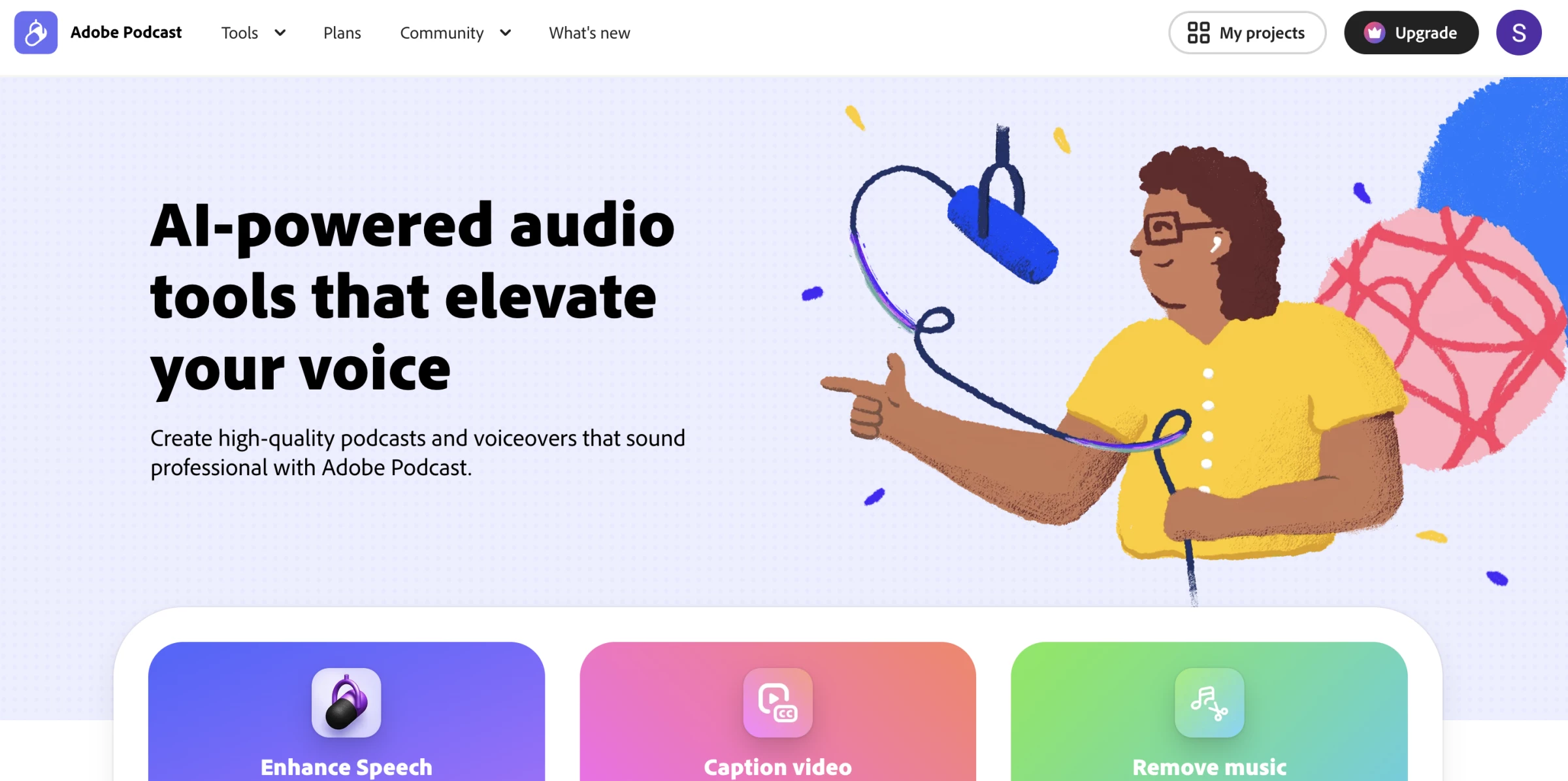
Enhance Speech processes uploaded audio and attempts to reproduce the clarity of a controlled studio recording.
The free plan accepts audio files up to 30 minutes and allows one hour of enhancement per day. Firefly Pro extends files to two hours, raises daily processing to four hours, supports video, and adds adjustable enhancement strength.
The adjustable strength control provides an important advantage over automatic cleanup that only offers an on-or-off choice.
Strong processing may remove more noise, but it can also change the speaker’s tone, flatten natural ambience, or produce artificial-sounding words.
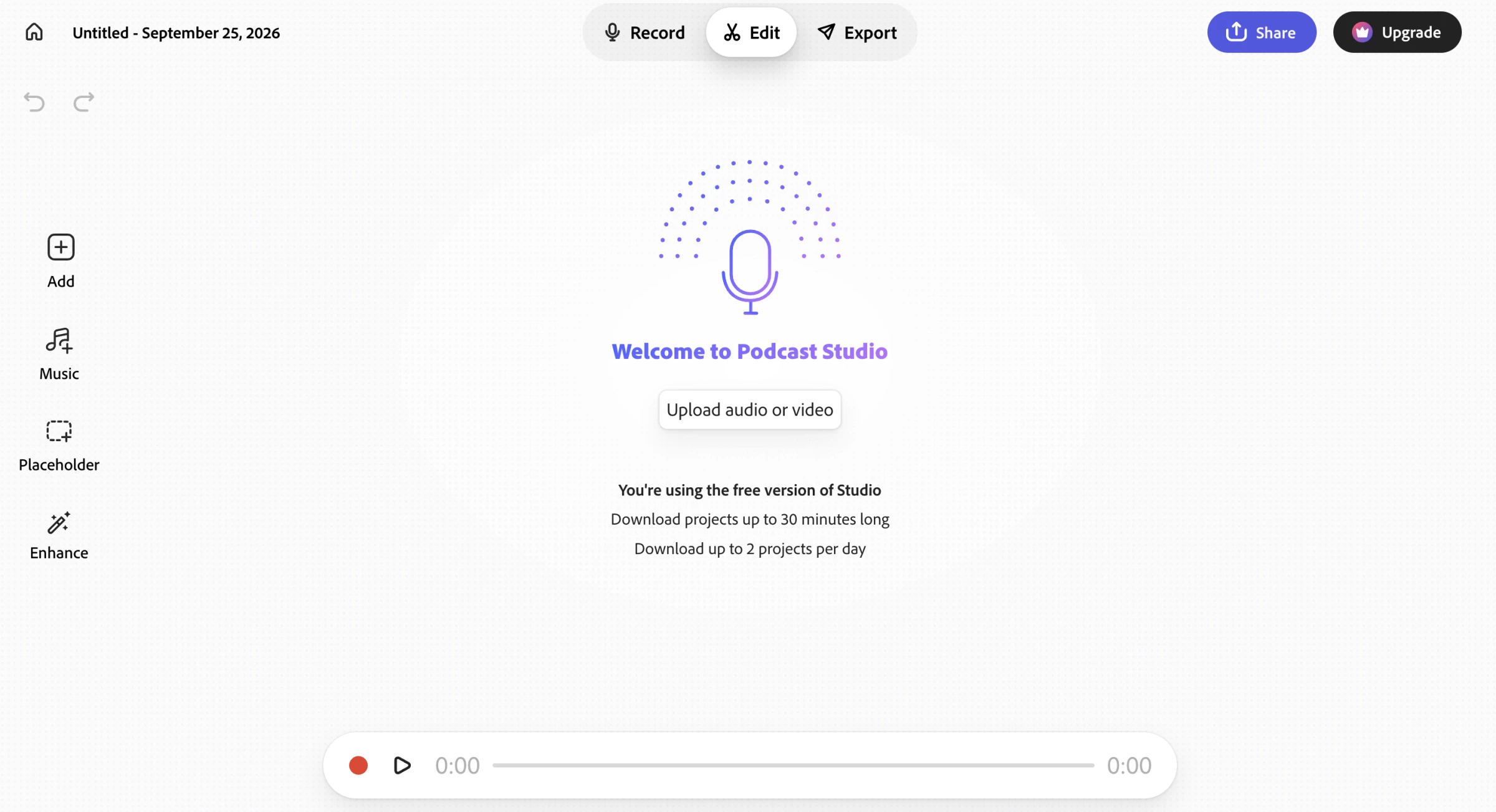
Adobe Podcast works best as a cleanup and rescue tool. It is less suitable as the center of a complex production workflow because it does not match the detailed mixing, video editing, hosting, or publishing controls of broader platforms.
Pros:
- Improves noisy or echo-heavy speech quickly.
- Requires little audio-engineering knowledge.
- Provides a useful free plan for short recordings.
Cons:
- Heavy processing can make voices sound unnatural.
- The free plan limits duration and downloads.
- It lacks advanced mixing and podcast hosting.
Pricing
- Free plan available
- Firefly Pro plan: $19.99/month
What Users Say
Experiences shared by audio and video professionals on Reddit show that Enhance Speech is highly dependent on the source recording and processing strength.
It can remove hours of cleanup from mildly noisy audio, but difficult files may produce clipped words, altered voices, or artificial sounds, so creators should review the entire processed file before publishing it.
Other Notable Features
- Bulk processing enhances several recordings in one queue.
- Enhancement strength controls how aggressively Adobe processes speech.
- Transcript editing connects text changes with recorded audio.
- Speaker-separated downloads provide individual participant files.
- Audiogram tools create captioned assets for social sharing.


6. Zoom: Best for Remote Interviews With Minimal Guest Setup
Try Zoom if you record occasional interviews, internal podcasts, or panel discussions, and guest familiarity is more important than studio-quality local recording.
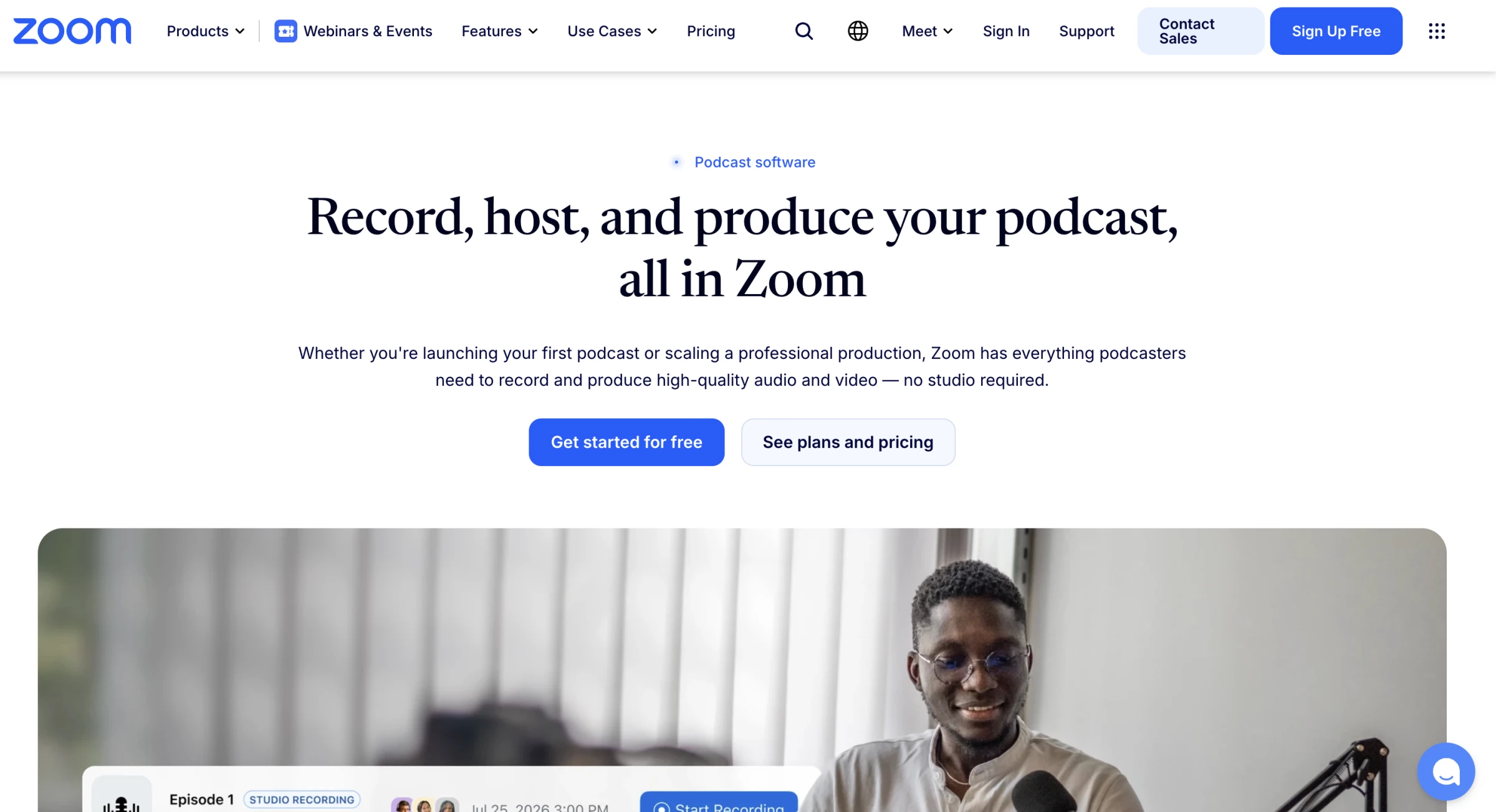
Zoom can save a mixed meeting recording or create a separate audio file for each participant. Separate files make it easier to adjust one speaker’s volume, remove noise, or cut interruptions without changing every voice.
Separate tracks can make Zoom sound comparable to a dedicated podcast recorder, but the recording method remains different. Zoom saves the audio streams received during the meeting.
Riverside, Zencastr, and similar platforms record the original signal locally on each participant’s device. If a weak connection introduces compression or dropouts during a Zoom call, those problems may remain in the separate files.
Zoom works well for occasional interviews, internal shows, panels, and guests who resist unfamiliar software.
Choose a dedicated local-recording platform when the interview cannot be repeated, or every episode must meet a consistent production standard.
Pros:
- Familiar to many guests and organizations.
- Supports separate participant audio files.
- Handles panels, screen sharing, and scheduled meetings.
Cons:
- Standard recordings remain more dependent on the connection.
- It lacks a complete podcast editing workflow.
- Recording layouts and quality require careful settings.
Pricing (billed annually)
- Webinars: €76.67/month
- Webinars Plus: €267.50/month
- Events: €382.50/month
What Users Say
Familiarity is a recurring advantage in Capterra reviews, with users valuing how easily they can schedule sessions, share screens, record conversations, and invite participants.
Satisfaction drops on weaker connections or slower devices, while some users find Zoom’s growing collection of settings and collaboration features harder to navigate than its core meeting tools.
Other Notable Features
- Separate participant audio simplifies individual voice adjustments.
- Cloud transcription creates a searchable record of the conversation.
- Screen sharing captures presentations and demonstrations.
- AI Companion produces meeting summaries and action items.
- Calendar integrations simplify interview scheduling.
7. StreamYard: Best for Live Streaming to Multiple Platforms
Try StreamYard if you are a creator, brand, or media team producing live video podcasts for audiences across multiple social platforms.
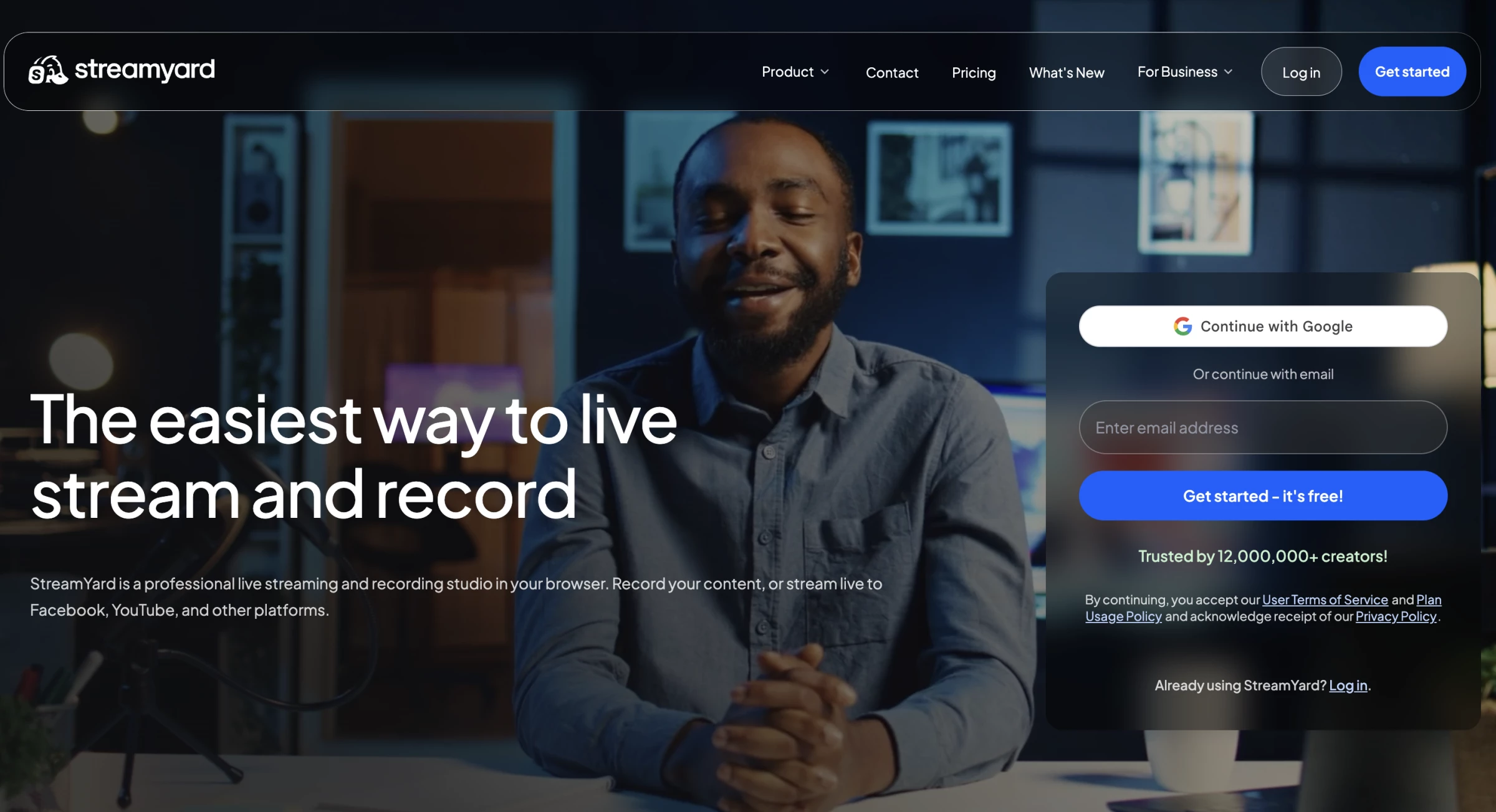
StreamYard lets you manage guests, layouts, banners, comments, and media from a browser while streaming to several destinations. It can also record separate local audio and video files for every participant.
Viewers receive a finished branded program in real time, while the production team receives individual participant tracks for a cleaner edit afterward. This allows one recording session to produce both a livestream and a more polished podcast episode.
StreamYard does not broadcast in 4K. Advanced and higher plans provide 4K individual local files, while the mixed cloud recording remains at the streaming resolution of up to 1080p.
If you’re expecting a finished 4K program without post-production, you should account for that difference.
Pros:
- Combines multistreaming with local recording.
- Provides strong live branding and audience controls.
- Lets guests join without installing desktop software.
Cons:
- Post-production editing remains comparatively limited.
- 4K local files require Advanced or higher.
- The finished cloud mix does not retain 4K resolution.
Pricing (billed annually)
- Individuals:
- Free
- Core: $35.99/month
- Advanced: $68.99/month
- Business: $249/month
What Users Say
Capterra reviewers frequently point to production speed as StreamYard’s main strength. It helps teams bring guests on air and create a professional-looking live program without complicated broadcasting software, although users who need deeper post-production controls encounter its limits sooner.
Pricing also becomes harder to justify when bugs or streaming delays interrupt a broadcast.
Other Notable Features
- Multistreaming broadcasts to several destinations simultaneously.
- On-screen comments bring audience messages into the program.
- Custom overlays and layouts create a branded live show.
- Pre-recorded streaming schedules finished content as a live broadcast.
- Webinar tools support registration and controlled audience access.
8. Cleanfeed: Best for Audio-Only Broadcast Shows
Try Cleanfeed if you are a broadcaster, journalist, voice professional, or audio-only podcaster who needs low-latency remote sessions and live producer controls.
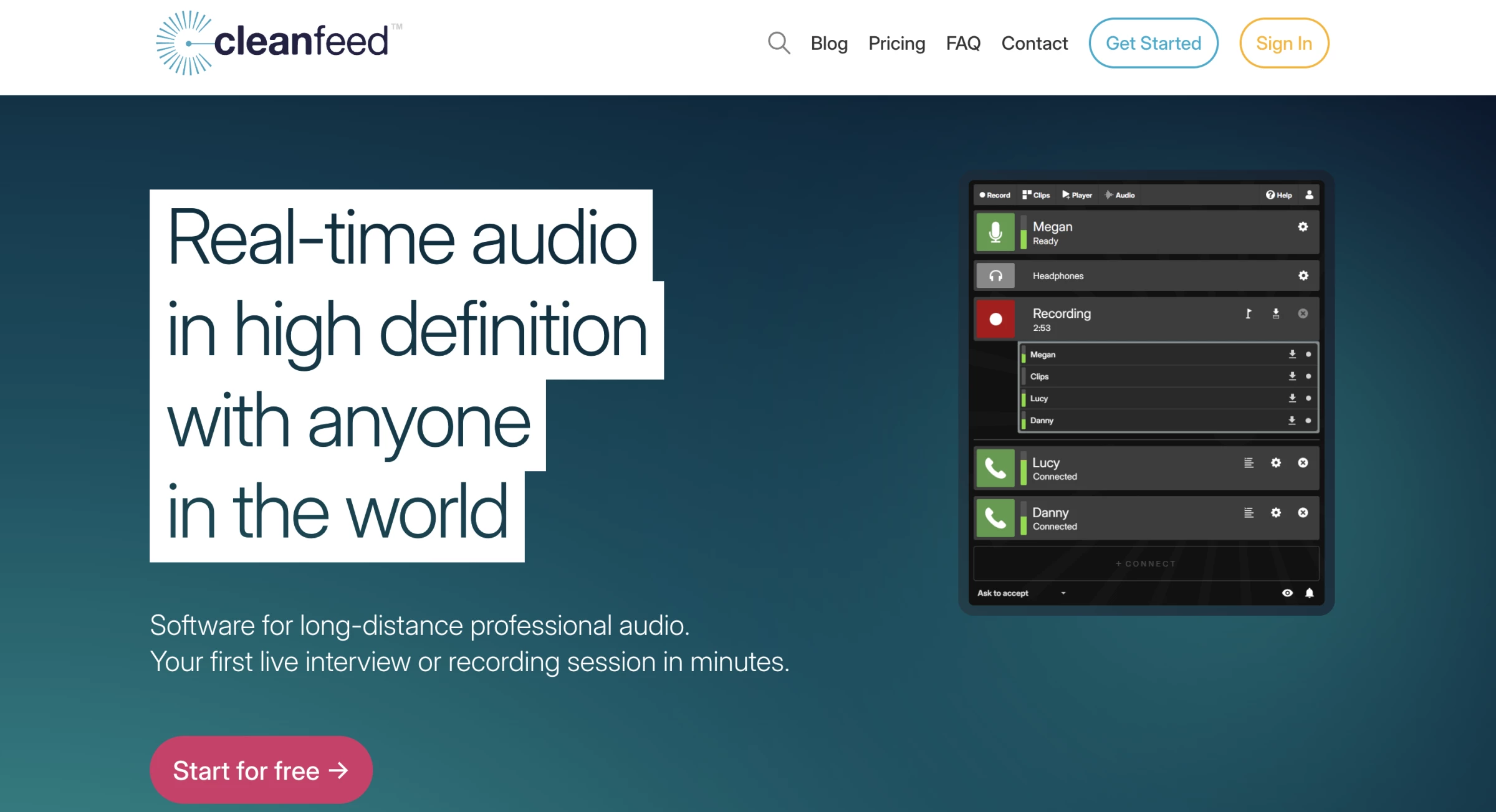
Cleanfeed runs in a browser and lets guests join without creating an account. Pro adds multitrack recording, live repair, routing options, and adjustable buffering.
Buffer control lets you choose between lower latency and greater stability. Reducing the buffer makes a fast conversation feel more natural, while increasing it helps smooth an inconsistent connection.
That control can make a meaningful difference during live radio, remote co-hosting, and voice direction, where participants need to respond without distracting delays.
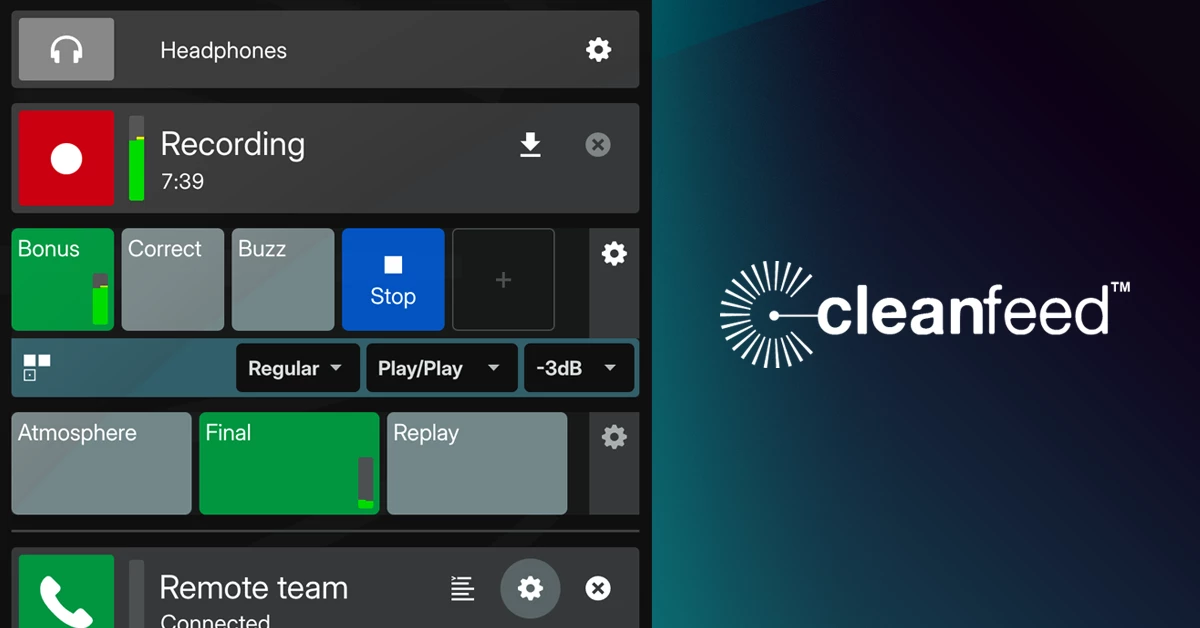
But this specialization is the thing that defines Cleanfeed’s limits. It offers little value to a video-first creator who primarily needs captions, social clips, thumbnails, and visual editing.
Pros:
- Designed specifically for live audio production.
- Gives producers direct control over latency and stability.
- Records synchronized participant tracks.
Cons:
- Does not serve standard video-podcast workflows.
- It lacks a full editor and hosting service.
- Advanced routing may require additional learning.
Pricing (billed annually)
- Cleanfeed Lite is free.
- Pro costs $23/month for personal use or $36/month for businesses.
- Eligible users may qualify for a $12 subsidized rate.
What Users Say
In Reddit podcast discussions, Cleanfeed receives its strongest endorsements from producers who prioritize clean sound, frictionless guest access, and isolated audio tracks over video features.
The main hesitation concerns the breadth of the subscription rather than recording quality, as some creators prefer a platform that also handles video, editing, hosting, and distribution.
Other Notable Features
- Buffer controls balance latency against connection stability.
- Live repair helps address audio problems during a session.
- Auxiliary outputs route isolated audio into other applications.
- Multitrack recording keeps every participant on a separate file.
- Echo cancellation reduces feedback for guests without headphones.
9. Audacity: Best Free Audio Recording and Editing
Try Audacity if you are a solo or in-person podcaster who wants free audio recording and editing without monthly usage limits.
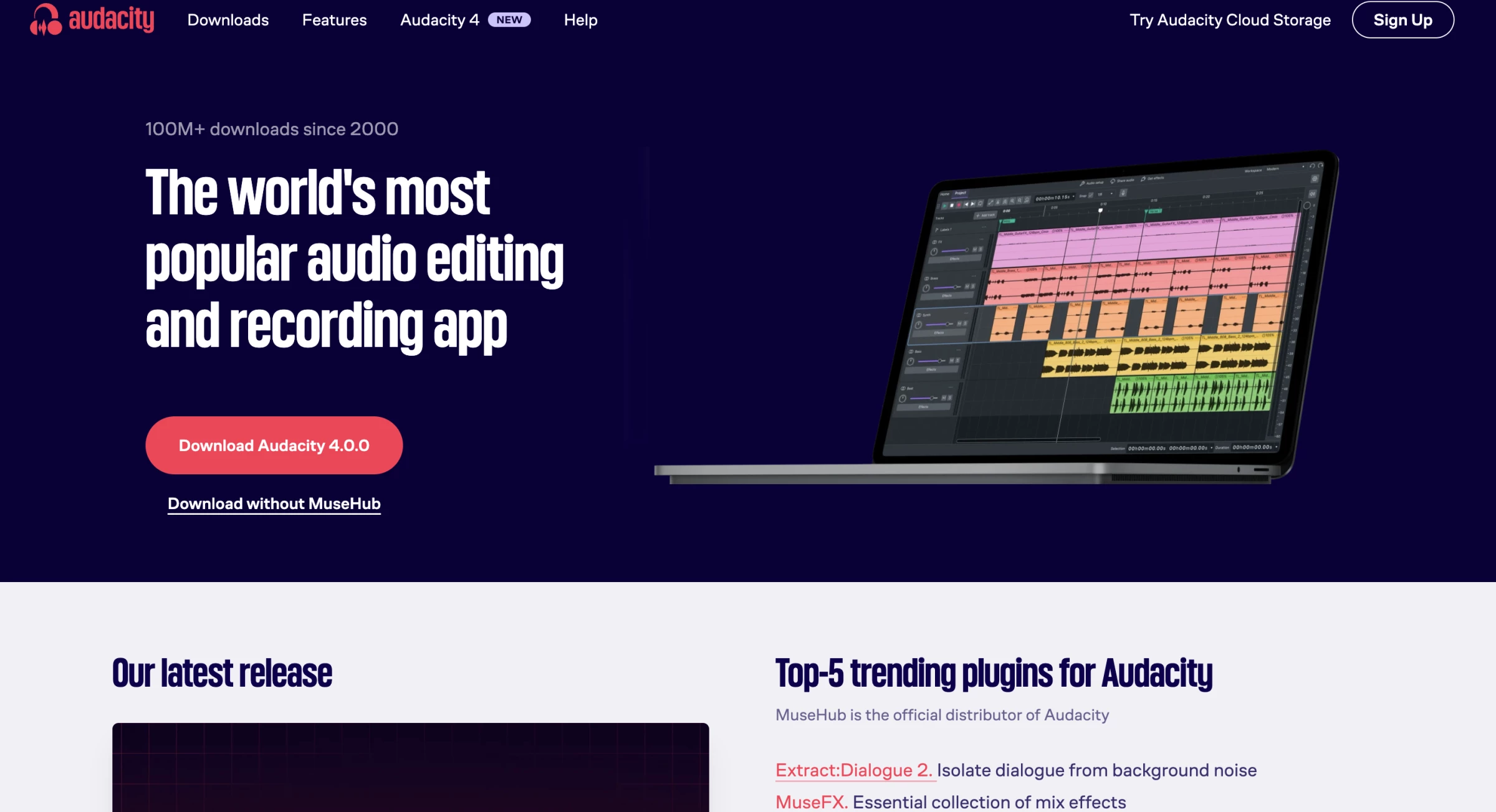
Audacity is a general-purpose audio recorder and editor rather than a dedicated podcast platform.
Still, it supports multitrack recording, waveform editing, effects, plug-ins, mixing, and exports on Windows, macOS, and Linux. Because projects remain on the user’s computer, it does not meter recording hours, cloud storage, exports, or AI credits.
Among free podcast recording software, Audacity provides the greatest flexibility for creators willing to manage recording, editing, and files themselves.
A weekly show can record and edit unlimited episodes without moving to a higher subscription tier. This makes Audacity practical for hobbyists, schools, solo hosts, and teams that already have another way to capture remote guests.
However, that freedom creates more manual work. Audacity does not send guest links, synchronize remote recordings, generate a transcript, host the show, or publish episodes.
You must decide whether avoiding a subscription offsets the time spent transferring and organizing files.
Pros:
- Free and open source with no production limits.
- Works across the main desktop operating systems.
- Supports multitrack editing and plug-ins.
Cons:
- Does not provide remote recording or video editing.
- Requires more manual file management.
- The interface can feel dated.
Pricing
- Free
What Users Say
For many Capterra users, Audacity proves that everyday podcast recording and editing do not require a monthly subscription.
It handles common multitrack, cutting, processing, and export tasks well, but the learning curve becomes more noticeable during advanced edits, and some reviewers report occasional audio or technical problems.
Other Notable Features
- Noise reduction removes consistent background sounds.
- Compression narrows the difference between quiet and loud speech.
- Equalization adjusts the tonal balance of a recording.
- Macros apply repeated processing steps automatically.
- Plug-in support expands the available effects and restoration tools.
10. GarageBand: Best for Mac Users Recording Their First Show
Try GarageBand if you already own a Mac and want to learn multitrack recording without buying a dedicated podcast application.
GarageBand is a music-focused DAW rather than purpose-built podcast software. Its tracks, voice presets, compression, visual EQ, automation, effects, and royalty-free loops can nevertheless support straightforward podcast recording and production.
This free podcast recording software gives Mac users a guided way to learn multitrack production before investing in a professional audio workstation.
Its built-in voice presets give beginners a practical starting point. Instead of building an effects chain from scratch, you can choose a vocal sound and then adjust compression and EQ as your skills improve.
GarageBand works best when speakers record in the same room or send separate files. It can’t invite remote guests, progressively upload participant recordings, host a show, or manage distribution.
Pros:
- Free for users in the Apple ecosystem.
- Provides an accessible introduction to multitrack production.
- Includes effects, presets, music, and loops.
Cons:
- Limited to Apple devices.
- Does not include remote guest recording.
- Offers less detailed control than a professional DAW.
Pricing
- Free
What Users Say
GarageBand scored 9.7 out of 10 on TrustRadius at the time of research. The feedback positions it as a strong first audio workstation for Mac users, particularly because its interface makes recording and multitrack editing approachable.
Its limitations become clearer in advanced production, where users mention restricted plug-in and mastering options, large project files, inconsistent input controls, and Apple-only availability.
Other Notable Features
- Voice presets provide ready-made starting points for spoken audio.
- Compression balances differences in speaking volume.
- Visual EQ adjusts bass, midrange, and treble frequencies.
- Automation changes volume and effects over time.
- Apple Loops supplies royalty-free music and sound elements.
11. Reaper: Best for Building a Custom Production Workflow
Try Reaper if you are a technically confident independent producer who wants a customizable professional DAW without an ongoing subscription.
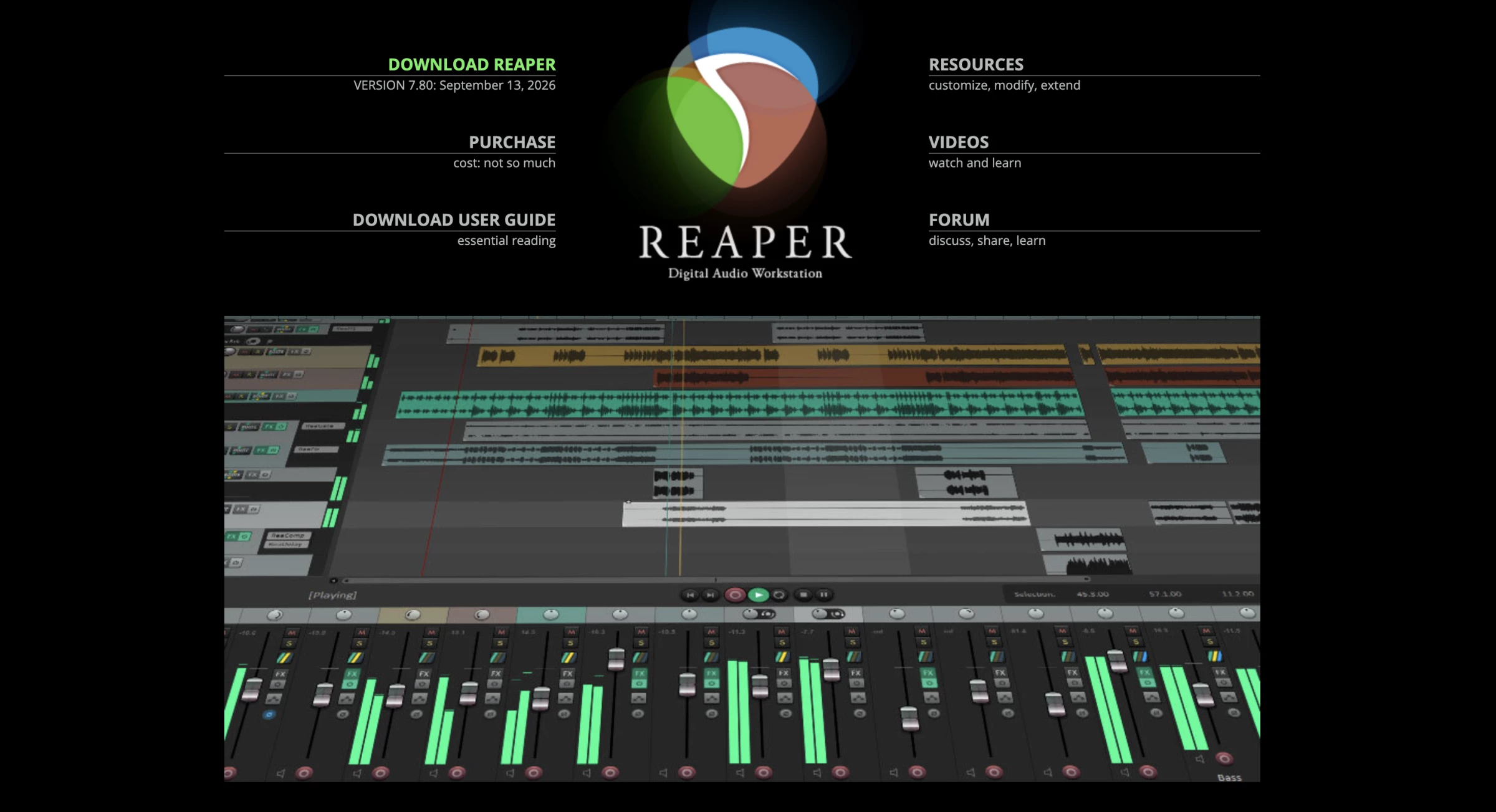
Reaper is a professional DAW rather than a purpose-built podcast recording platform.
It supports detailed recording, routing, editing, automation, plug-ins, scripting, and custom actions that make it unusually accessible for professional audio software.
Customization becomes valuable when every episode follows the same production pattern. You can create an action that trims a selected clip, adds fades, applies processing, and moves to the next edit. That initial setup can remove hundreds of repetitive clicks from a long-running show.
Reaper does not provide that podcast workflow out of the box.
You must create your own track templates, processing chains, keyboard actions, file structure, and export presets. It rewards technical producers but may slow down beginners who want the software to make those decisions for them.
Pros:
- Offers extensive customization and routing.
- Charges a relatively low one-time license fee.
- Runs on Windows, macOS, and Linux.
Cons:
- The default interface is less guided than podcast-specific tools.
- Requires substantial initial configuration.
- Provides no native remote guest recording.
Pricing
- $60 for a discounted license
- $225 for a commercial license
- A fully functional 60-day evaluation is available.
What Users Say
Capterra users often frame Reaper as an unusually capable investment for its one-time price, citing its speed, stability, plug-in compatibility, and extensive customization.
Its main compromise is not a lack of capability but the work required to unlock it, as users may need to configure the interface and build their own workflow before production becomes efficient.
Other Notable Features
- Custom actions combine repeated editing commands.
- Scripts extend the software beyond its standard controls.
- Flexible routing supports complex recording and monitoring setups.
- Render presets standardize recurring podcast exports.
- Broad plug-in support includes VST, AU, and other formats.
12. Logic Pro: Best for Advanced Podcast and Branded Audio Production
Try Logic Pro if you are an advanced Mac-based producer creating podcasts that also involve original music, sound design, advertisements, or branded audio.
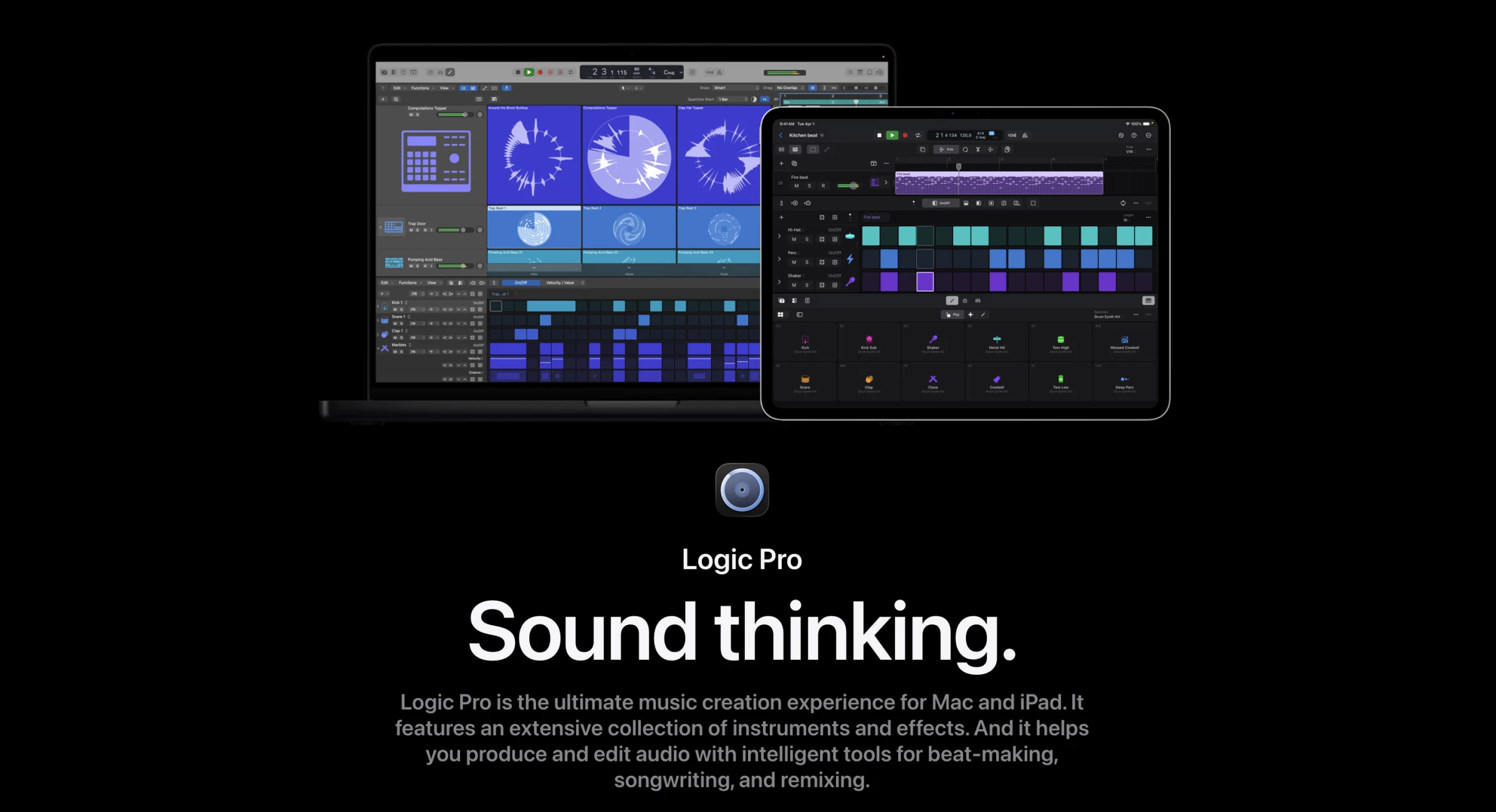
Logic Pro provides professional recording, editing, mixing, automation, effects, plug-ins, loops, and mastering tools.
A narrative or branded podcast team receives compressors, EQs, reverbs, mastering tools, virtual instruments, loops, and royalty-free sounds without assembling an additional collection of plug-ins and stock audio.
Those resources provide limited value to a simple interview show. Logic Pro cannot send a browser link to a guest, manage remote uploads, host the podcast, or distribute an RSS feed.
It works best as a post-production center after the recordings have been captured elsewhere.
Pros:
- Provides extensive professional production tools.
- Includes a large collection of plug-ins and sounds.
- Remains available as a one-time purchase.
Cons:
- Only runs on Mac.
- Does not include remote recording or hosting.
- The feature set can overwhelm first-time podcasters.
Pricing
- Apple Creator Studio starts at $12.99/month or $129/year
What Users Say
For Capterra reviewers, Logic Pro’s appeal lies in the amount of recording, editing, sound-design, and mixing functionality available in one Mac application.
That depth delivers strong value for experienced producers, but it can also make simple podcast edits take longer and create a steeper learning curve for creators who do not need its full production environment.
Other Notable Features
- Mastering Assistant prepares a more consistent final mix.
- Take folders organize several versions of the same performance.
- Flex Time adjusts timing without rerecording the source.
- Automation changes volume, panning, and effects throughout an episode.
- The included plug-in and sound library supports music and sound design.
How To Choose Podcast Software for Your Situation
Start by choosing how you want to capture the recording, whether you need video, and how much editing and publishing work you want the platform to handle.
These decisions will eliminate most unsuitable tools before you compare secondary features or prices.
For a Team or Interview-Format Show
Choose a platform that provides a separate audio and video track for every participant. Individual tracks let an editor adjust one person’s volume, remove background noise, correct color, or cut interruptions without changing the rest of the conversation.
Riverside and Zencastr both support separate locally recorded participant files.
StreamYard adds this capability to a live-production workflow, making it a better fit for teams that broadcast first and edit the episode afterward.
Teams should also compare user seats, producer roles, shared workspaces, recording allowances, and approval tools. A low entry price can become misleading if basic collaboration requires a higher plan.
Riverside’s team says the dividing line between solo and team software becomes clearest after the recording ends.
A solo creator may only need dependable capture and straightforward editing, while a marketing team must coordinate multiple participants, maintain consistent branding, manage reviews, and repurpose each session across several channels.
For those teams, Riverside positions its advantage as the ability to extend one recording into a broader campaign. “It doesn’t stop at a clean recording; it produces the whole content drop — clips, blog, social, and show notes — on-brand,” the team says.
That broader workflow provides value to both marketing teams building multichannel campaigns and creators who want to streamline recording, editing, and publishing.
That broader workflow provides more value to marketing and content teams than to creators who only want to record and publish a basic episode.
If You’re a New Podcaster Starting Out
Choose a tool you can use consistently before investing in advanced features. GarageBand works well for Mac users, Audacity provides free cross-platform audio production, and Zoom offers a familiar option for early remote interviews.
After producing several episodes, you will know whether you need video, local guest recording, automated editing, collaboration, or built-in publishing.
If You’re a Solo Podcaster With Remote Guests
Prioritize recording reliability and a manageable workflow. Riverside suits hosts who want local 4K video and separate participant tracks, while Zencastr fits creators who prefer recording, editing, hosting, and distribution in one platform.
Cleanfeed offers a more focused option for audio-only shows that value natural live conversation and producer controls.
If You’re a Podcaster Who Wants Everything in One Place
Alitu suits solo creators who want automated audio cleanup, editing, hosting, and publishing without a traditional timeline.
Zencastr combines local remote recording with hosting and distribution, while Riverside emphasizes recording quality alongside editing and hosting on eligible plans.
Async fits teams that produce podcasts alongside AI-generated clips, dubbing, voiceovers, and social video.
If You’re a Budget-Focused Creator
Start with the tool that covers the immediate workflow for free:
- Choose Audacity for free recording and detailed audio editing across desktop operating systems.
- Use GarageBand if you own a Mac and want a more guided multitrack environment.
- Try Zoom for occasional remote interviews where guest familiarity outweighs source quality.
- Use Adobe Podcast when the main problem is cleaning noisy or echo-heavy speech.
Pay for a platform when a free workflow creates a recurring bottleneck.
A free recorder can become expensive if every episode requires hours of file transfers and manual editing, while an all-in-one subscription wastes money if you use only its recording button.
Is Local or Cloud Recording Better for Podcasts?
Local recording captures each participant’s original camera and microphone feed on their device. Cloud recording captures the media transmitted through the call, making it simpler but more vulnerable to connection problems.
Choose local recording when you cannot easily repeat an interview or need consistent production quality.
Riverside and Zencastr provide separate local participant tracks, while cloud recording remains suitable for internal podcasts and quick conversations where convenience takes priority.
Do You Need Audio-Only or Video Podcast Recording?
For audio-only podcasts, Audacity and GarageBand provide free recording and editing for solo or in-person shows. Cleanfeed suits remote broadcasts that prioritize live sound, while Riverside and Zencastr offer locally recorded participant tracks for remote interviews.
For video podcasts, use at least 1080p for a professional-looking show. Choose 4K if you plan to crop footage or create vertical clips for TikTok, Instagram Reels, and YouTube Shorts. Riverside focuses on high-quality interviews, Zencastr adds hosting and distribution, and StreamYard suits live broadcasts.
| Factor | Local Recording | Cloud Recording |
| Quality | Higher and more consistent | Depends on the connection |
| Internet stability | May disrupt the call without damaging the local track | Can cause compression, freezing, or missing media |
| File size | Larger source files | Smaller compressed files |
| Upload process | Continue during or after the session | Reach the platform immediately |
| Setup | Requires storage and completed uploads | Usually simpler |
| Best for | Professional remote production | Quick or low-stakes recordings |
Final Recommendation
Whatever you shortlist, test it before you commit. Record a real session with a guest on a weak connection, compare the downloaded files rather than the live call, and check that your plan's limits match your actual monthly volume.
“Put a guest on bad internet and compare the final file against a cloud or Zoom-style recorder,” the Riverside team recommends. “That’s where most platforms quietly fail and where the difference is night and day.”
Run that test with every platform on your shortlist. Compare the downloaded files rather than the live call, confirm that each participant receives a usable separate track, and check how long the files take to upload and process.
Make sure the plan’s recording hours, export limits, storage, seats, and AI credits match your expected monthly production volume.
Our team ranks agencies worldwide to help you find a qualified partner. Visit our Agency Directory for the top podcast production companies, as well as:
- Top Audio Production Companies
- Top Video Production Companies
- Top Content Marketing Agencies
- Top Media Buying Agencies
- Top Social Media Marketing Agencies
Our design experts also recognize the most innovative design projects across the globe. Given the recent uptick in video podcasting, you'll want to visit our Awards section for the best & latest in video production.